
This is how to assign a team member as the Property Manager.
Please note This is not the same as a Managing Agent. A Property Manager is an internal user responsible for managing properties. A Managing Agent refers to the company overseeing properties.
This feature allows you to assign an internal team member to manage specific properties in your portfolio. It is particularly valuable for teams that divide responsibilities across multiple users, making it easier to manage large portfolios with clear internal ownership.
Assign a Property Manager to a Property.
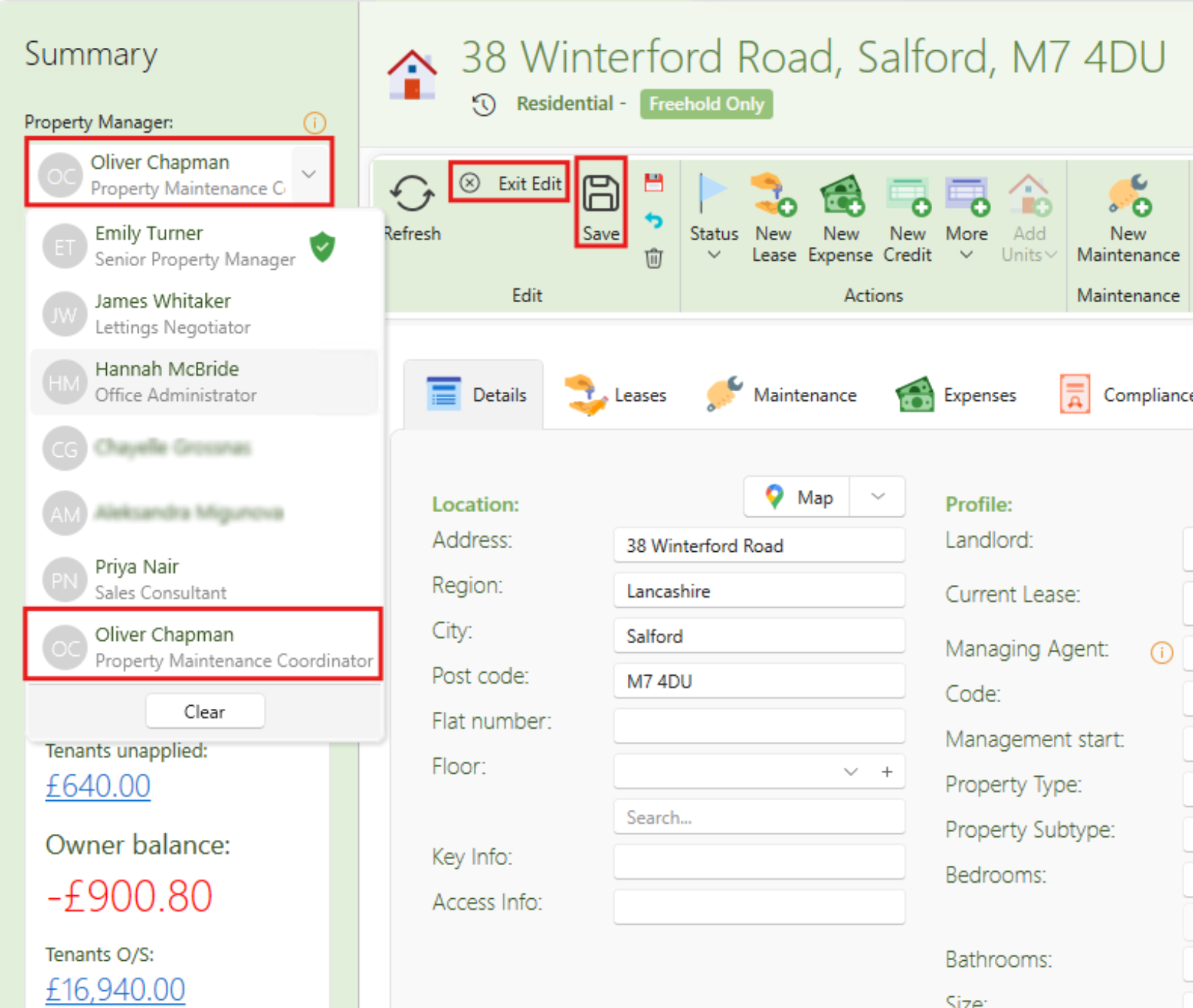
- Open the property page.
- Click Edit.
- Find the Property Manager field under Summary.
- Select the user you want to assign.
- Click Save.
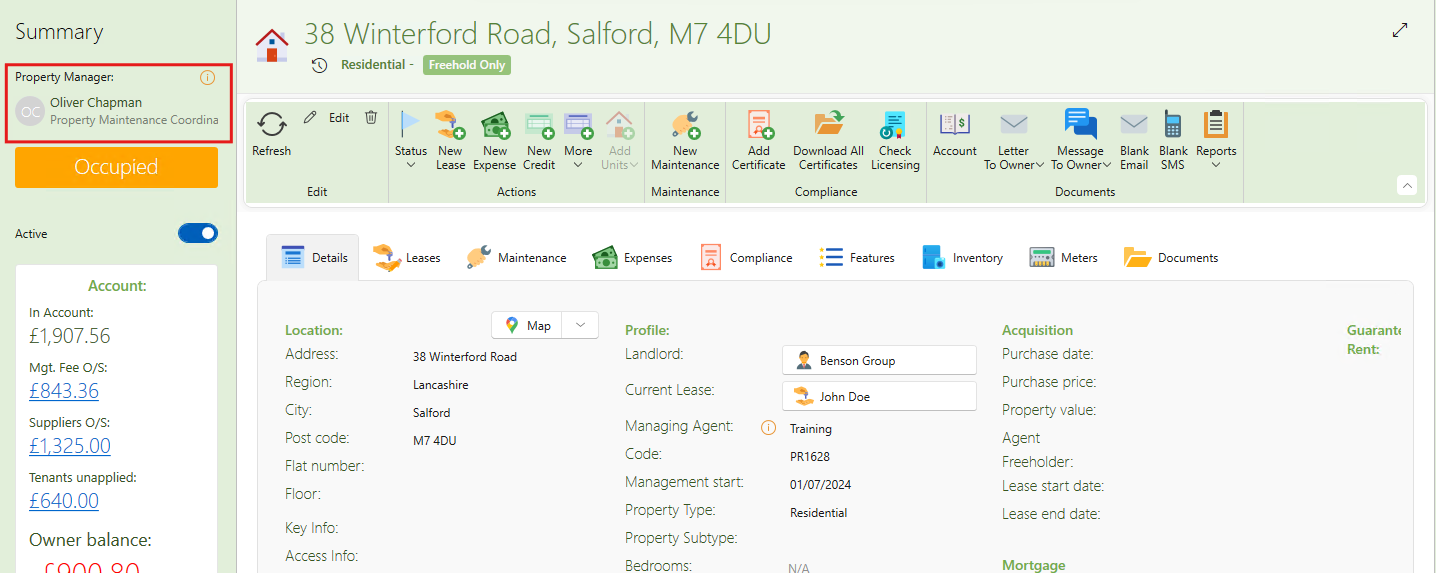
- You’ll now see the assigned Property Manager displayed on the property.
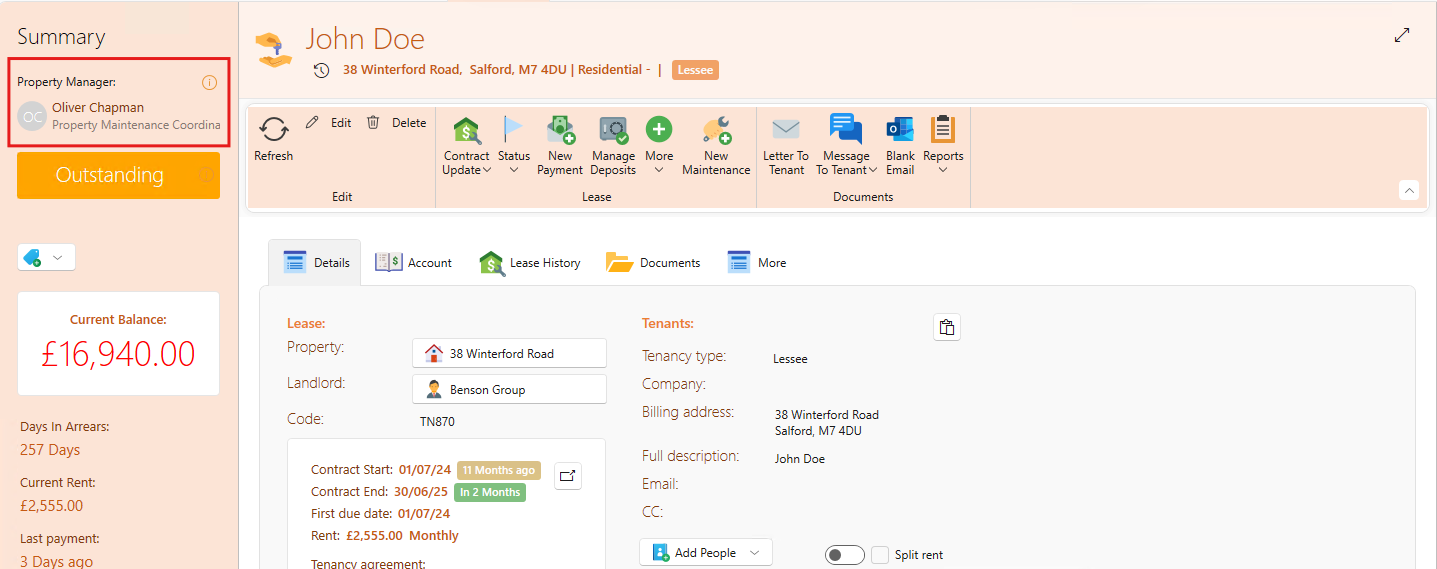
- You can also see the assigned property manager on the tenancy pages.
Bulk Assign Property Managers
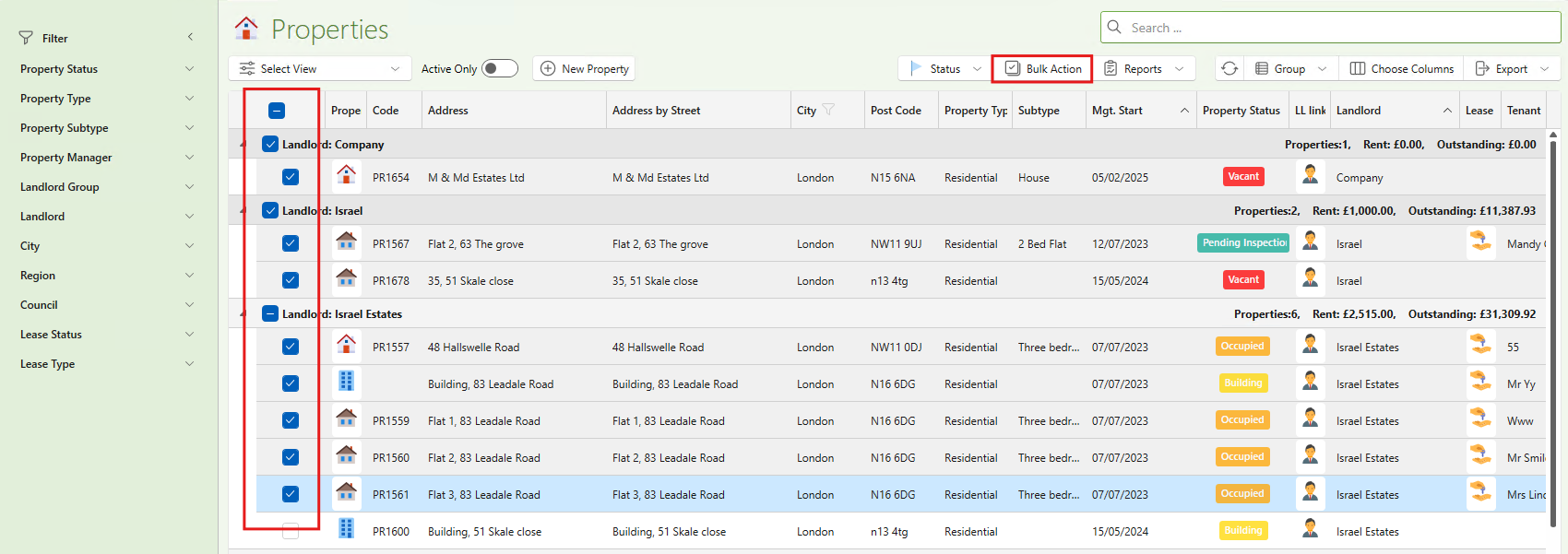
- On the View Properties page.
- Use filters if needed to narrow the list e.g. City and select London.
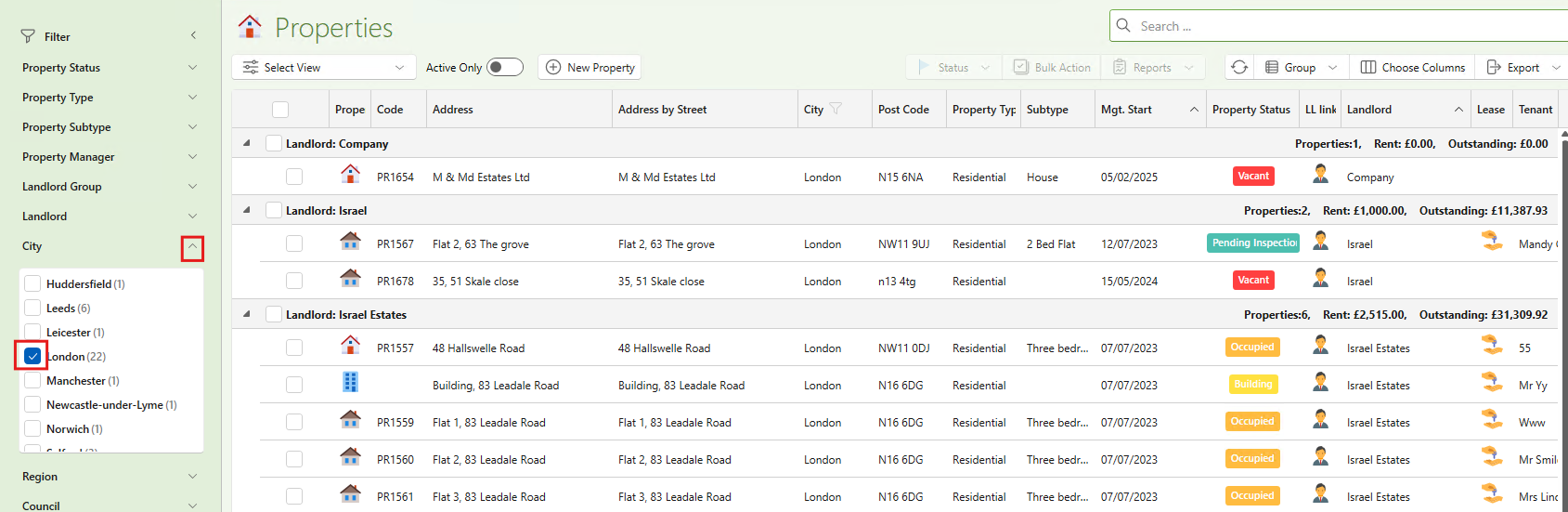
- Select the properties.
- Click Bulk Actions.
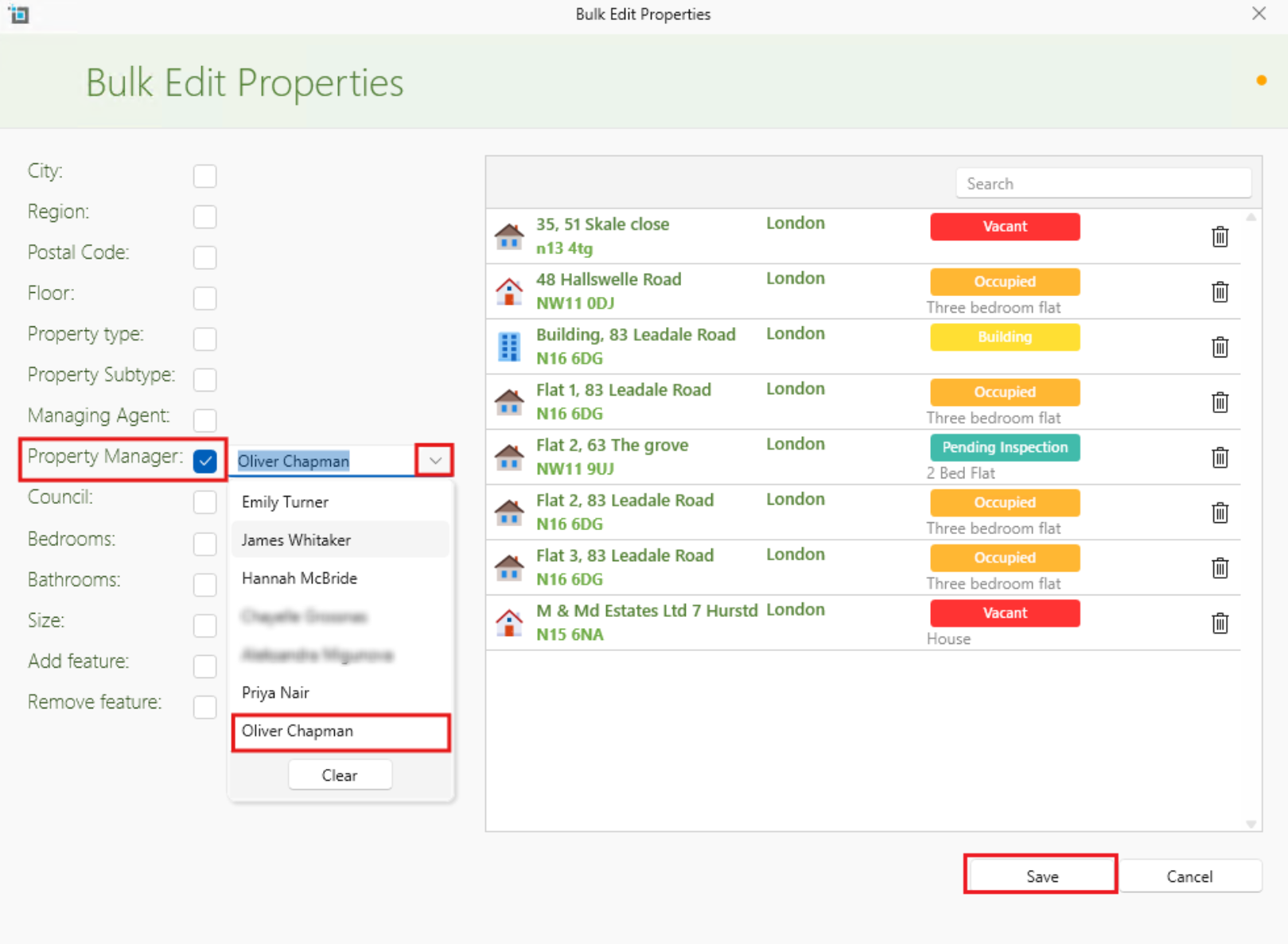
The bulk edit properties page will open and your selected properties will be show on the right.
- Click on Property Manager.
- Select the team member to assign.
- Click Save.
Filter by Property Manager
You can use these steps on the View Properties page and the View Leases page to filter by property manager.
- Go to either View Properties or Leases.
- Use the Property Manager filter.
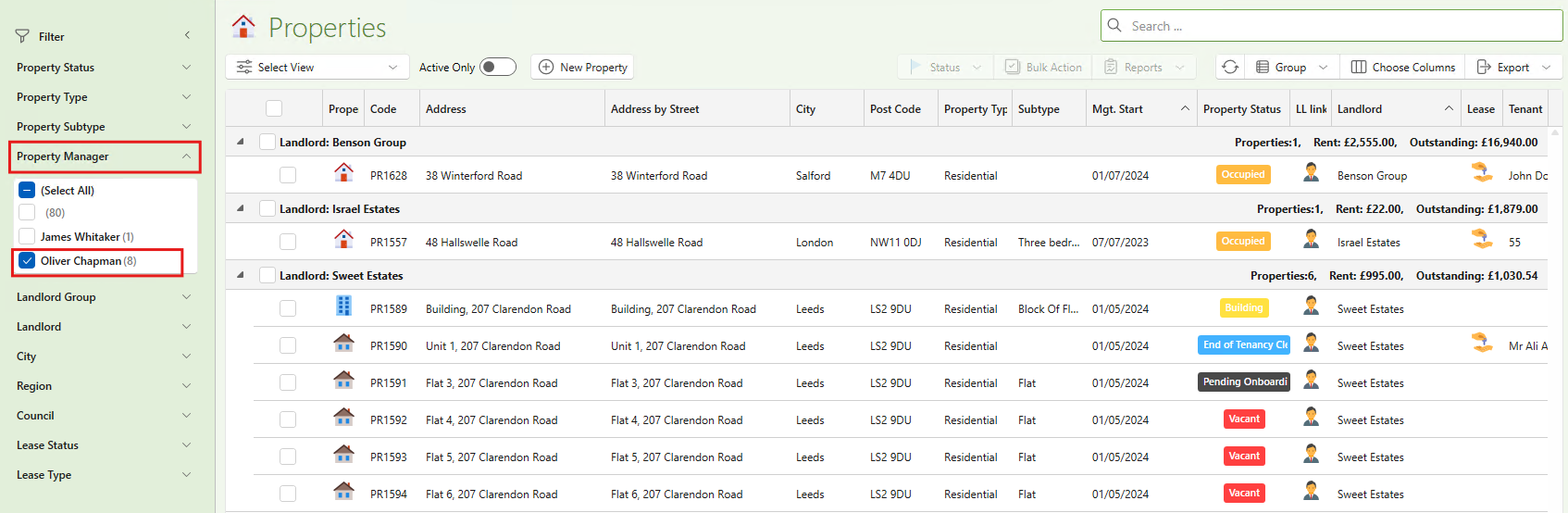
Only properties or leases managed by the selected team member will appear.
Assigned Property Manager Dashboard Visibility (Admin Only)
Only the admin can allow selected users to view the dashboard based on their specific activity.
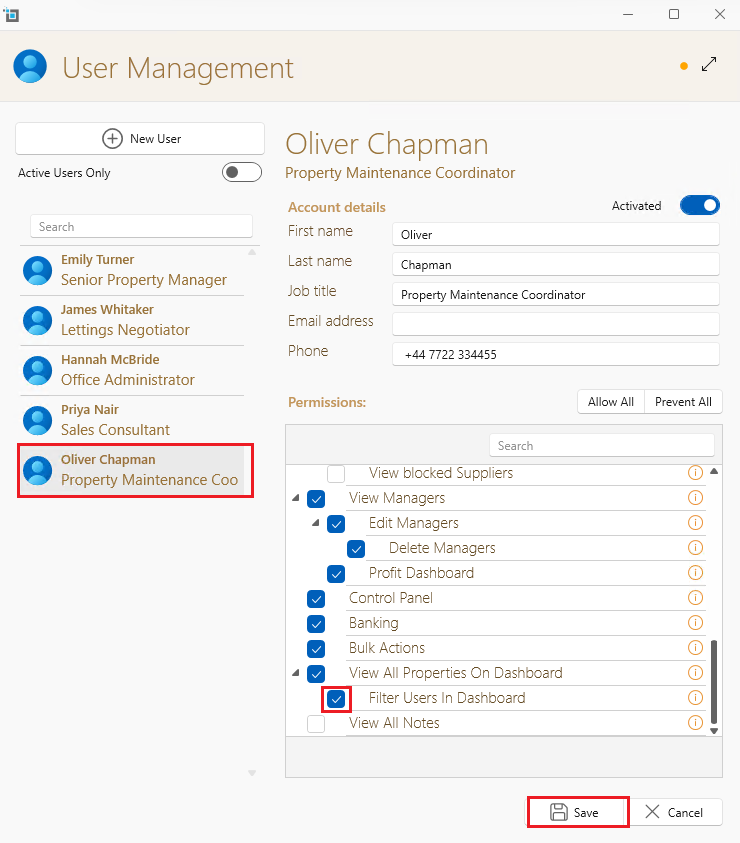
- In the Control Panel click on User Management.
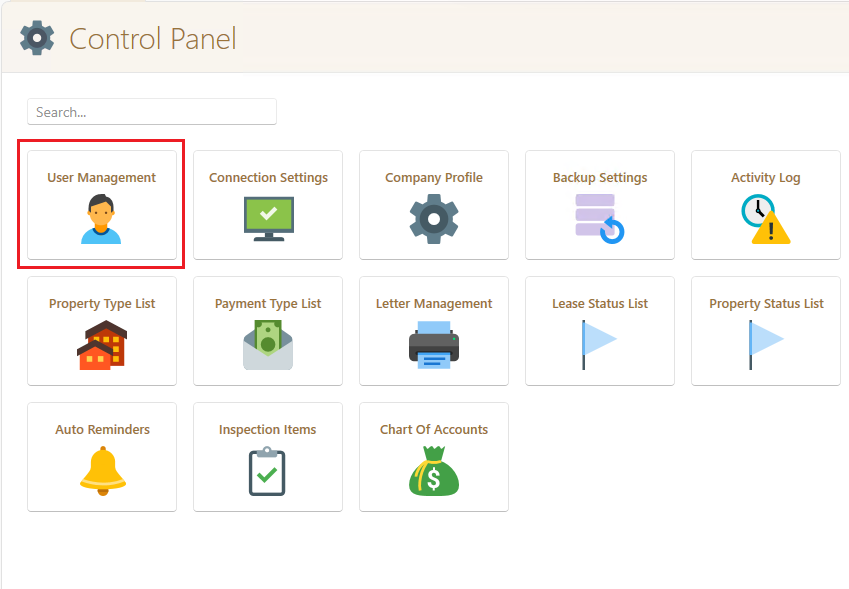
- Select the relevant user and go in their permissions.
- Tick Filter Users In Dashboard.
- Click Save.
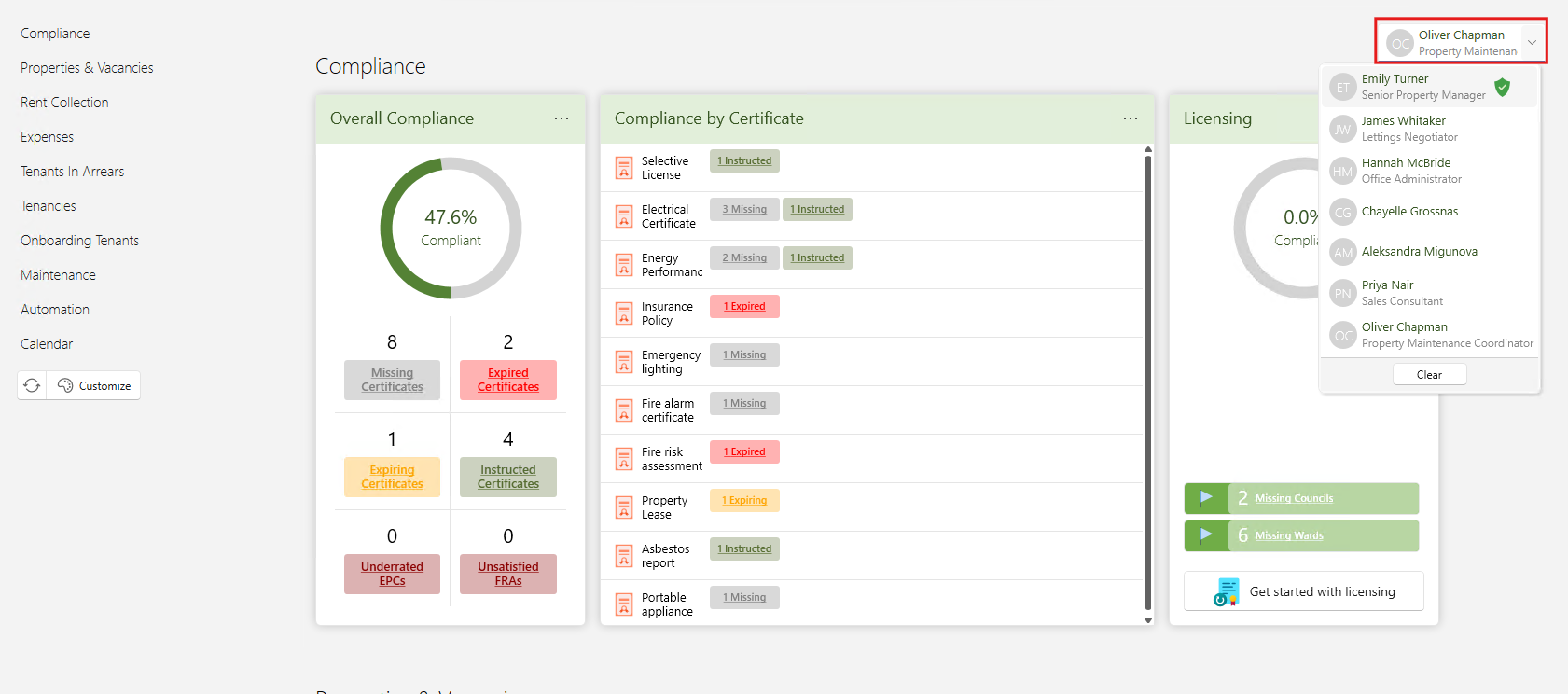
- On the Dashboard on the far right there is a dropdown list with all the agents. The admin can filter the dashboards content by agent.
- The admin can additionally Uncheck View all properties on dashboard to limit visibility to only assigned properties
- Once set up, SleekTech will automatically limit or expand dashboard views based on these assignments and permissions.