
Monitoring and Overseeing Automation Runs
The arrears automation system provides several tools for tracking, managing, and understanding how your rules are running. Here’s a detailed breakdown of how you can monitor and oversee automation runs effectively:
Daily Runs:
- The automation process runs automatically every morning, sending arrears emails and updating statuses as defined by your rules.
Recent Run Overview:
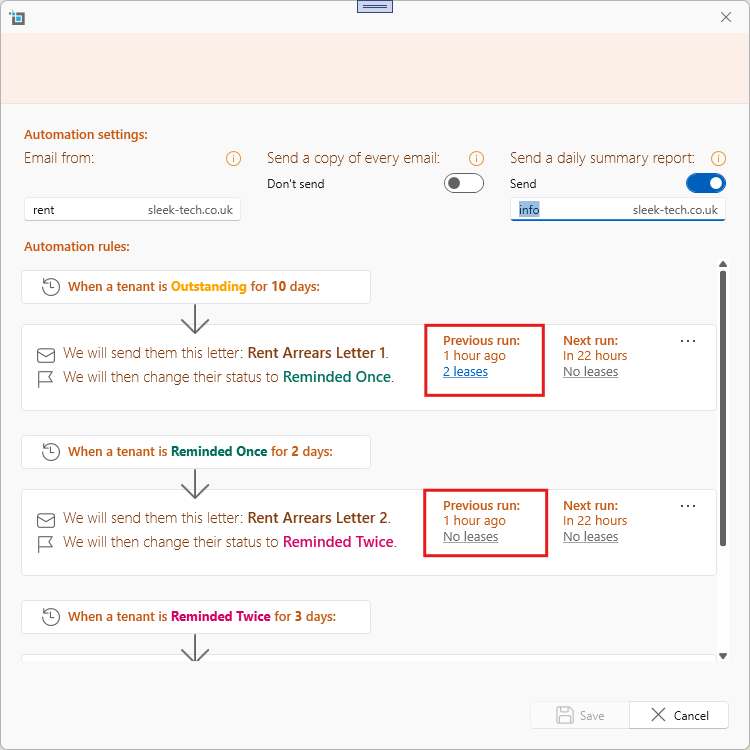
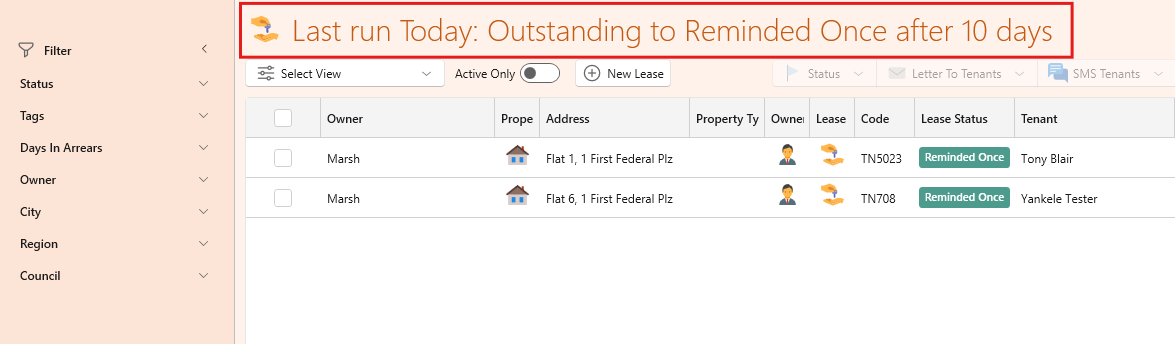
- On the Chase Arrears Rules page, you can see how many emails were sent during the most recent run for each rule.
- Click on the count to view a detailed list of the tenancies affected.
- You can also set up an email address to receive a daily summary report of all emails sent by the rules. Fore more about this see here: Step-by-Step Guide to Setting Up Arrears Rules
Preview Next Run:
- You can preview the next scheduled run to see how many emails would be sent if the rules were executed at that moment.
- View the list of affected tenancies by clicking the preview count for greater clarity.
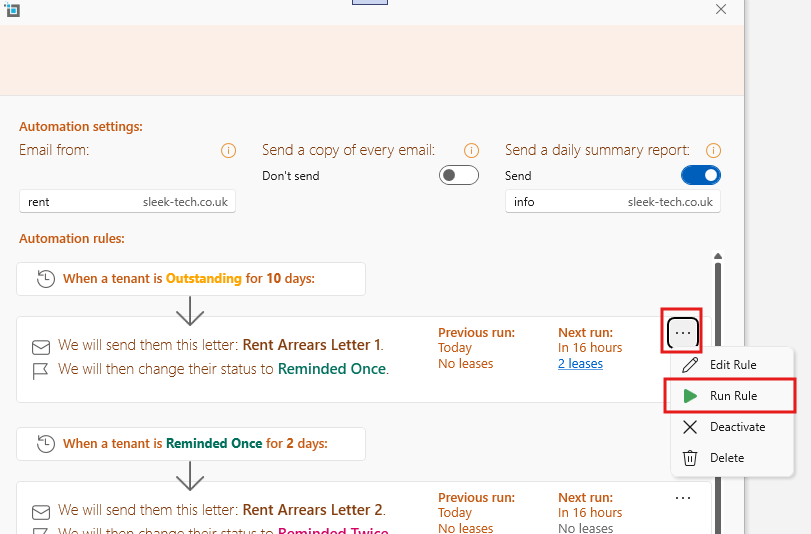
Run Rules Manually:
- From the Chase Arrears Rules page, you have the option to manually run any rule by selecting Run Rule from the dropdown next to the desired rule. This will immediately execute the rule and send emails accordingly.
Status Tracking on the Dashboard:
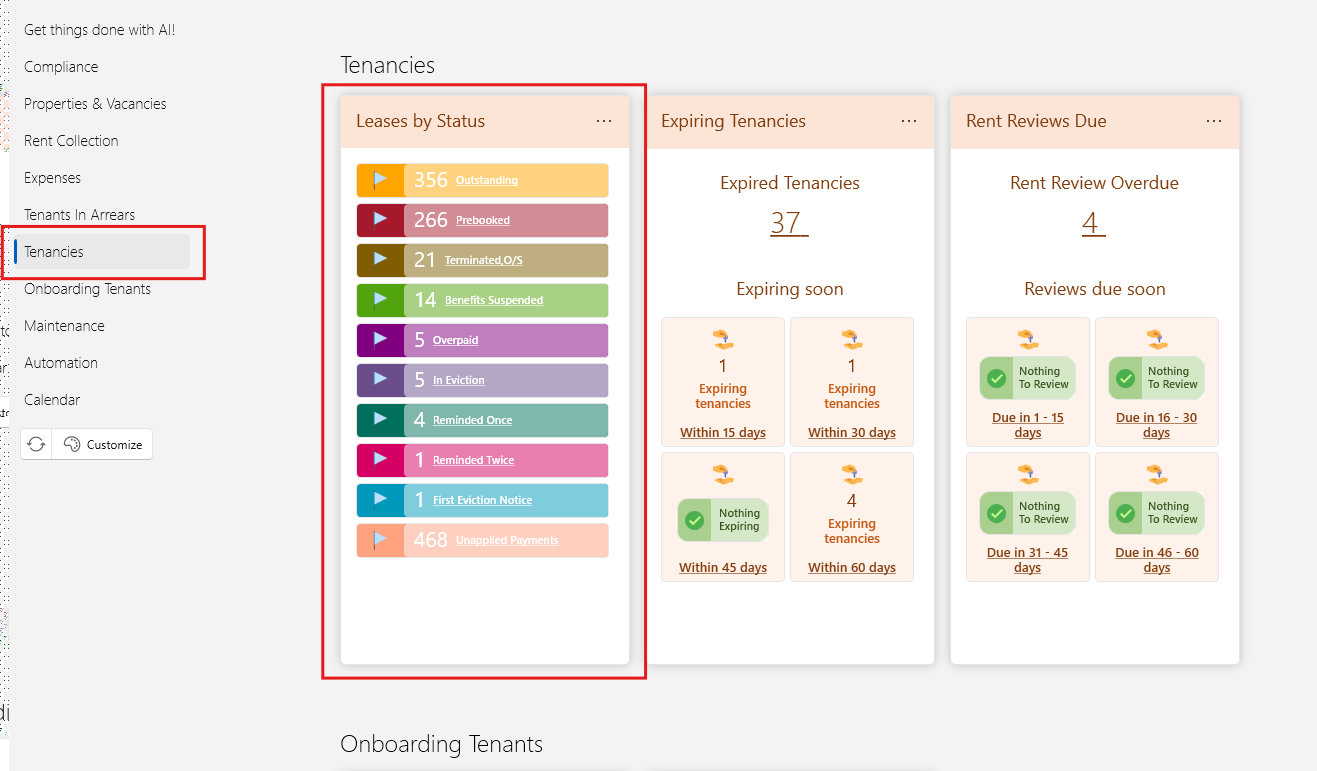
- The Tenancies section on the dashboard allows you to view all tenancies under each arrears status. This gives you a clear understanding of how many tenancies are at each stage of the process, such as "First Reminder" or "Final Notice."
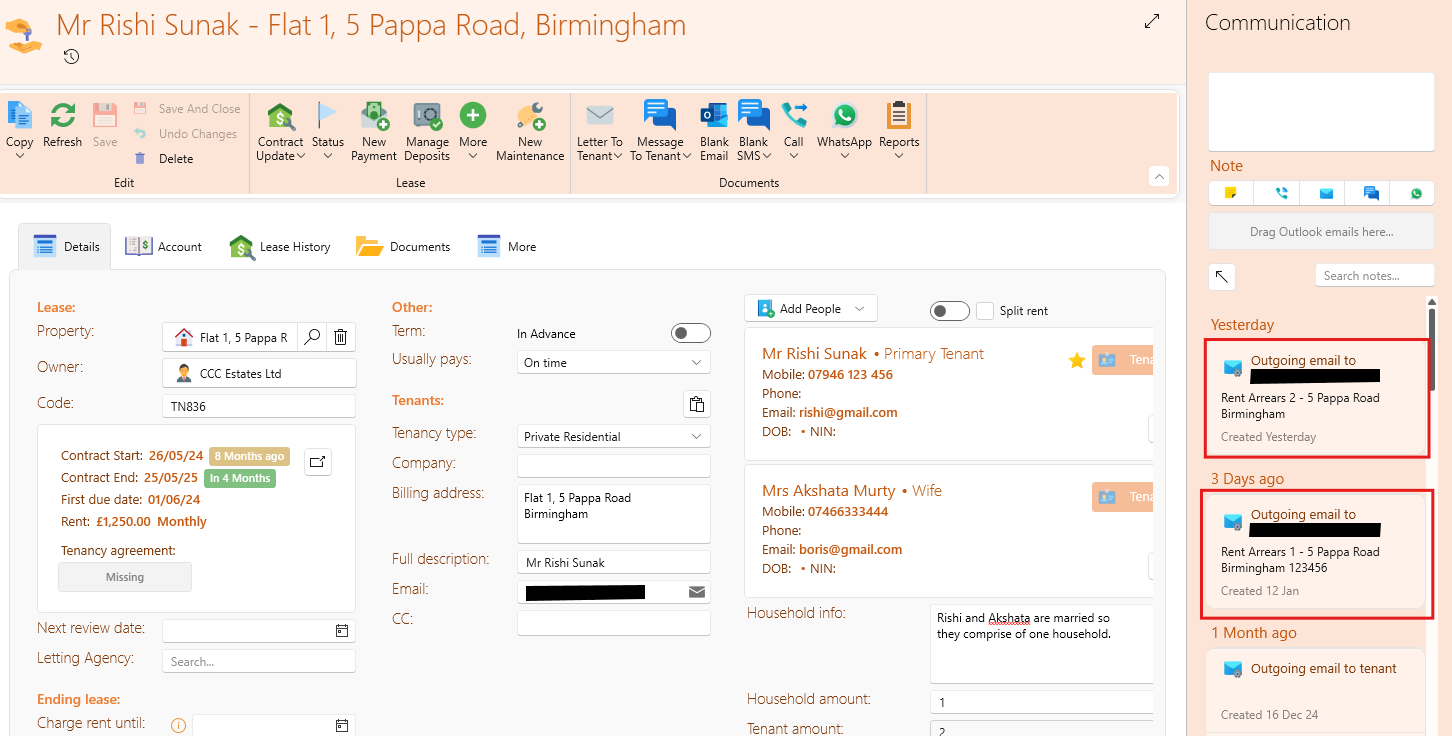
Outgoing Email History on Tenancy Pages:
- On each tenancy's page, under the Communication Panel, you can view every email sent as part of the automation rules. This ensures full transparency at the individual tenancy level.
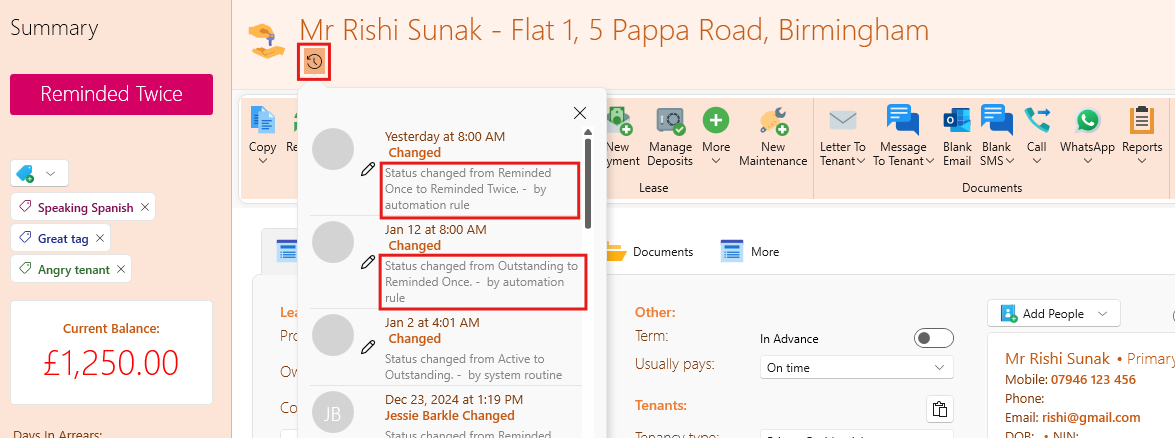
Status Change History:
- On the History tab of a tenancy page, you can track when the system automatically changed statuses based on the rules, providing a clear audit trail of automation actions.
Global Email History:
- All email activity, including arrears reminders, is stored under the More section in the main navigation bar and then click Email History.
- You can filter the email history by date or by specific rules, making it easy to locate and review past communications.
By utilizing these tools, you can maintain full visibility and control over your arrears automation process, ensuring efficient management and timely communication with tenants.