
Step-by-Step Guide to Setting Up Arrears
In this guide, we’ll show you how to set up arrears chasing to help your management company run smoothly.
The rules you create will apply to all tenancies with arrears, no matter how many days they are overdue. Once you finish creating a rule, the system will automatically check back and apply it to any tenants who match the criteria. This makes sure nothing gets missed and everything stays on track.
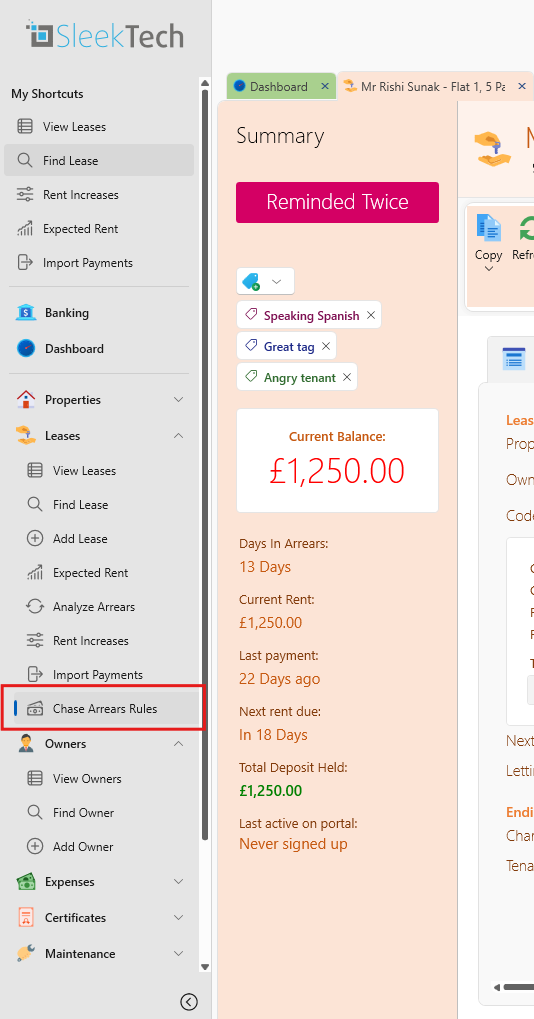
1. Access the Chase Arrears Rules Page
- In the Navigation Bar, under Leases, click on Chase Arrears Rules.
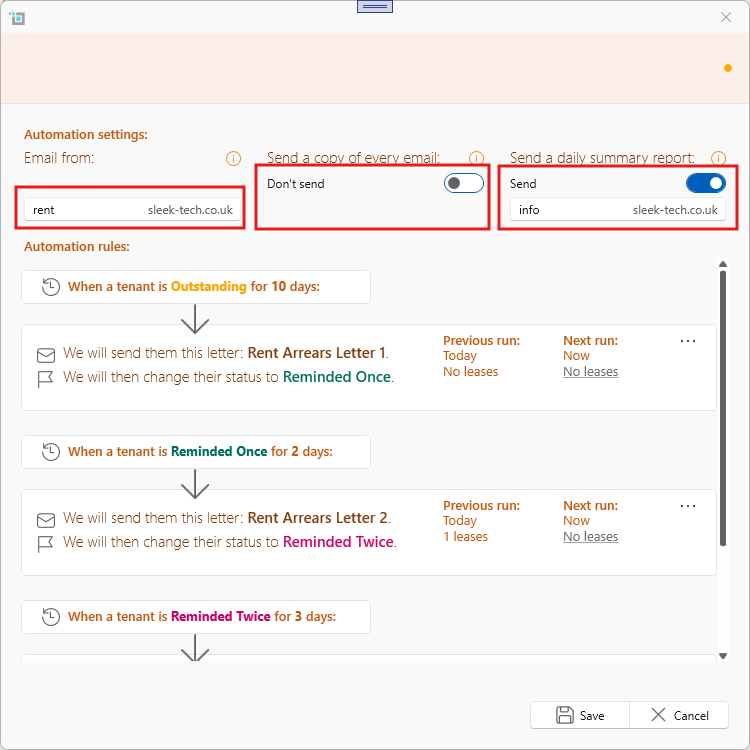
2. Configure General Settings
- Email From: Set the email address from which all arrears emails will be sent. You can use a professional address such as rent@yourcompany.co.uk.
- Send a Copy of Every Email: Add an email address to be BCC’d on all reminder emails for oversight.
- Send a Daily Summary Report: Enter the email address of a team member who will receive a daily summary of all arrears emails sent.
3. Create a New Rule
- Click New Rule to begin creating a rule.
- Rule Description: An automatic description will be pre-filled, but you can edit it to suit your needs (e.g., "5-Day Reminder Rule").
- Current Status: This will always start as Outstanding, indicating the tenancy is overdue.
- Amount of Days: Specify how many days after a tenancy becomes outstanding this rule should trigger.
- Select a Letter: Choose an email template from the dropdown menu to send as part of this rule. You can also customize or create additional templates by clicking the dropdown menu.
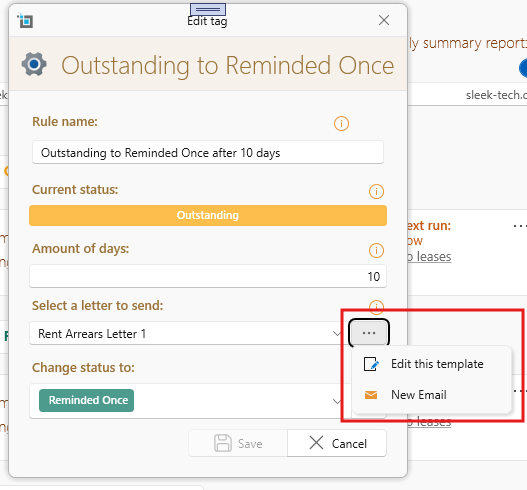
- Change Status To: Select the next status the tenancy should move to once this rule is triggered.
- Click the Edit Status List button to manage or add new statuses.
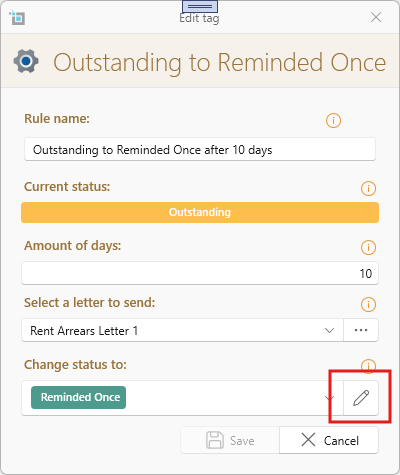
- Once all fields are filled out, click Save.
- The rule will now appear in the automation process.
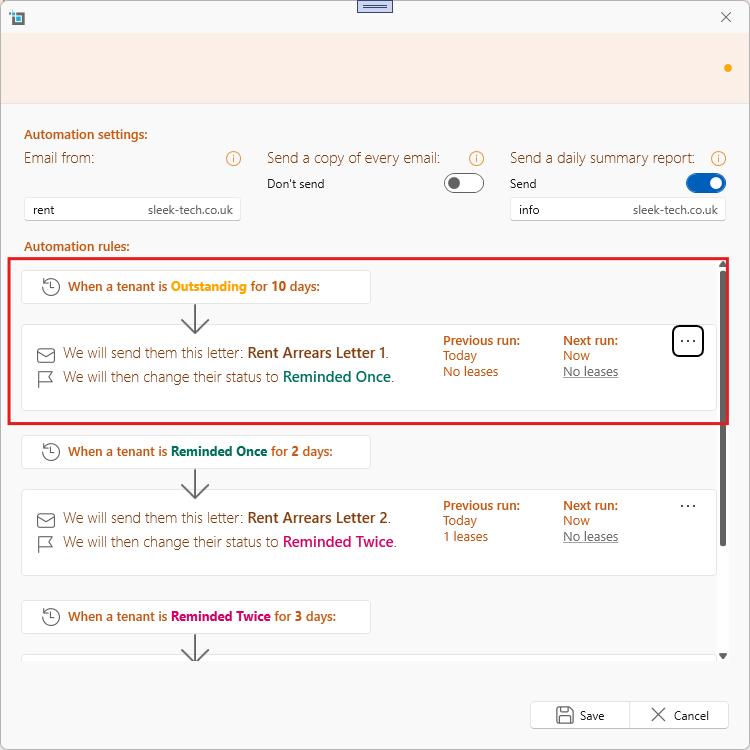
4. Add Additional Rules
- You can create subsequent rules by clicking New Rule again.
- The Current Status for each new rule will automatically default to the Change Status from the previous rule.
- Important Note: You can only set the Change Status To field to a status that comes later in the order of your custom status list. This ensures a logical progression.
5. Edit Existing Rules
- To edit an existing rule, click the Edit button next to the rule on the main Chase Arrears Rules window.
- Update the fields as needed, such as the amount of days, letter to send, or change status.
- Once your changes are complete, click Save to apply the updates.
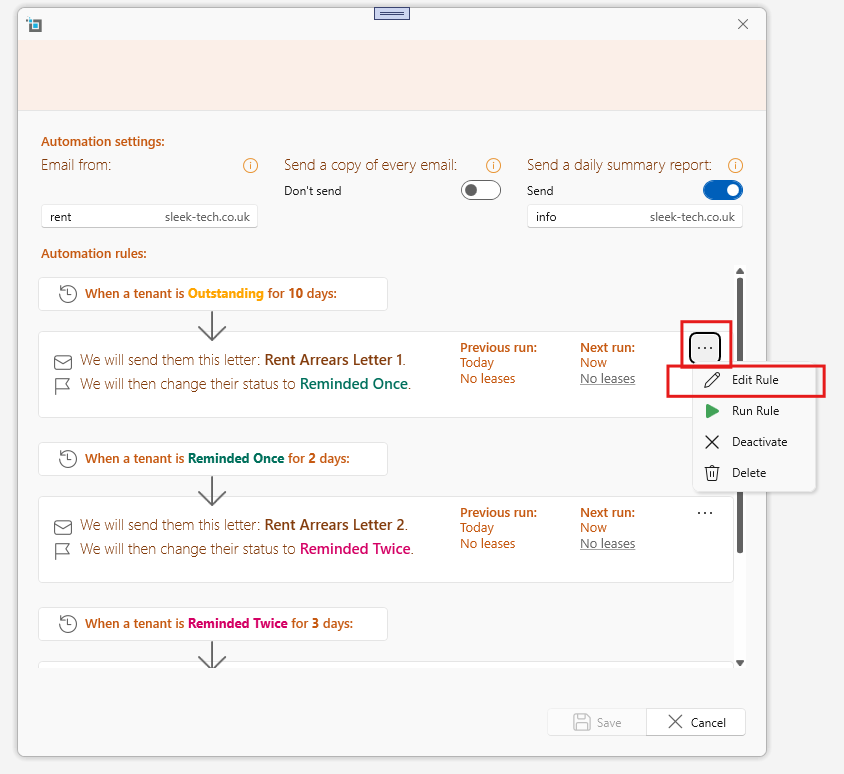
6. Delete or Deactivate Rules
Deleting Rules:
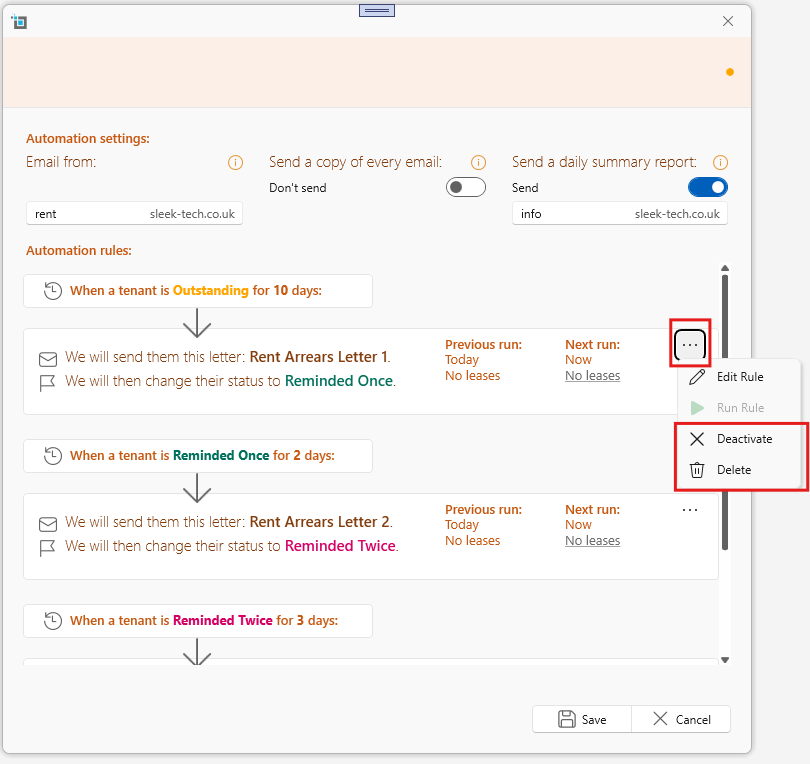
- If a rule has never been used in the automation process, you can delete it by clicking the Delete button next to the rule.
- However, if the rule has already been used, deletion will not be possible but you can still deactivate them.
Deactivating Rules:
- To temporarily pause a rule, click Deactivate. This is useful during periods such as holidays when your rent collection records might not be fully up to date.
- Deactivated rules can be reactivated later when you’re ready to resume the automation process.
Still having problems?
If the rule is not working, make sure you have included all tenancies in this rule by turning on the setting on their page.
Which Tenancies will be included in Arrears Automation Rules