
Welcome to our guide on how to set up guaranteed rent using SleekTech, our all-in-one software solution designed to simplify, streamline, and empower property managers.
Guaranteed Rent is a system in which the landlord receives a set rental income regardless of the actual tenant income.
If you only forward rent to the landlord based on the rental income received by the tenant you might want to use the higher rent method as explained in the following article:
Guaranteed Rent
When setting Guaranteed rent up the system will do two steps:
1) It will automatically credit a set rental income from your management company to the
landlord each month.
2) It will divert any tenant income to your management company and will never show on
the landlords account.
Setting Up
From the Main ribbon, navigate to the property page in order to access the guaranteed rent section as pictured below.
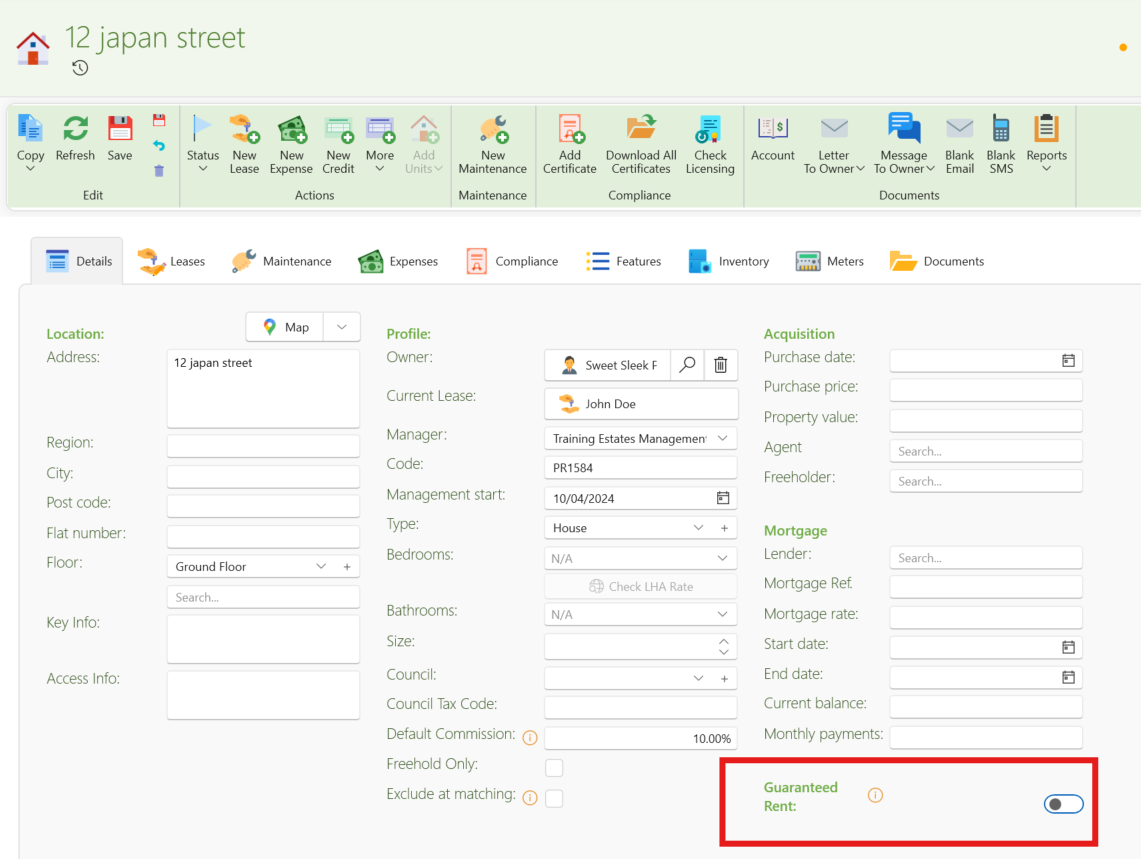
Follow these steps to switch on the guaranteed rent:
- Slide the toggle to switch on the Guaranteed Rent.
- Fill in the amount of Rent that will be sent to the landlord monthly (no commission will be taken from this amount)
- Set up how often this rental income will occur and what day in the month it will generate the Credit note for the rental income to the landlord on.
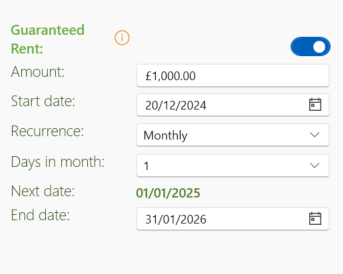
Completing the above task will automatically generate a credit note from your management company to the landlord in accordance to the details you have put in.
It will also automatically divert any tenant income to your management company.
Expenditure
If the owner will not be charged for any expenditure incurred for the property, the expenses for the property should be logged on the managers page as a new expense as outlined in the following article:
Creating a Company expense - Recording a Manager expense
Management Statement
Generating a manger statement will complete the guaranteed rent process.
When generating your monthly manager statement ticking the option Owner Income will bring in the following transactions in to your statement balance:
- All income from the diverted tenants account will be added to the manager balance.
- All credit notes generated from the manager to the owners will be taken off the manager balance.
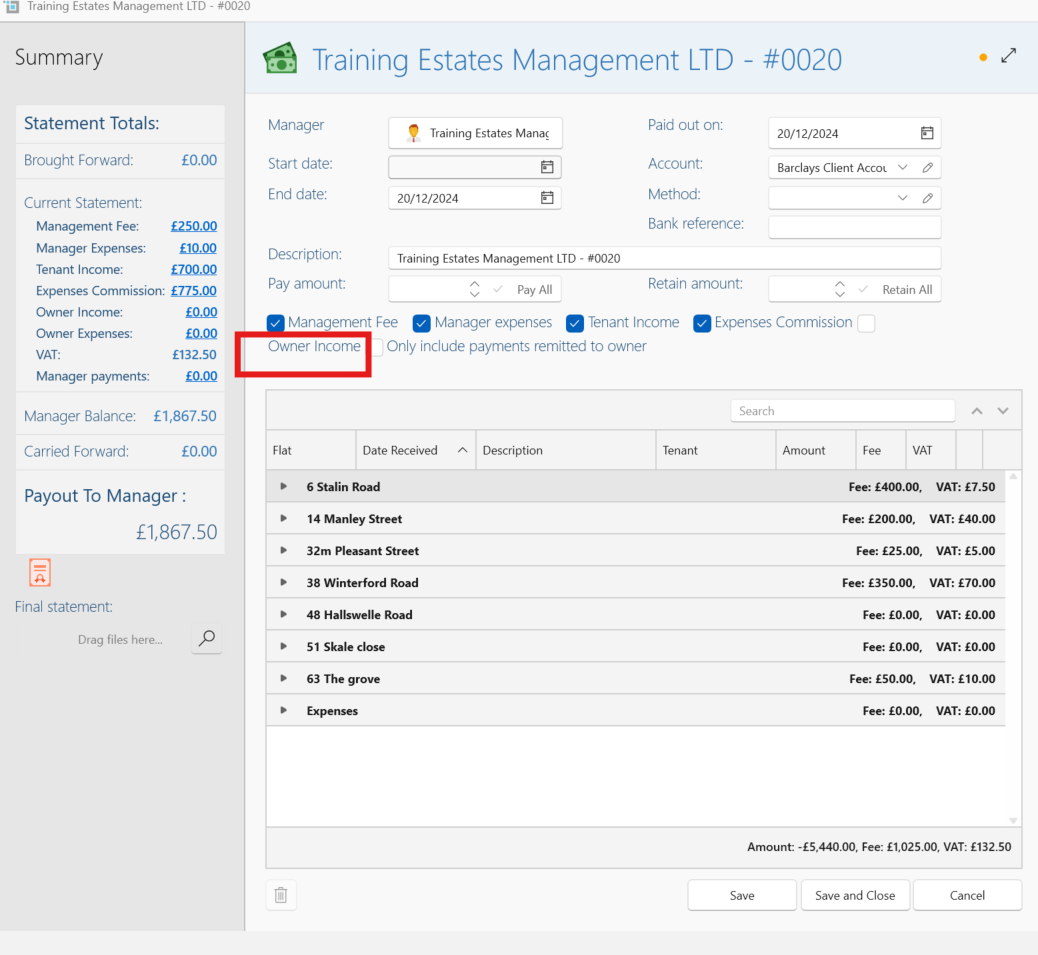
This option will also bring in any invoices or credit notes from owners and tenants out of the guaranteed rent framework.
Setting up Guaranteed Rent for a building
When setting up guaranteed rent with a set price for a building inclusive of all units.
If there will be no income for the units, you still have to mark each individual unit as guaranteed rent so the tenant income will not go the owner, please leave the rent amount and date empty :
- Switch on the guaranteed rent for the building with all the details and rental amount as above.
- Switch on guaranteed rent for each unit with the amount set to zero
- You can either leave all the units vacant with no tenant, You can create a custom status such as Block Managed, Guaranteed Rent, etc., and assign this status to the relevant properties. This way, they won’t appear as vacant, and everything will look neat and accurate. See here how to create a custom status Manage property status
- Alternatively, you can create tenants for each unit naming them Guaranteed rent, or by the actual names.
- When creating the lease, make sure that you switch on the toggle No rent will be created automatically which will set the lease as zero for the rent.
This will ensure that all units tenancy income will be diverted to your management company.
Owner Statement
Please inform a member of the team that you will require a statement template that is suitable for guaranteed rent.
Council Lets - Temporary Accommodation
The Guaranteed Rent feature is commonly used with Council Sublets and temporary accommodation, please view the following article for guidance for further details:
Conclusion
By following these steps, you can ensure that the owner will receive the identical balance each month and the manger will receive any excess income from the tenant.
Still having trouble?
If you encounter any issues while setting up the guaranteed rent process, please contact our support team.