
Commission on Expenses
SleekTech gives you the ability to apply commission to property expenses in a flexible and controlled way.
You can:
- Set a default commission per owner
- Set a default commission per supplier (new)
- Or manually apply commission to individual expenses
How Commission Defaults Work
SleekTech now supports two levels of default commission:
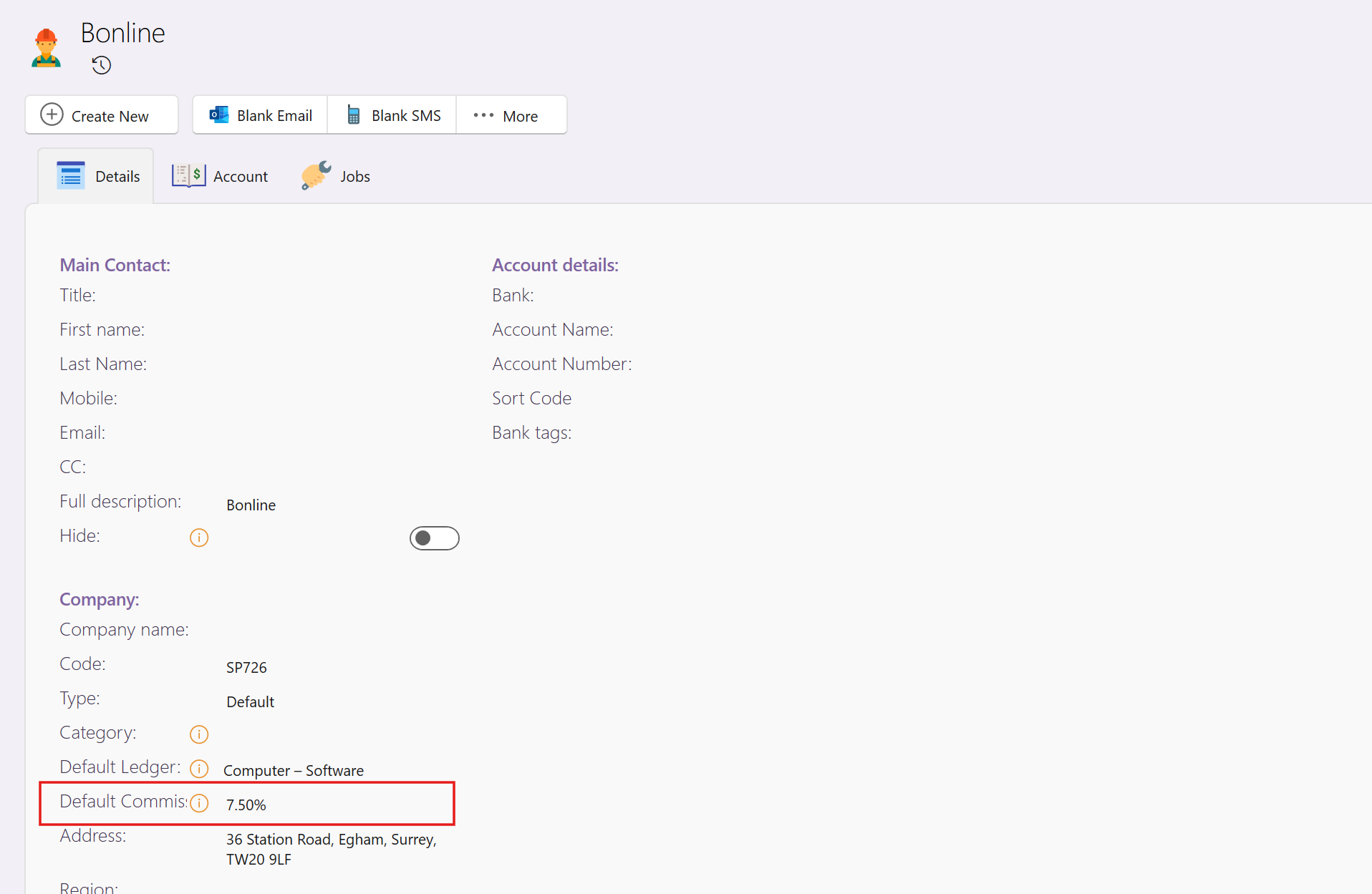
1) Supplier Default Commission (Takes Priority)
You can set a commission percentage directly on a supplier.
- When this supplier is selected on an expense, the supplier’s commission will automatically be applied
- This overrides the landlord/owner default commission, if one is set
Fallback logic:
- If supplier commission is set → it will always be used
- If supplier commission = 0 → system uses the owner’s default commission
- If neither is set → no commission is applied
Calculation:
- Commission is calculated on the invoice net amount
- Or net + VAT, if the setting “Include VAT in commission calculation” is enabled
2) Owner Default Commission
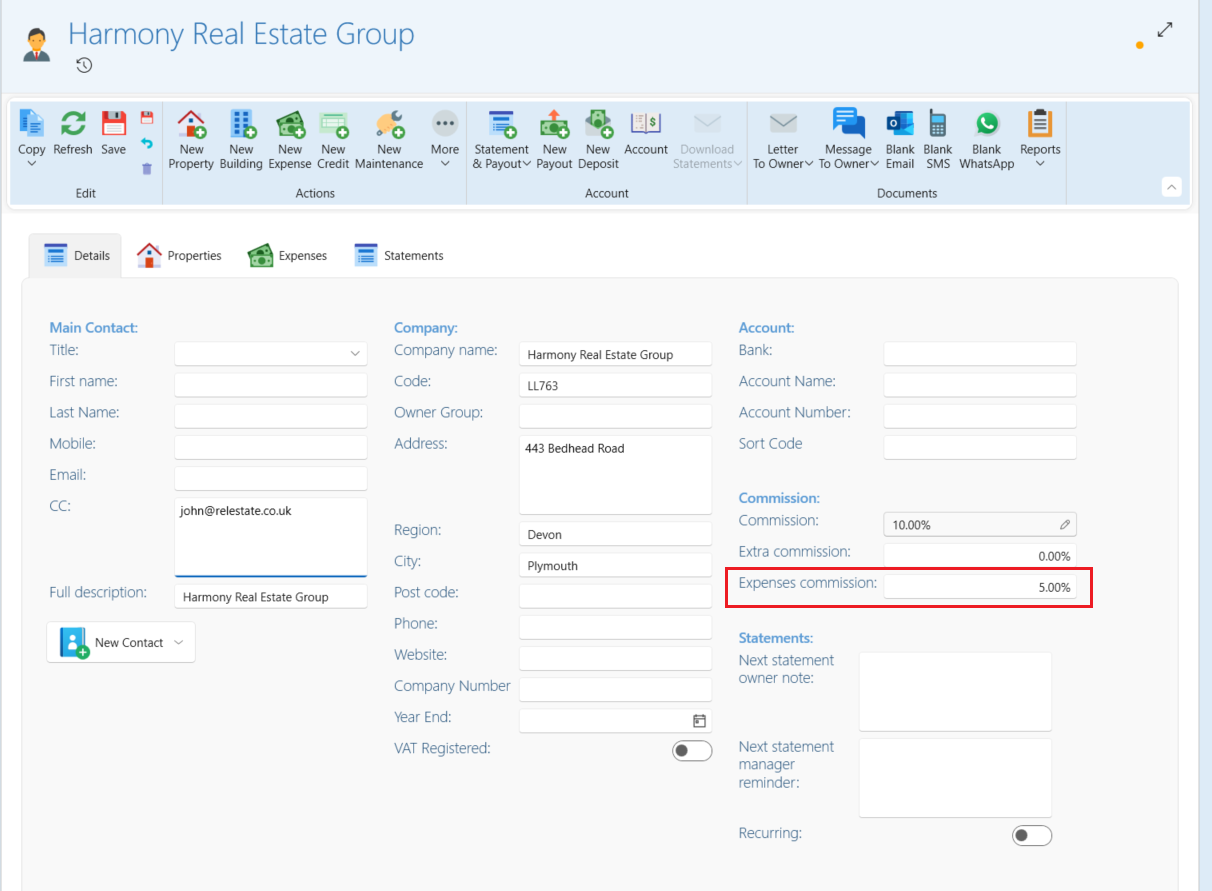
You can set a default commission for each owner.
How to Set
- Find the desired Owner
- Go to the Details tab
- Locate the Expenses Commission field
- Enter the commission percentage
- Click Save
All expenses created for properties under this owner will now automatically prefill this commission (unless a supplier commission overrides it).
This is how to set an expense commission directly on an expense
- Open up a New expense, either from the property page or from the Navigation bar at the side.
- Enter all the details including the amount.
- Click on the Add commission dropdown.
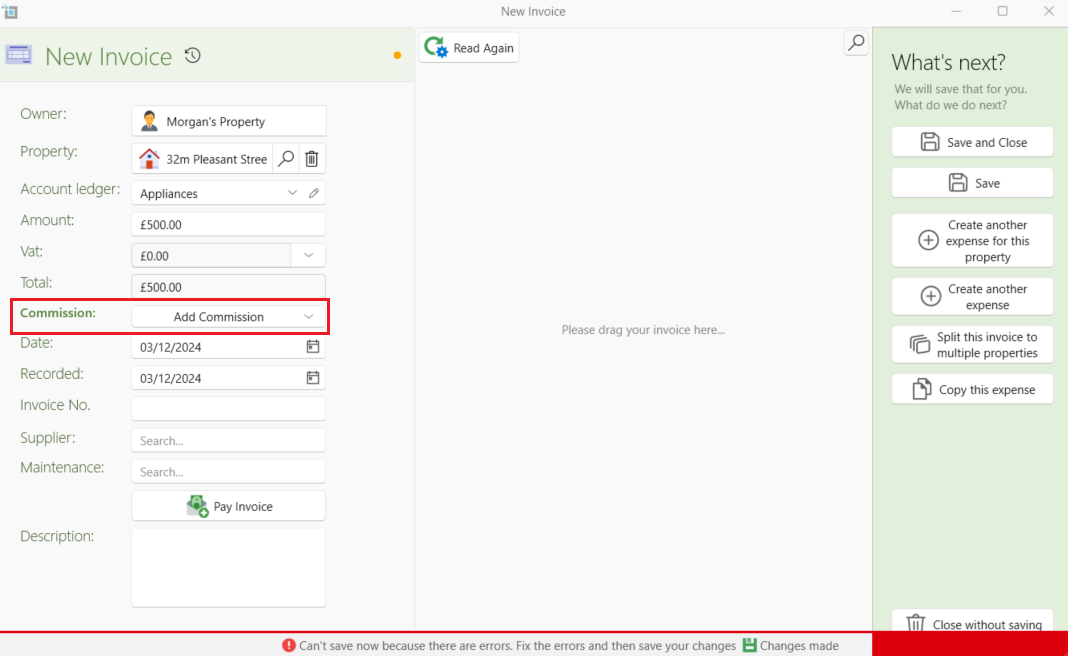
- Select the desired percent.
- The commission will automatically be calculated.
- Click on Save and close.
Commission Visibility on Owner Statements
Any commission applied to expenses will appear on the Owner Statement as a Manager’s Fee.
To control visibility:
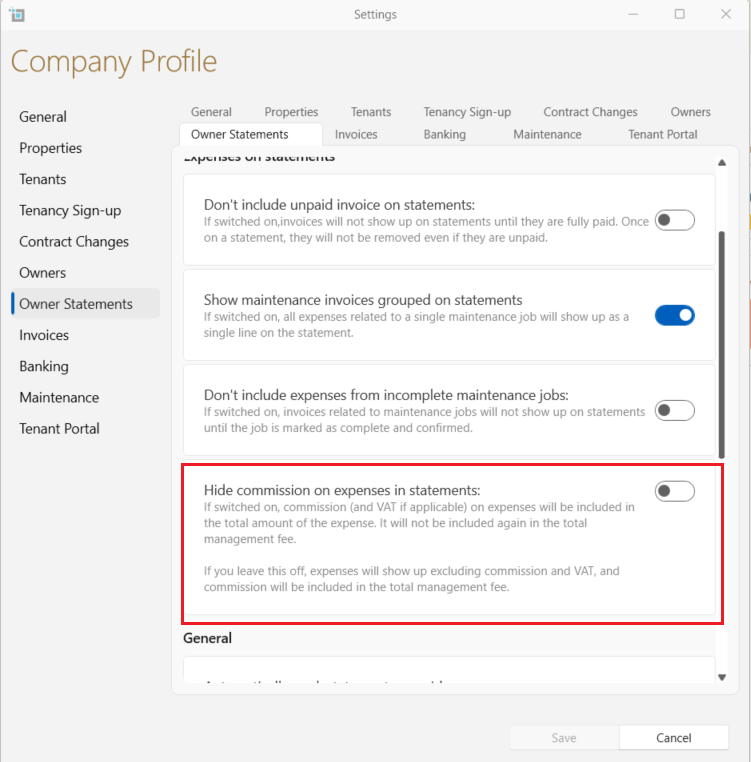
- Go to Control Panel (via the More dropdown)
- Click Settings
- Open Owner Statements
- Locate Hide commission on expenses in statements
- Toggle:
- Off → visible to owner
- On → hidden from owner
- Click Save
Commission on Credit Notes
When creating a refund from a supplier on the credit note there will be a box to add the manager commission.
The function of this box is to refund any commission that was previously charged to the owner therefore the total of the credit note will add the commission on.
E.G. the total of the credit note is £250 if you select a 10% commission the new total will be £275. This will show in the balance of the next owner statement.
Conclusion
By following these steps, you can set a default expense commission for owners, streamlining the process of creating new expenses by automatically pre-filling the commission. If needed, you can also manually enter or adjust the commission directly in the New Expense window, giving you full flexibility and control over expense management.
Still having trouble?
If you encounter any issues while configuring the expense commission, please contact our support team.