
Introduction
Managing user accounts efficiently is crucial when an employee leaves the company. Incorrect handling can lead to issues such as notes, reminders and internal communication being sent under the wrong user’s identity. Deactivation preserves the user’s data and prevents disruptions in communication.
Deactivating a User Account
- Log in to your SleekTech from the admin users account.
- Navigate to the Control Panel
- Click on User Management
- Locate and click on the name of the user you wish to deactivate.
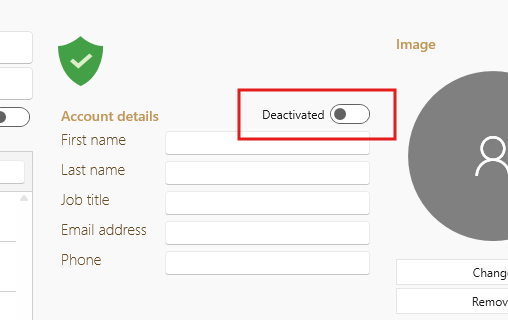
- Select Deactivate.
- Confirm your selection and Save the changes.
- Close the SleekTech application and reopen it to apply changes.
Viewing Inactive Users
- In the User Management section, find the switch for Active Users.
- Toggle the switch to view inactive users. Inactive accounts will appear at the end of the list.
Why Deactivate Instead of Delete?
- Deactivation retains all user data and history, preventing issues related to message misidentification.
- It ensures that communications and system functionalities are not disrupted by the sudden removal of user accounts.
- Deactivated accounts can be reactivated if necessary, providing more flexibility for future needs.
Still need support?
Need more help with user management? Reach out to our support team for personalized assistance and solutions.