
Customising your helpdesk dashboard allows you to tailor the view to show only the information that is most relevant to you, in the order that suits your workflow.
The Main Method
When you open SleekTech, the dashboard should automatically load. If it does not, you can access the dashboard by clicking on the Dashboard option in the main ribbon.

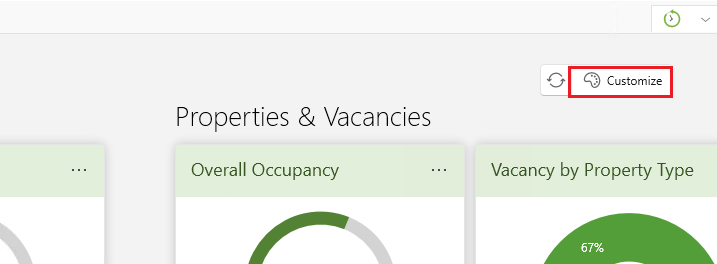
Once the dashboard is open, you can click the Customize button to make any desired adjustments.
Alternative Method
Here are the steps to follow to personalise your dashboard:
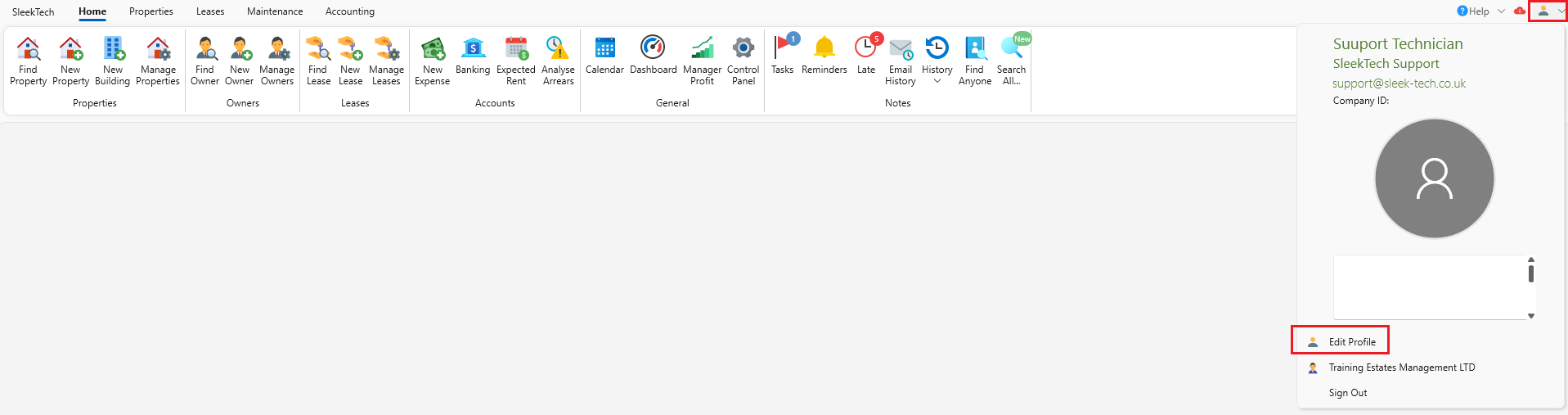
- Navigate to the Main Ribbon and click on the User Profile icon.
- Select Edit User Profile.
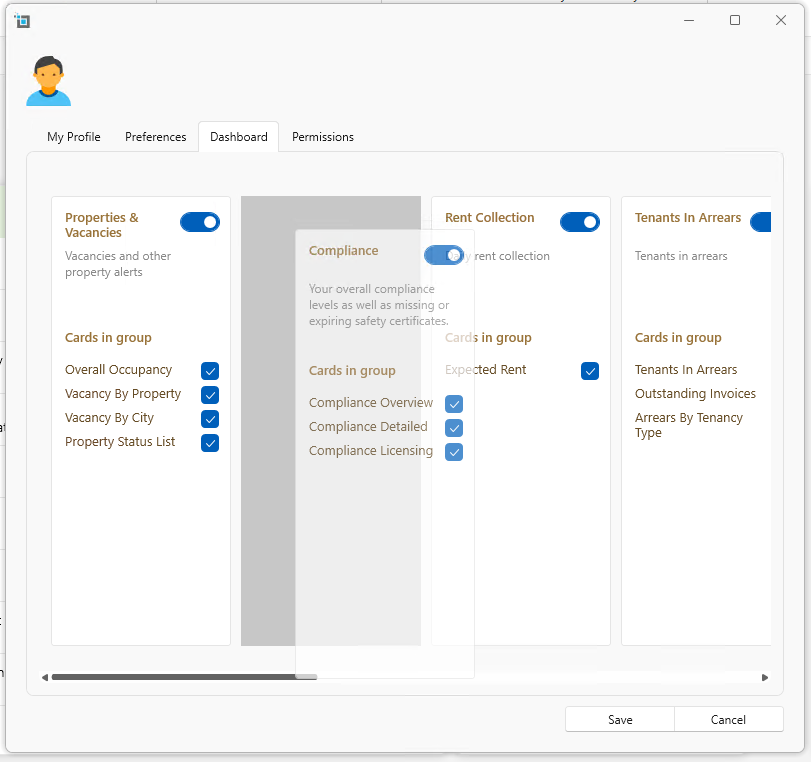
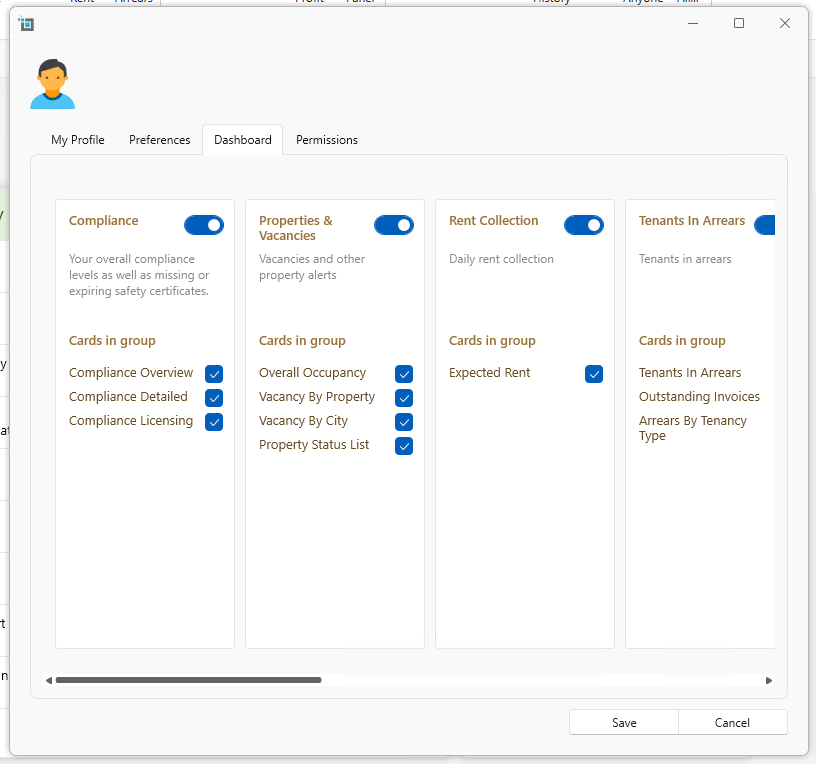
- Once in your User Profile window, select the Dashboard tab.
- You can arrange the cards on your dashboard by dragging them to the desired position. This lets you prioritise the information based on your needs and preferences.
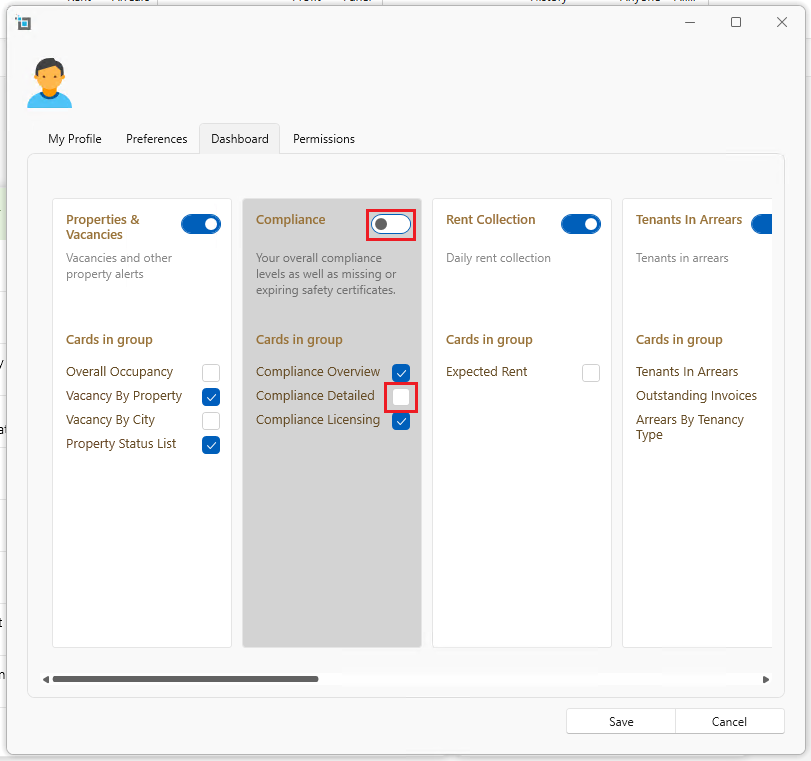
- To further customise your dashboard, you can control the visibility of individual cards. Simply toggle the switch next to each card to show or hide it. This ensures that you only see the information that is relevant to your role or tasks.
Further customisation
- From the Main Ribbon, locate and click on Dashboard.

- Look for the three dots (ellipsis icon) located on the interface. Click on these dots to reveal a dropdown list of options.
- From the dropdown list, you can choose various options to customise your dashboard.
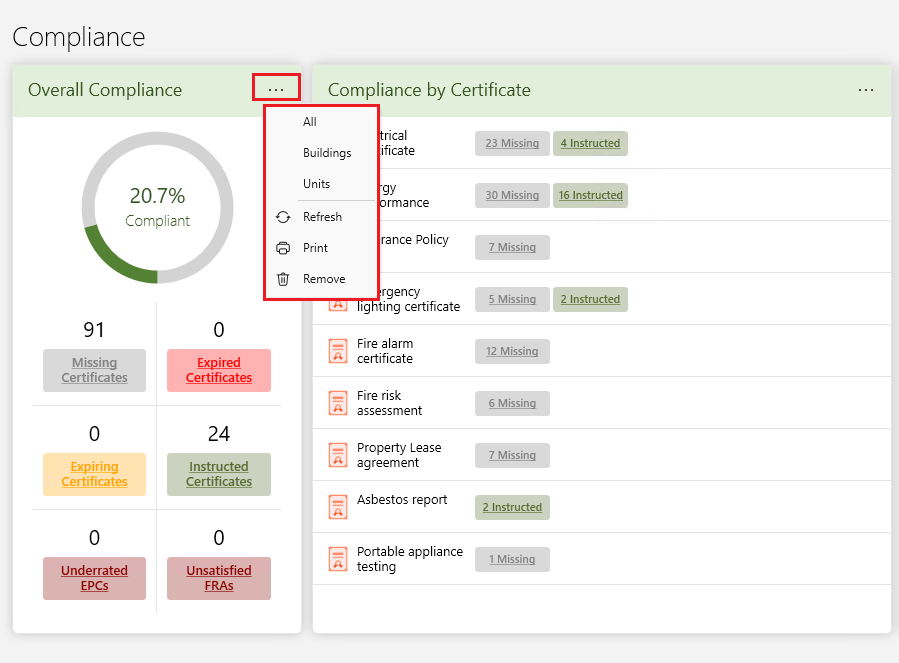
If you need to restore the removed cards, please follow these steps:
- Go to the user icon and select Edit Profile.
- Navigate to the Dashboard tab.
- Select the cards you wish to restore.
- Click Save to apply the changes.
By following these steps, you can efficiently customise your helpdesk dashboard to optimise productivity and ensure that you have quick access to the most relevant information for your role.