
Explore these useful tips to effectively navigate the Manage Properties window.
Save and Manage Views
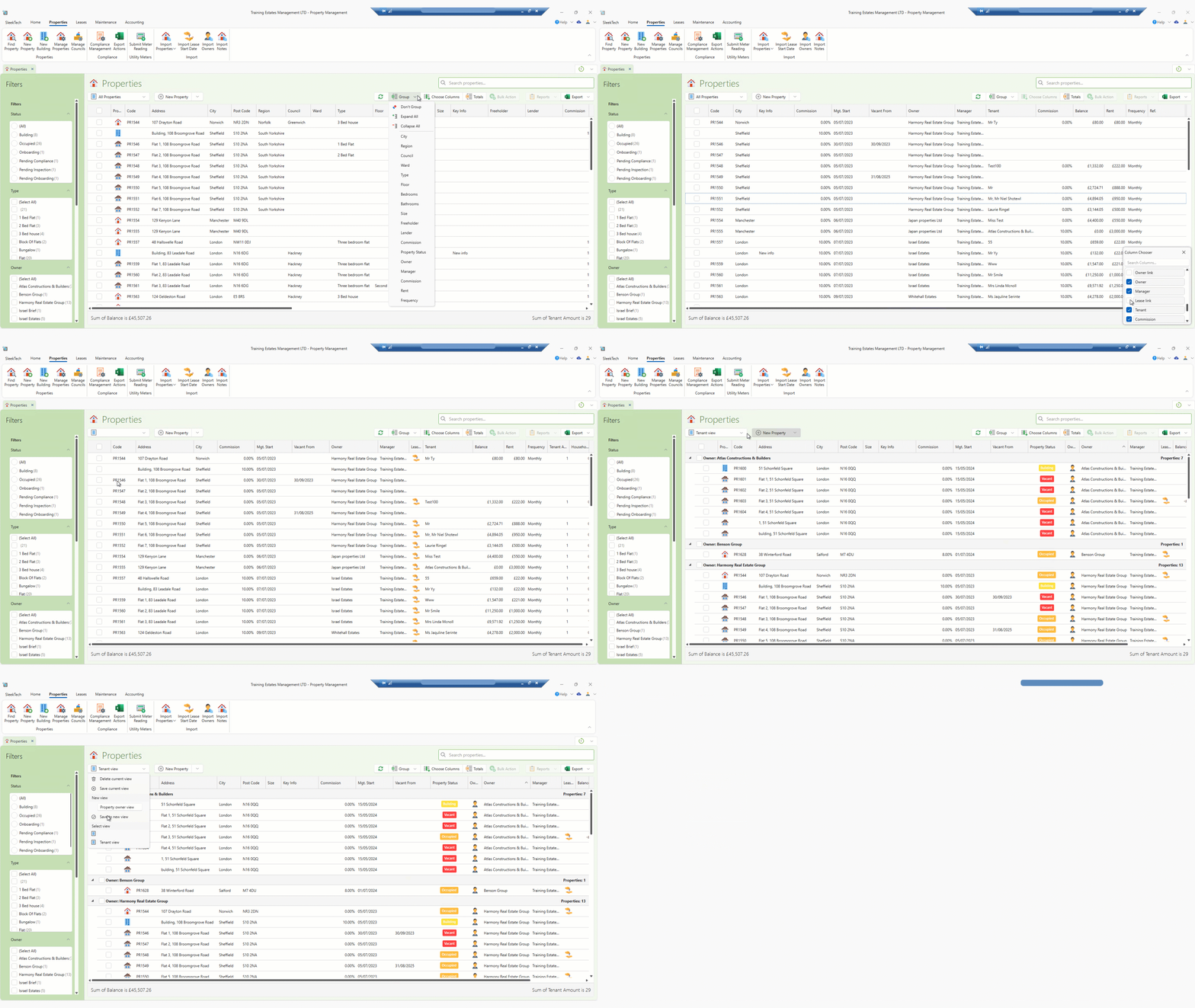
Save your customised view configurations for easy access. Begin by selecting desired columns and sorting or grouping them by criteria such as managers or city. This feature allows you to save your view to quickly return to the window in your preferred setup.
Create Properties and Buildings
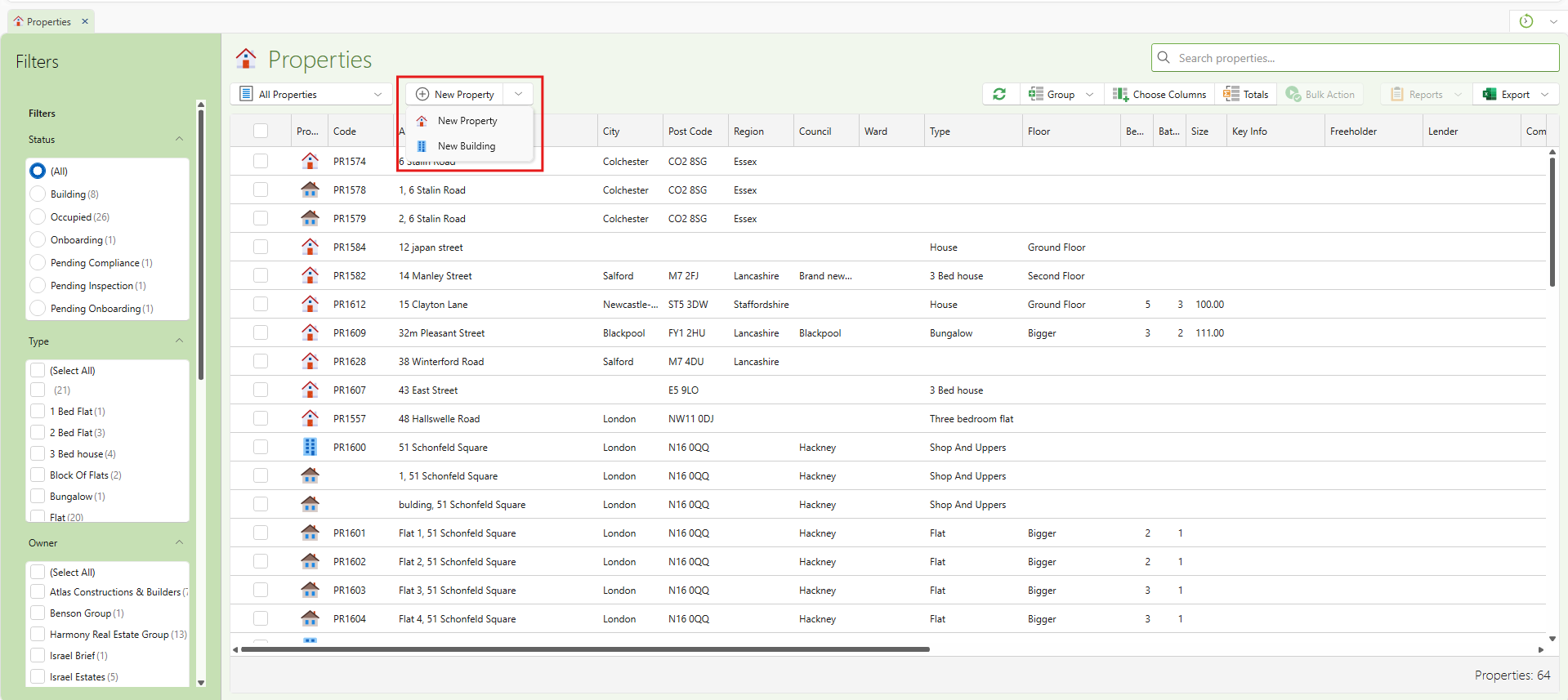
Utilize the + New Property button to add properties and buildings directly from this window, streamlining your management tasks.
Organize Leases
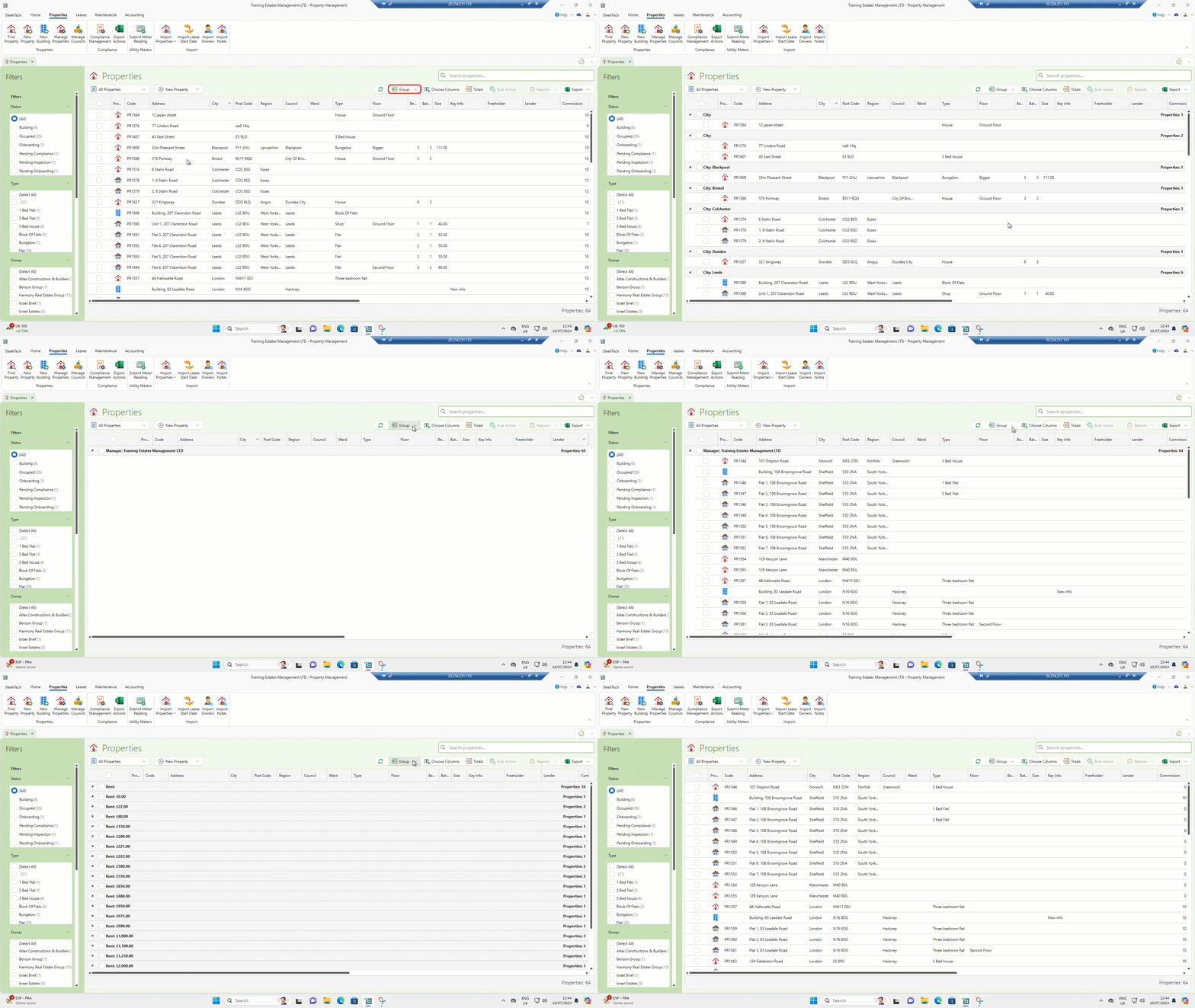
You can now easily group leases by owner, city or status and many more for a clearer overview. Utilize Collapse All to view al the information and Expand All to focus on group names exclusively.
Customize Column Display & Adjust Column Width
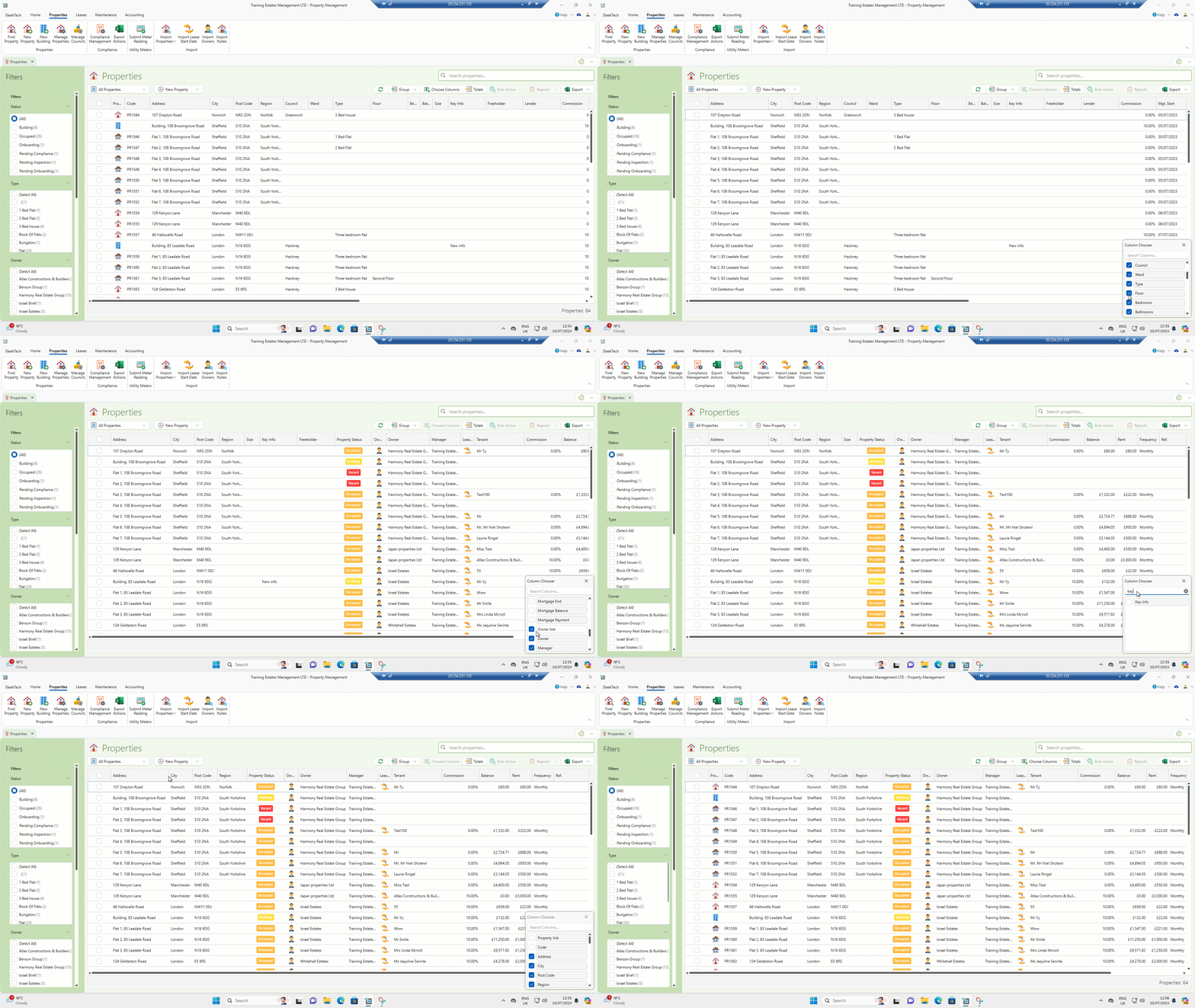
Tailor your view by selecting columns directly. Type in the column name or scroll down the list when choosing columns. Simply select or deselect columns to suit your needs.
You can optimize readability by adjusting column widths to your preference.
Total Management
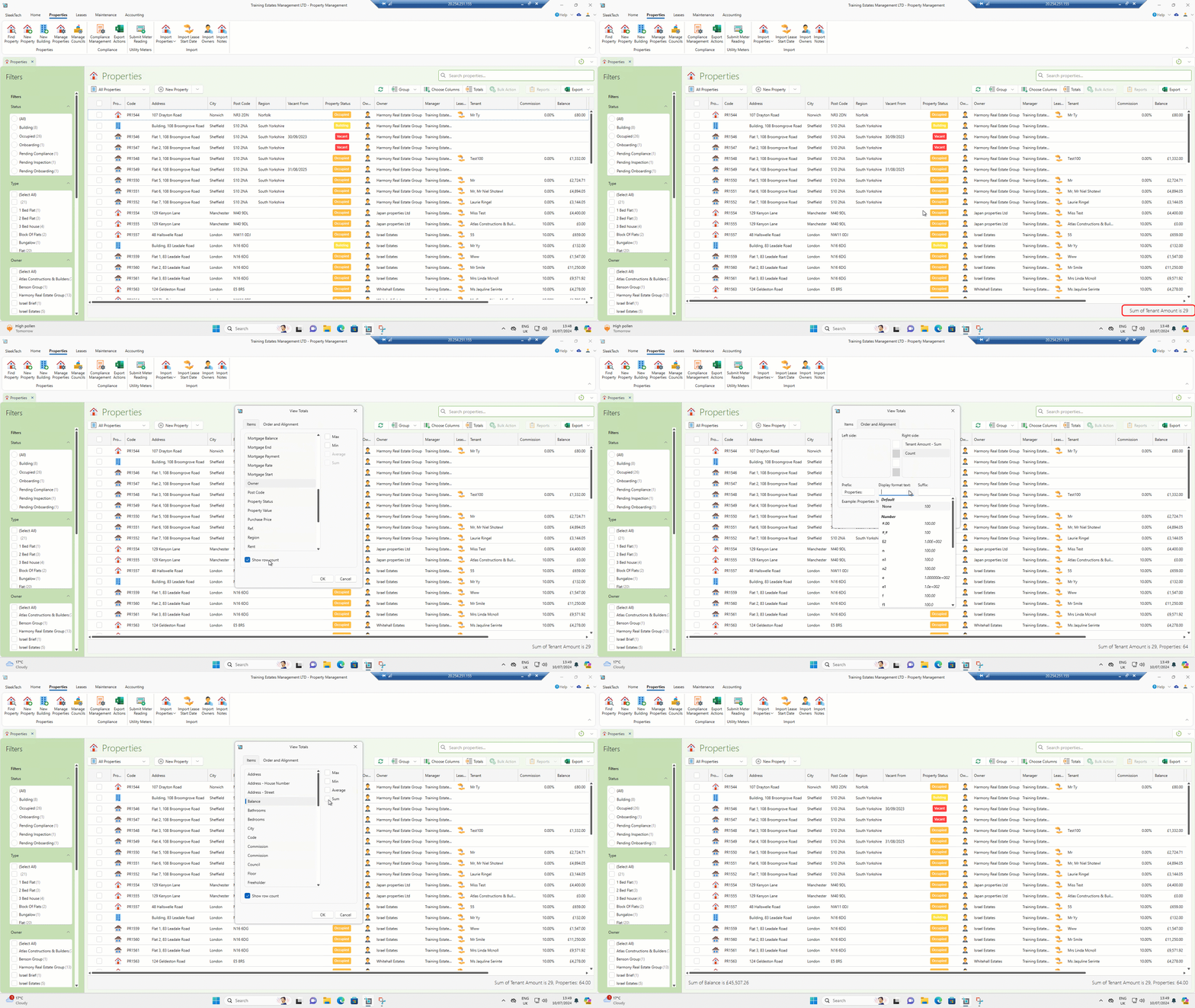
Customise information at the bottom of the window using the Totals button. Show or hide row counts, view total rent amounts, and adjust display formats as needed.
Bulk Actions
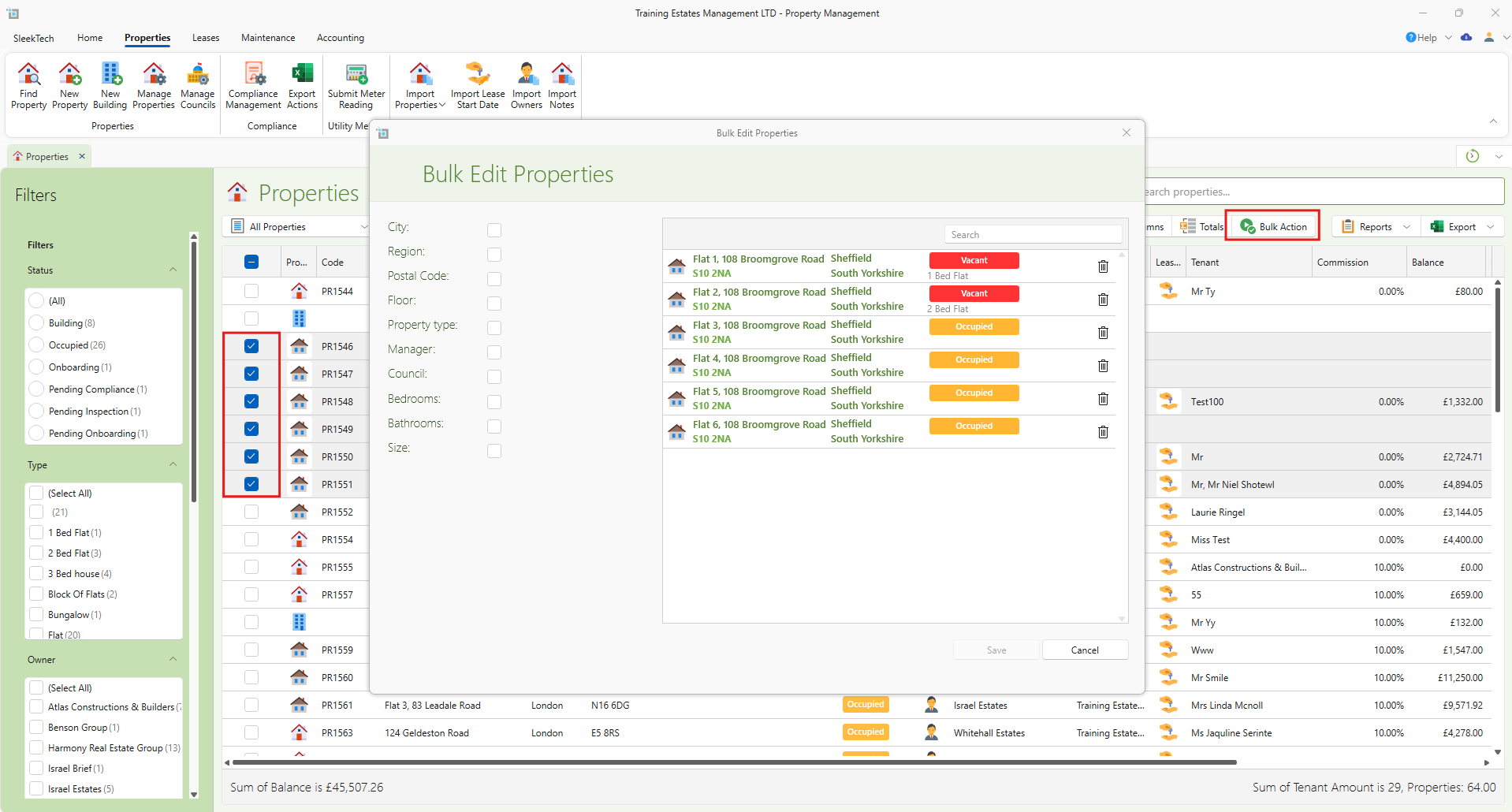
Perform bulk actions seamlessly when multiple properties are selected.
Generate Reports and Export
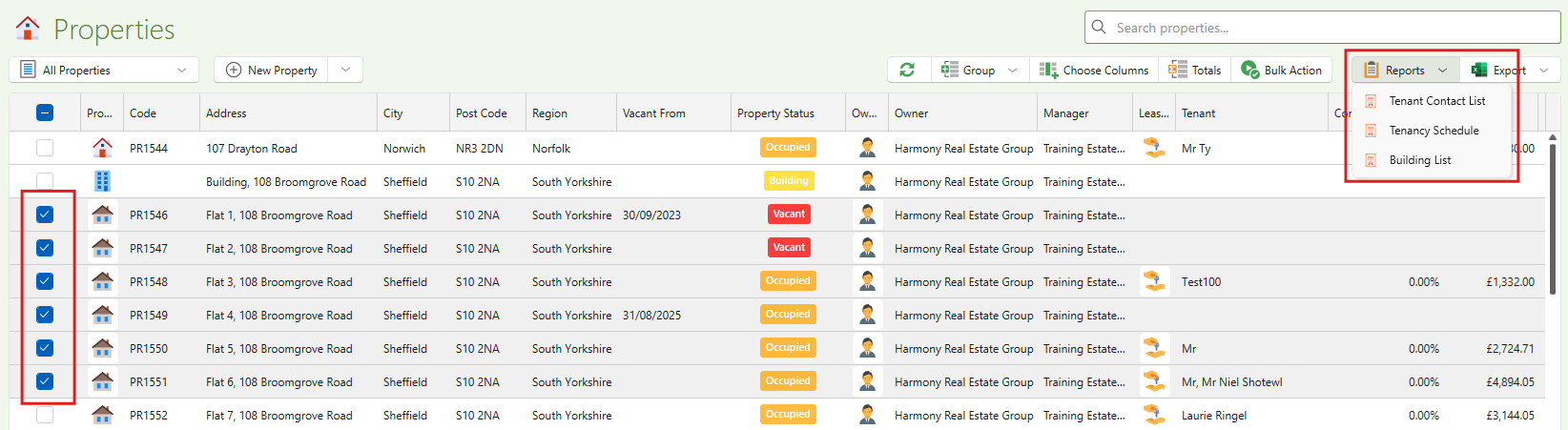
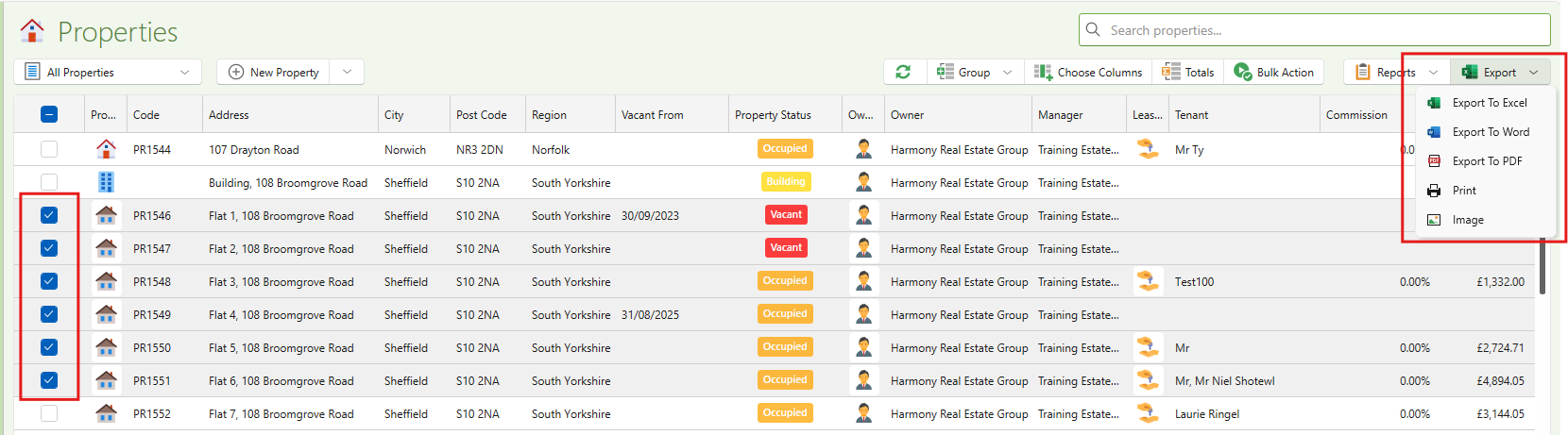
You can generate comprehensive Reports and Export data in Word, Excel, PDF, print, or image formats for detailed analysis and documentation.
Efficient Search Options
Quickly locate specific information using the general search bar for targeted searching.

Still having trouble?
If you have any further questions or need assistance with any aspect of our services, please do not hesitate to reach out to our support team. We are here to help!