
Managing utility meters within your properties is now easier than ever with our new Meters feature. Follow these steps to add, update, and take readings for gas, water, and electricity meters using SleekTech.
Adding Meters
- From the main ribbon, navigate to the window of the property for which you want to add a meter for.
- Select Find Property and type in the address.
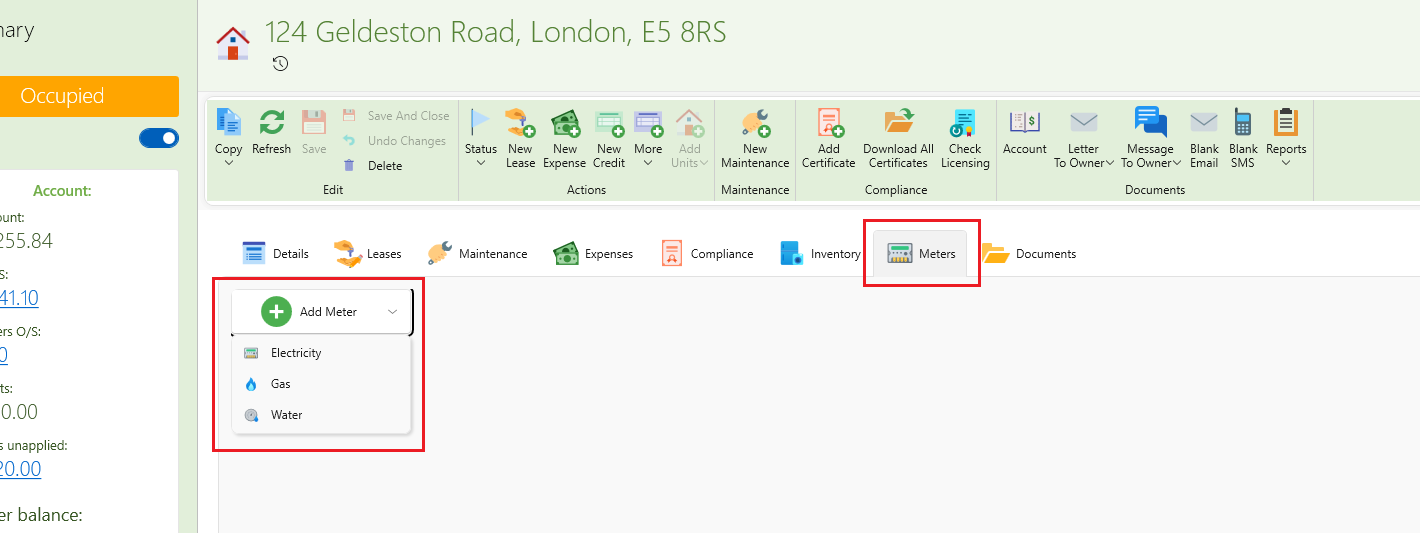
- Within the property details page, locate the Meters section.
- Click on Add Meter to initiate the process.
- Choose the type of meter (gas, water, electricity) from the dropdown menu.
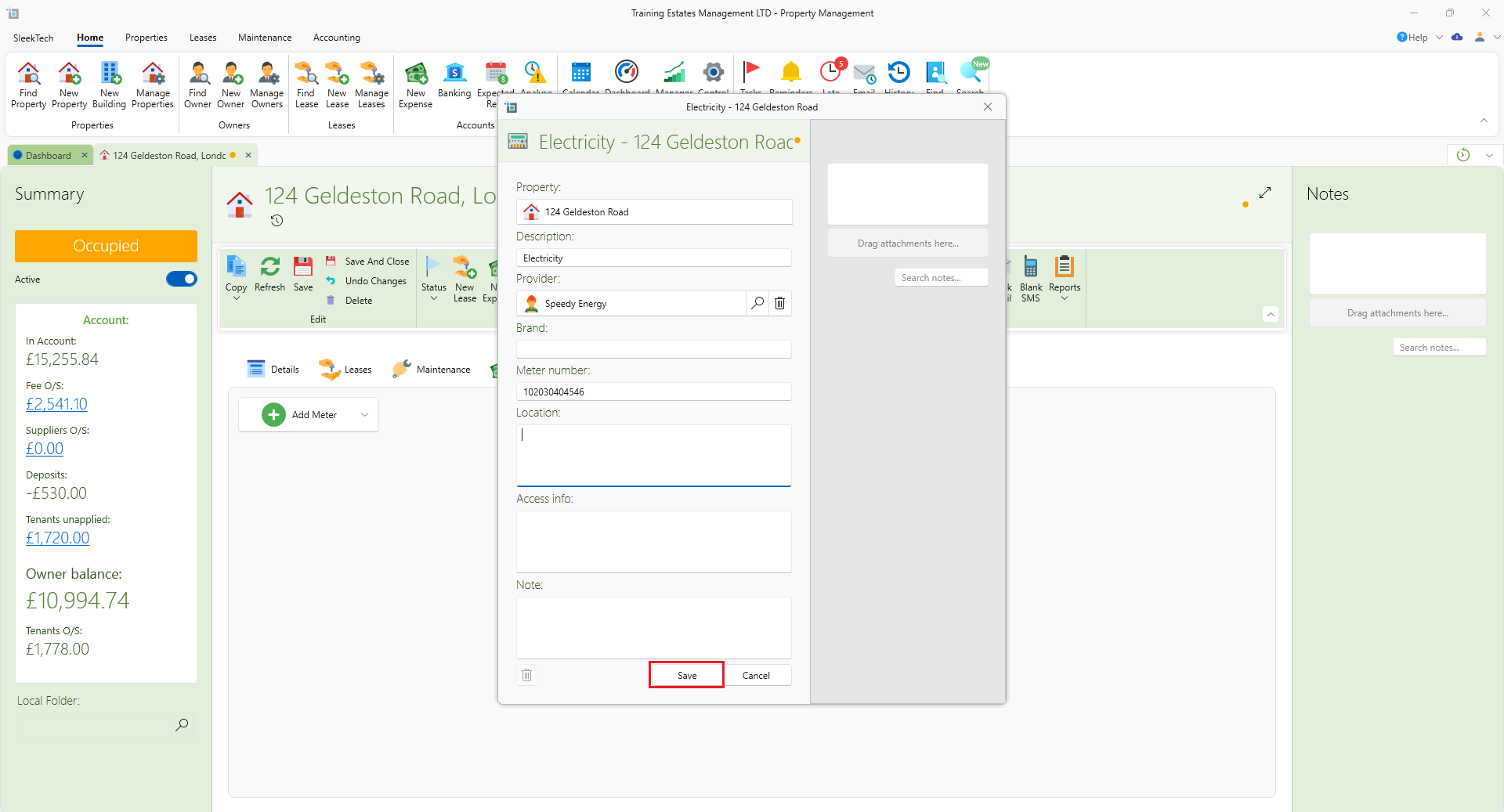
- Select the service provider from the available options or enter a new one if necessary.
- Input the brand of the meter, meter number, and its physical location within the property.
- Provide any access information or notes that may be relevant for maintenance or readings.
- Once all details are entered, click on Save to store the meter information.
Updating Meters
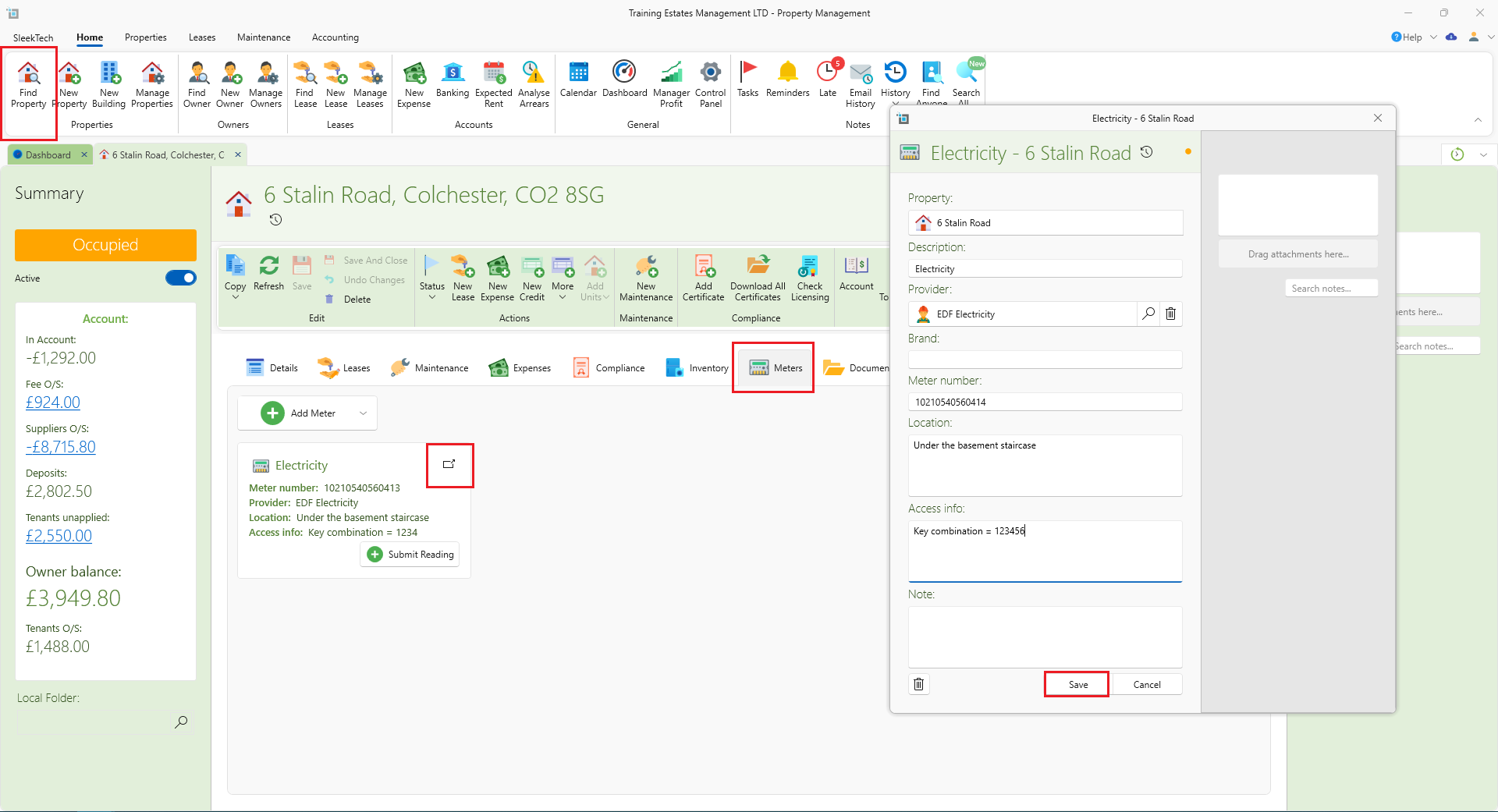
- From the main ribbon, select Find Property and type in the address navigate to the window of the property for which you want to change meter details.
- Within the property details page, locate the Meters section.
- Locate the meter you wish to update from the list of meters associated with the property.
- Click on the expand icon next to the meter name to proceed with updates.
- Update any necessary information such as service provider, brand, meter number, location, access details, or notes.
- Ensure all changes are accurate and reflect the current status of the meter.
- After making changes, click on Save to confirm the updated meter details.
Submitting Meter Readings
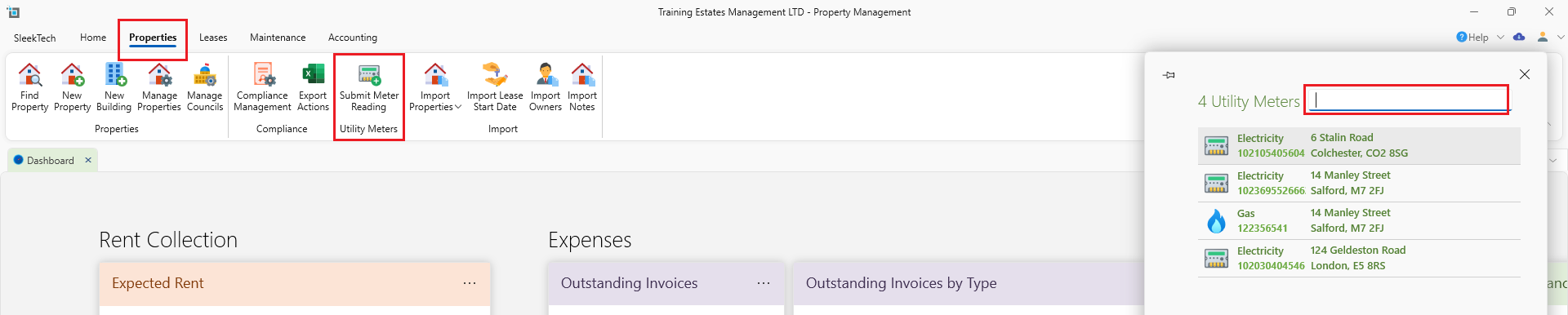
- Navigate to the Properties tab.
- Click on Submit a Reading.
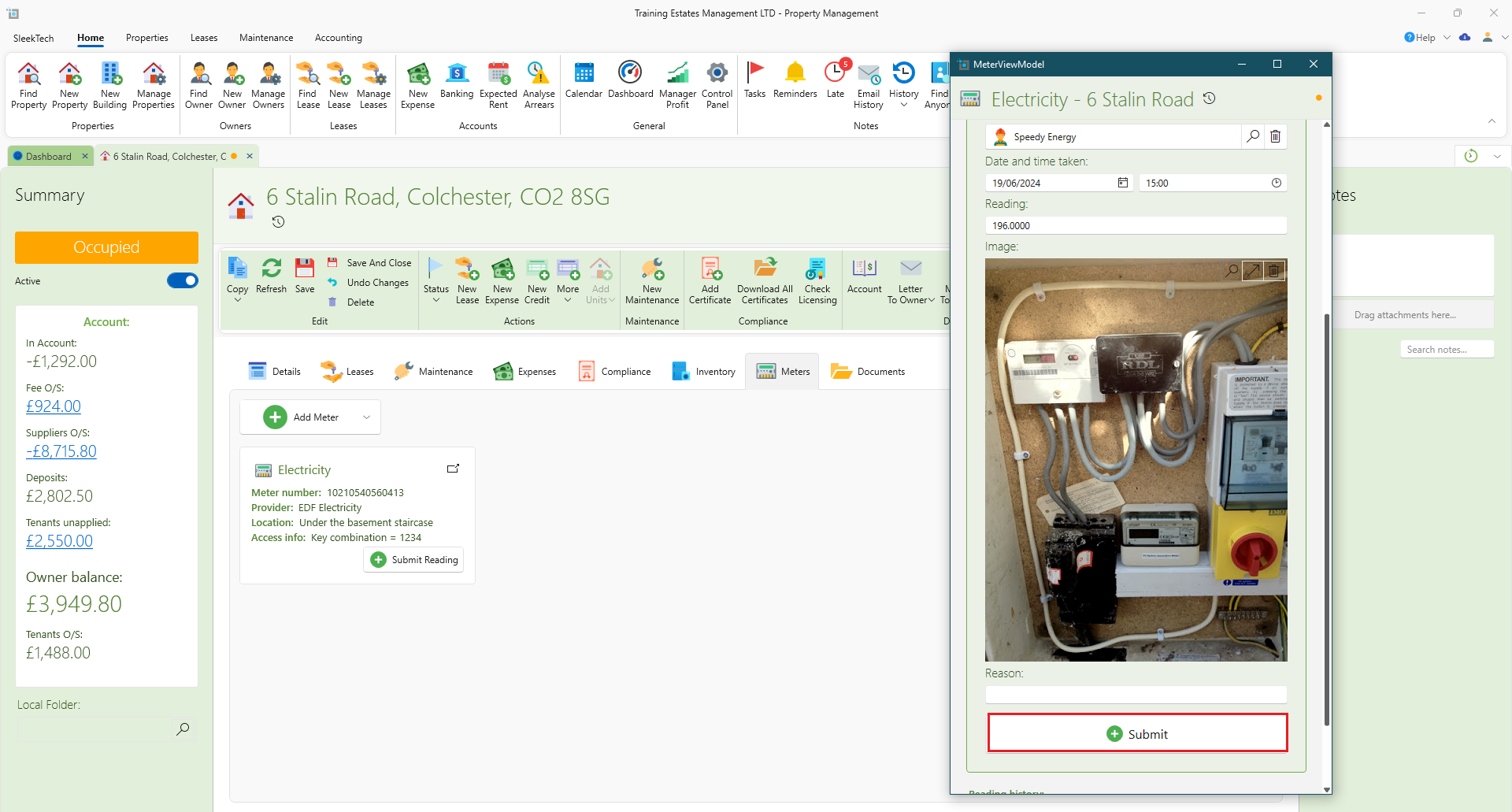
- Select the property containing the meter for which you want to submit a reading either by searching for the address or meter number.
- Input the details of the person who took the reading, date and time of the reading, and current meter reading based on the utility usage at that time.
- Optionally, upload an image of the meter reading for verification purposes.
- Provide a brief reason or note for taking the reading (e.g., routine check, end of billing cycle etc.).
- Once all information is entered, click on Submit to record the meter reading in the system.
Alternative Method of Submitting Meter Readings
- From the main ribbon, navigate to the window of the property for which you want to submit a reading for.
- Select Find Property and type in the address.
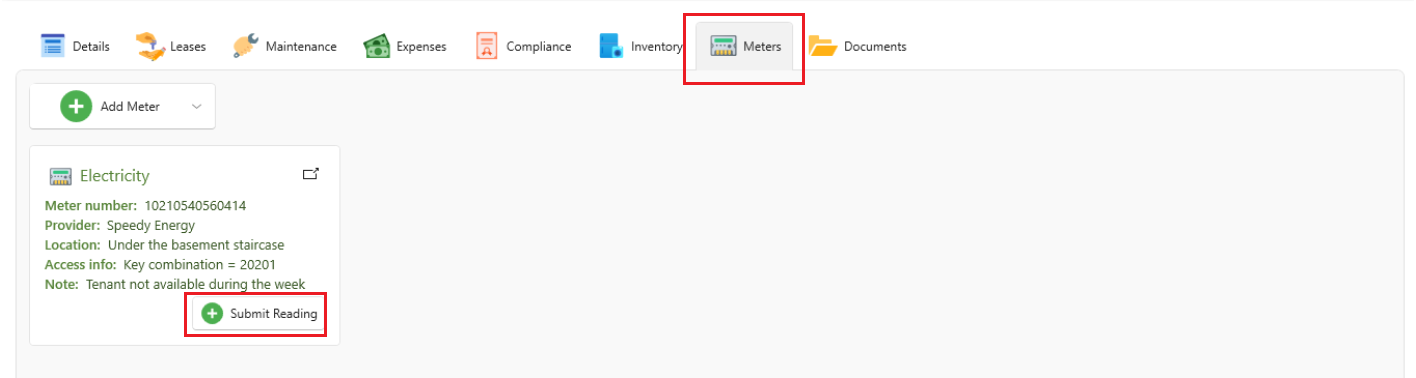
- Within the property details page, locate the Meters section.
- Select the property containing the meter for which you want to submit a reading either by searching for the address or meter number.
- If the meter appears then click on Submit Reading for the meter you wish to update.
- If the meter does not appear then add the meter details according to the abovementioned details.
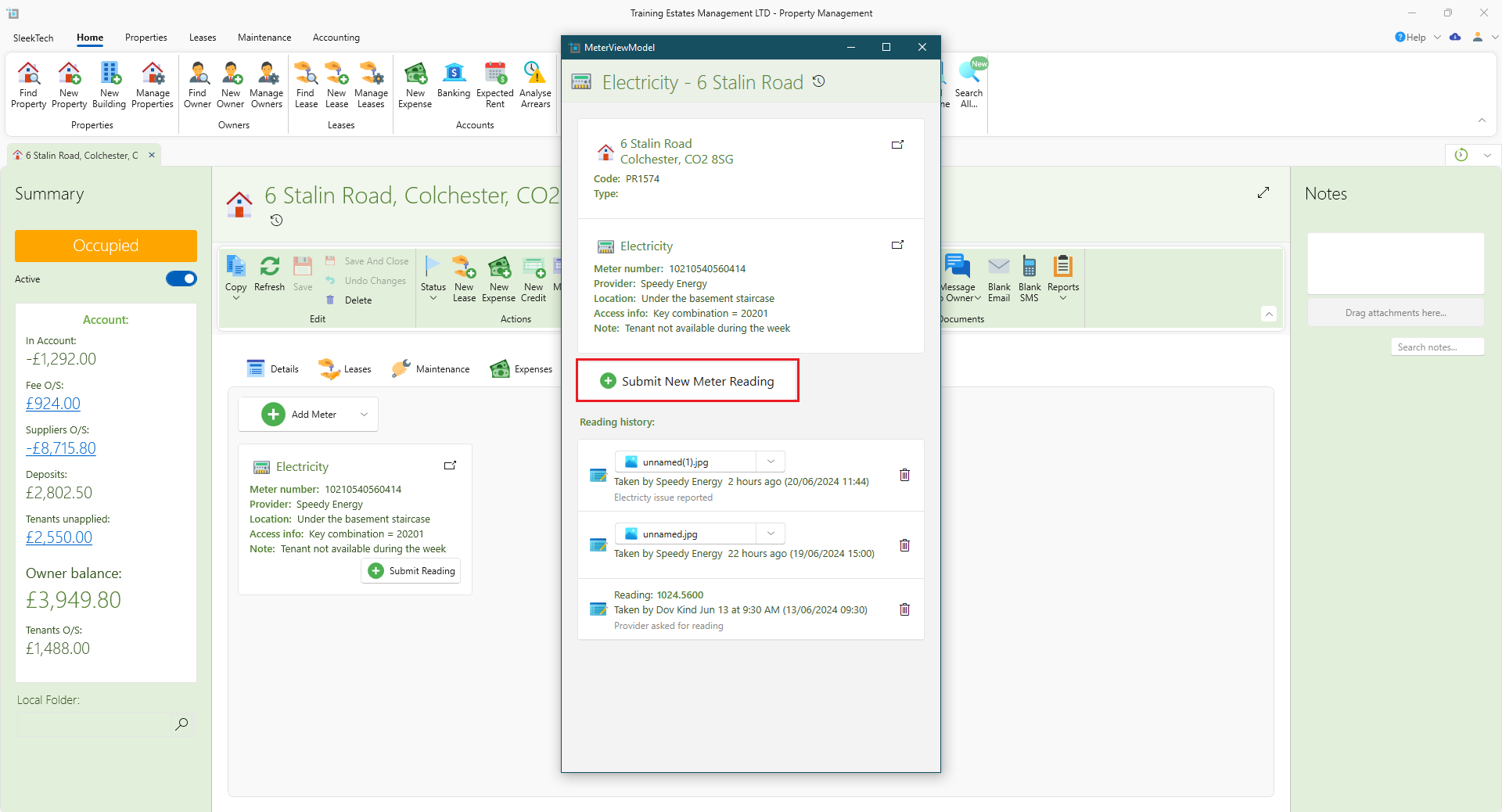
- Now select Submit New Meter Reading so you can input the details of the person who took the reading, date and time of the reading, and current meter reading based on the utility usage at that time.
- Optionally, upload an image of the meter reading for verification purposes.
- Provide a brief reason or note for taking the reading (e.g., routine check, end of billing cycle etc.).
- Once all information is entered, click on Submit to record the meter reading in the system.
Conclusion
By following these steps, effectively manage and track gas, water, and electricity meters across your properties using our intuitive property management software.
Still having trouble?
If you encounter any issues while navigating meters, please contact our support team.