
This article guides you through sending email letters to multiple owners.
You have the option to send the emails from a template if you'd like to have the content prefilled based on each owner's details.
If you'd just like to send the same content to all owners, you could just open a blank with no template and all recipients BCC'd in the email.
Send emails to multiple owners from a letter template
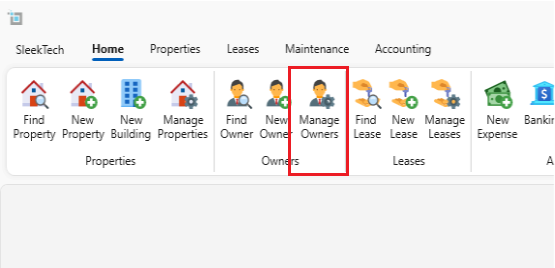
- From the Main Ribbon, locate the Owner Management window by selecting Manage Owners.
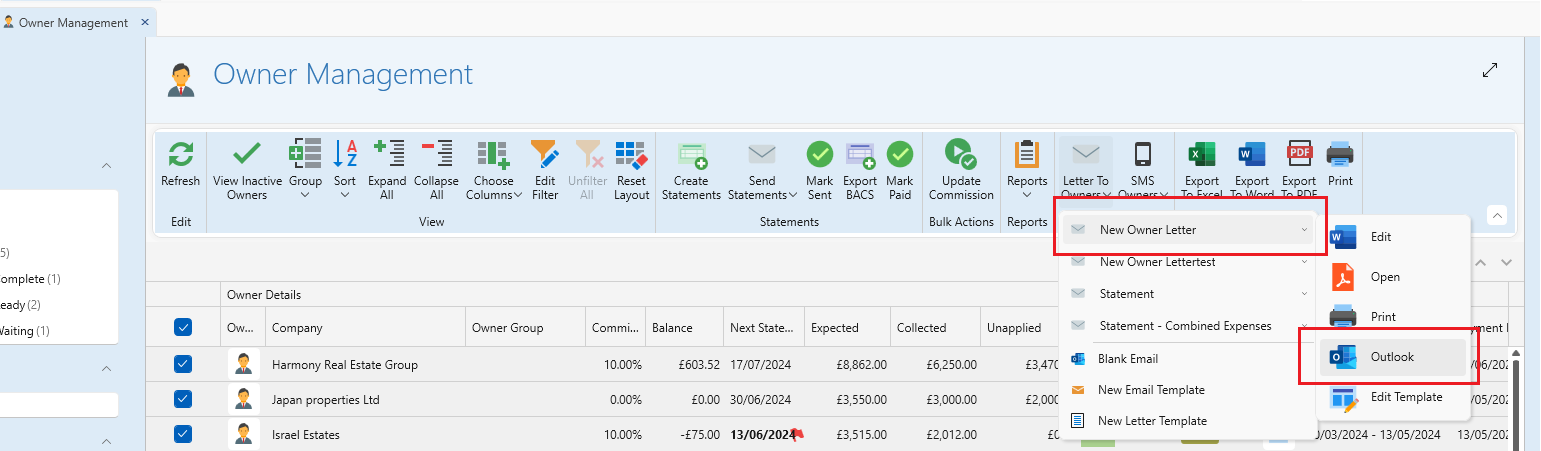
- Select the owners who need to receive letters then click on the Letters to Owners button and choose letter template option you'd prefer and choose Outlook to send as an email.
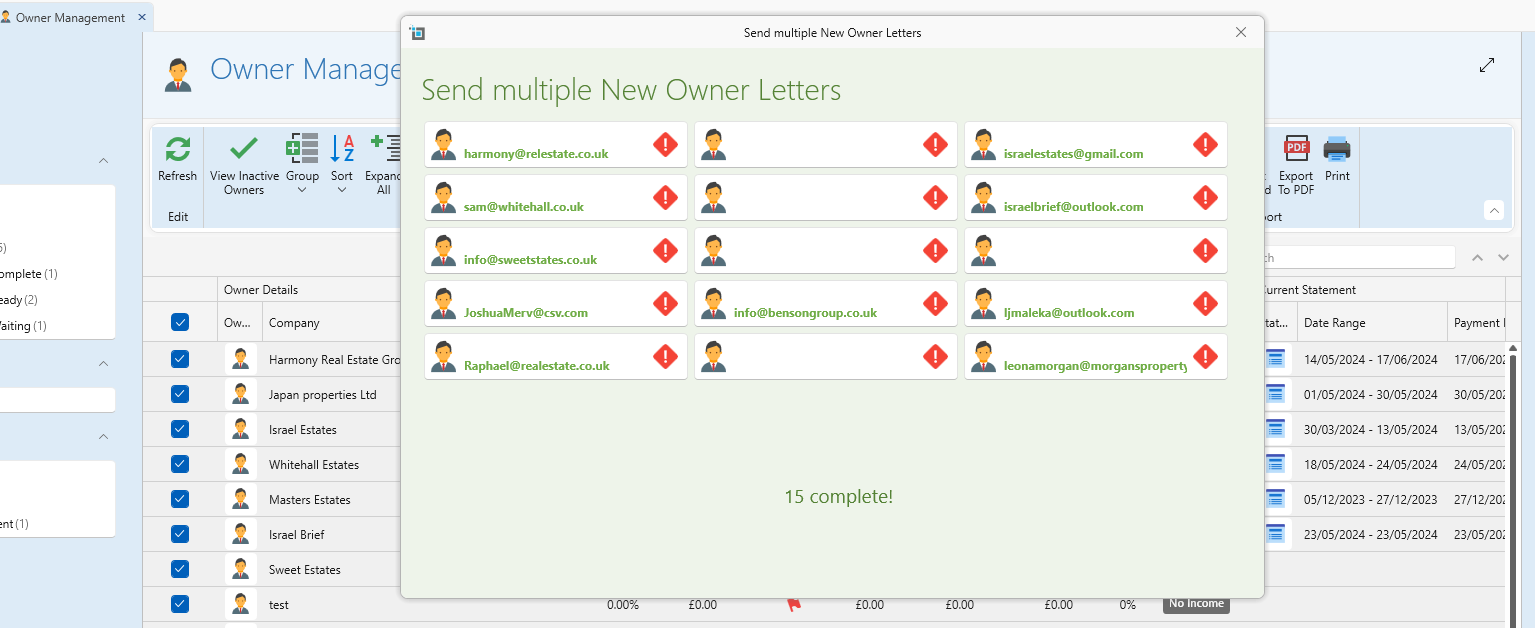
- A new window will appear, giving you the option to send multiple letters and displaying the email addresses included for each owner. At this point, you can delete the owners who should not receive this letter. After clicking on Start, SleekTech will initiate the sending process for all statements at once. You can expect a complete notification once it's done.
Send the same email to multiple owners.
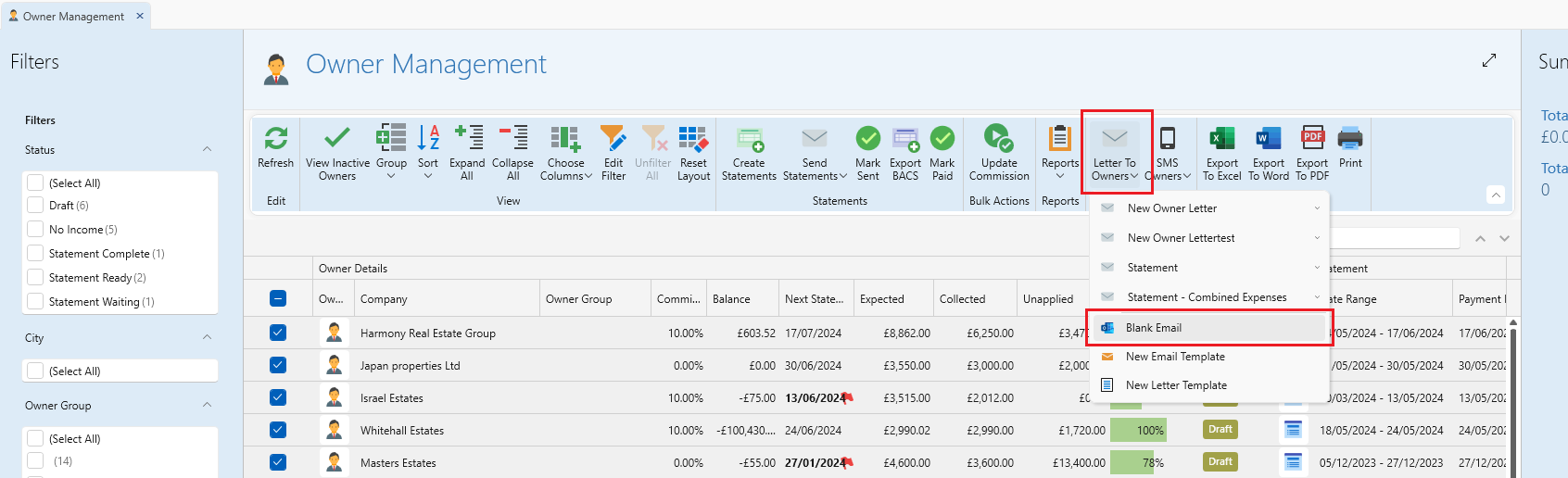
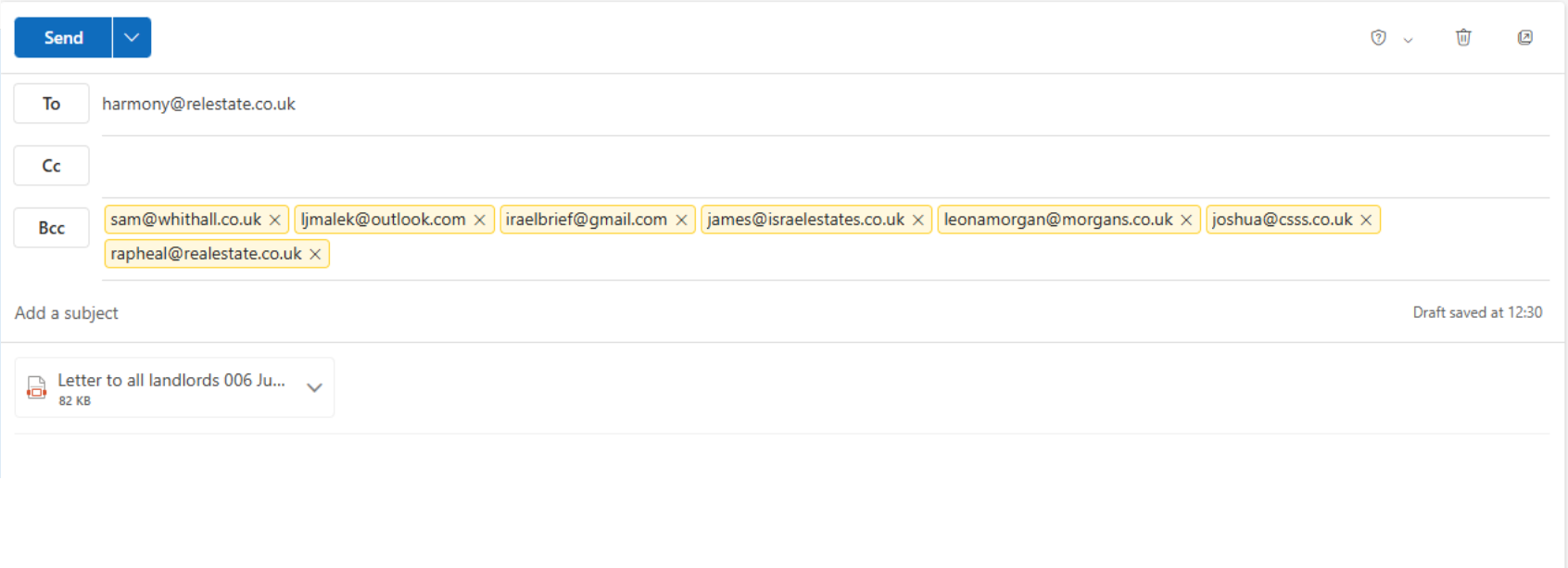
- If you want to send the same letter to multiple owners without using a template, you can do so by selecting the owners who need to receive the letters, then click on the Letters to Owners button, and choose Blank Email to send it as an email.
- The output will result in an email being created in Outlook. It will include all owners' emails and CC addresses in the BCC section. You can then type your email within Outlook and proceed as usual.
Still Having Trouble?
If you encounter any issues while sending letters, please contact our support team.