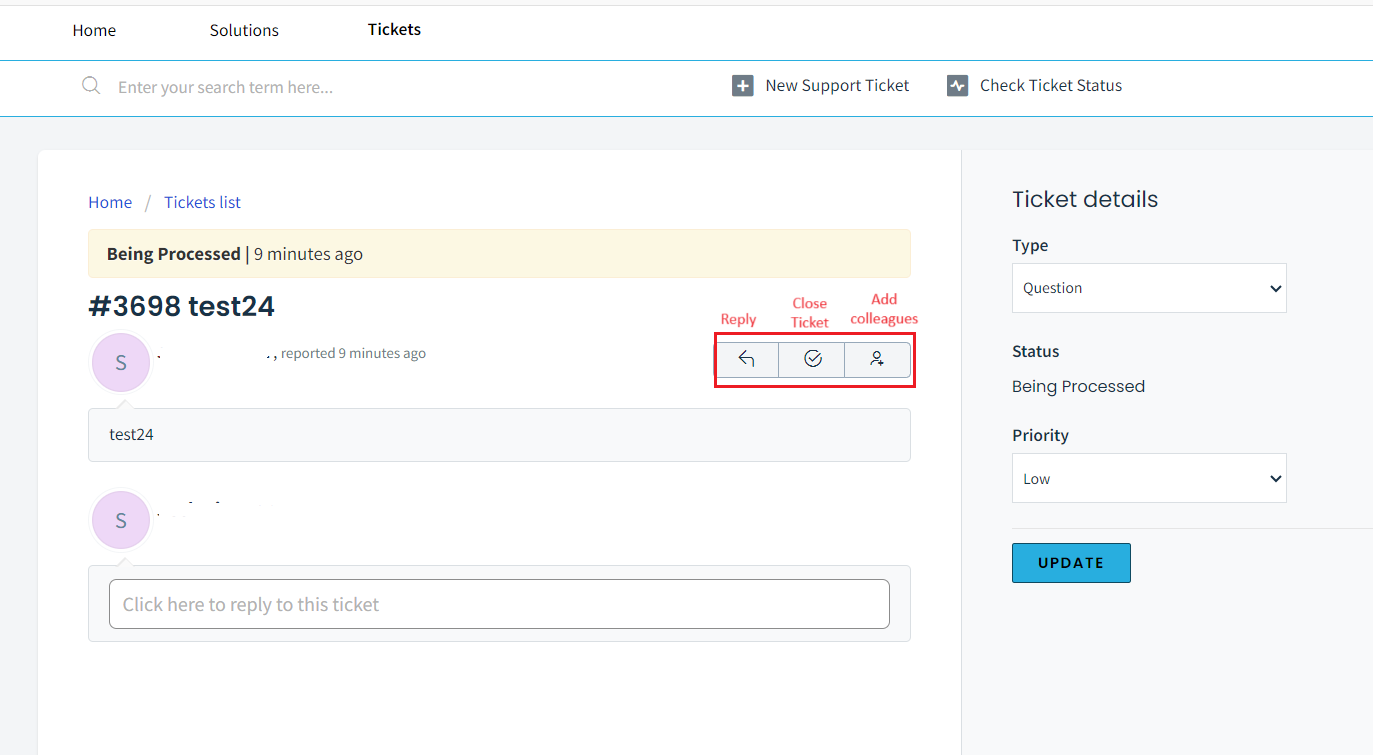
We have a very easy and useful support portal which allows you to request help, ask queries and request new features. You can also follow them up directly from the software.
This is how to create a new support ticket
- From the Help dropdown at the top right corner of the software select New Support Ticket.
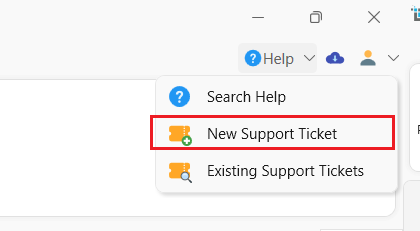
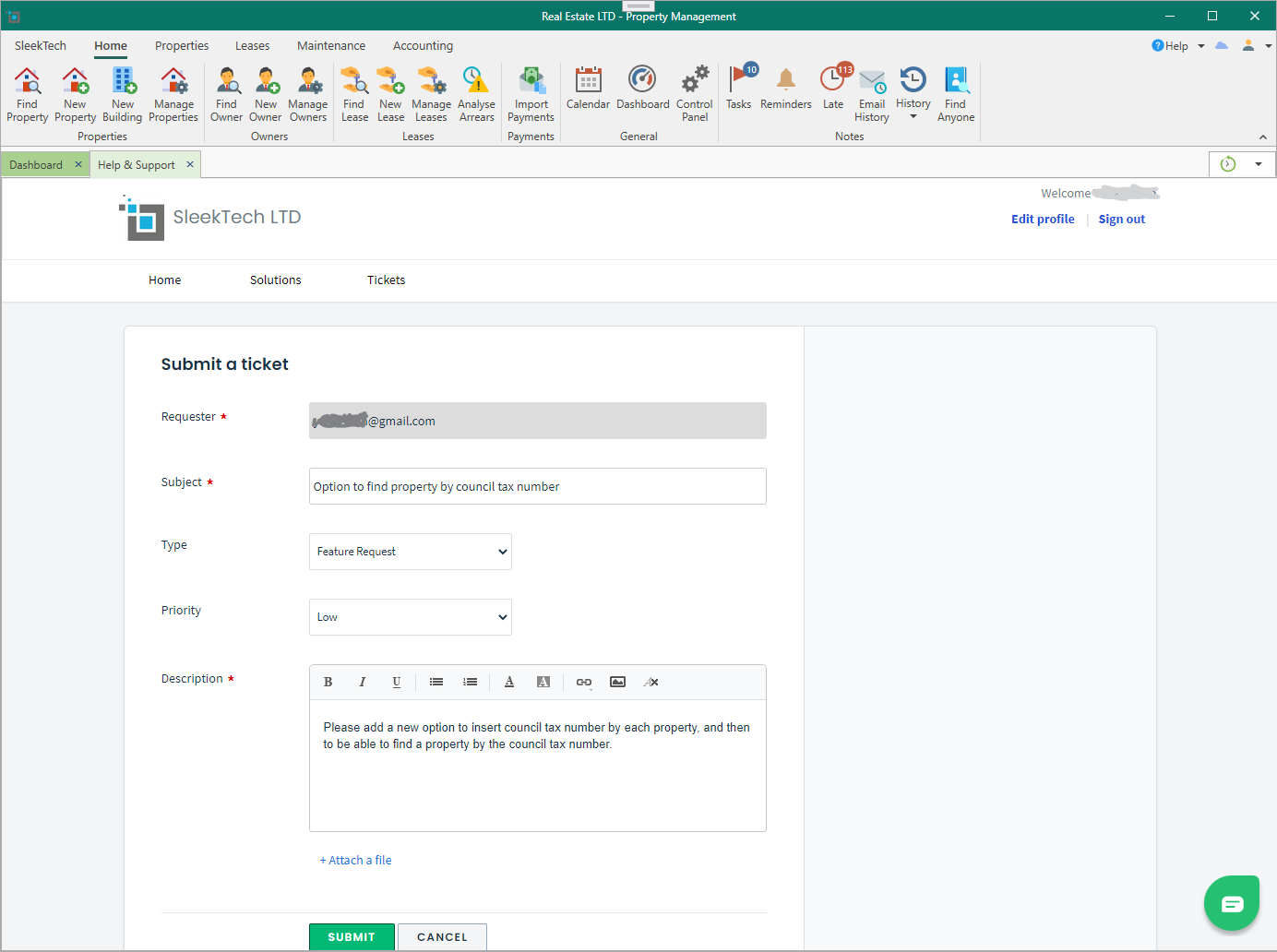
- This will bring you straight to a new ticket. If you are not yet logged in it will ask you to log in. For more on how to log in or to reset your password, click here:
- Your email address will be prefilled.
- Type the subject of the request.
- You can also fill in the ticket type, i.e. Question, Problem, Feature Request etc. and the priority level.
- Type the details of your request in the description box, and additionally, you can add any attachments or pictures to illustrate your request by clicking Attach a file underneath the description box.
When finished, just click Submit.
You will be navigated to the list of submitted tickets.
Any tickets you create will be acknowledged as sent in your email. You will also receive an email with any response given.
The same is vice versa. Any emails sent to support@sleek-tech.co.uk will also be created as a ticket.
Check the status of existing tickets.
- From the Help dropdown at the top right corner of the software select Existing Support Tickets.
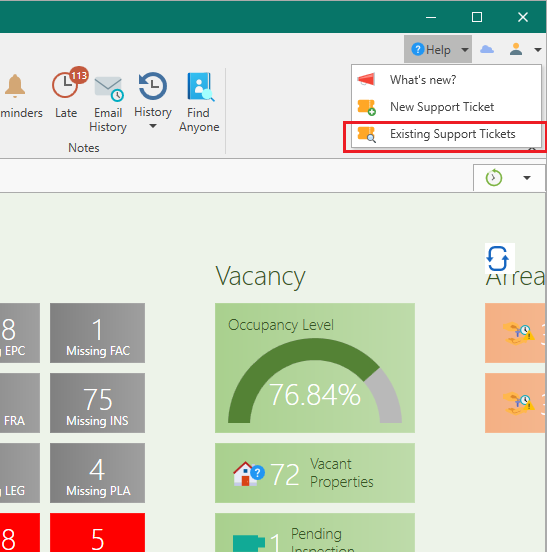
- You will see a list of your existing tickets and their status. By default you will only see Open tickets, but you can view all tickets by clicking on the filter as below.
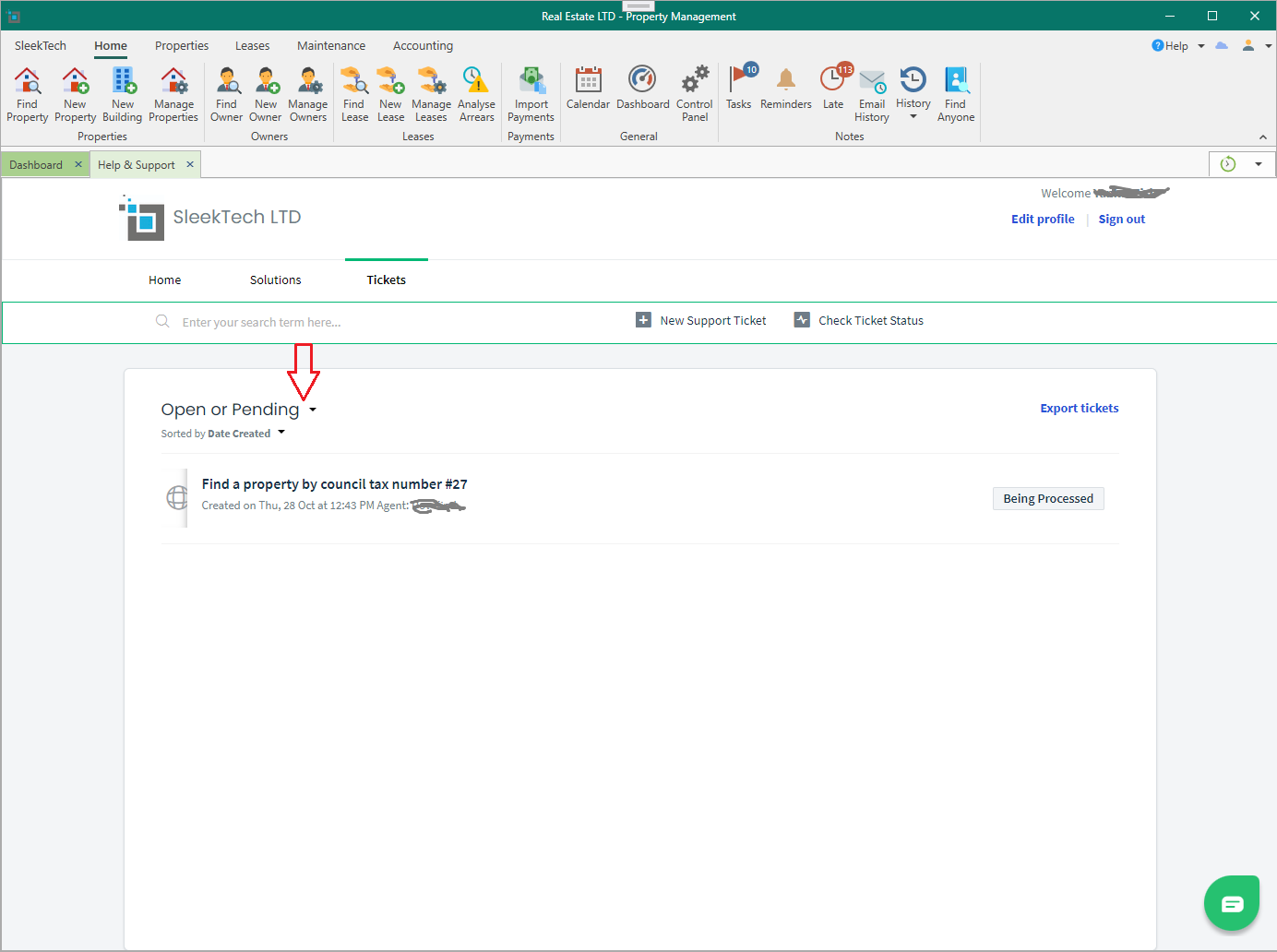
- You can click on the title of each ticket to see the full progress of that request.
- You can then add more replies by clicking on the textbox.
- If you wish to close the ticket if its not relevant anymore, click on the tick icon from the top.
- If you want to loop in another colleague into the conversation, you can add them by clicking the Add people icon.