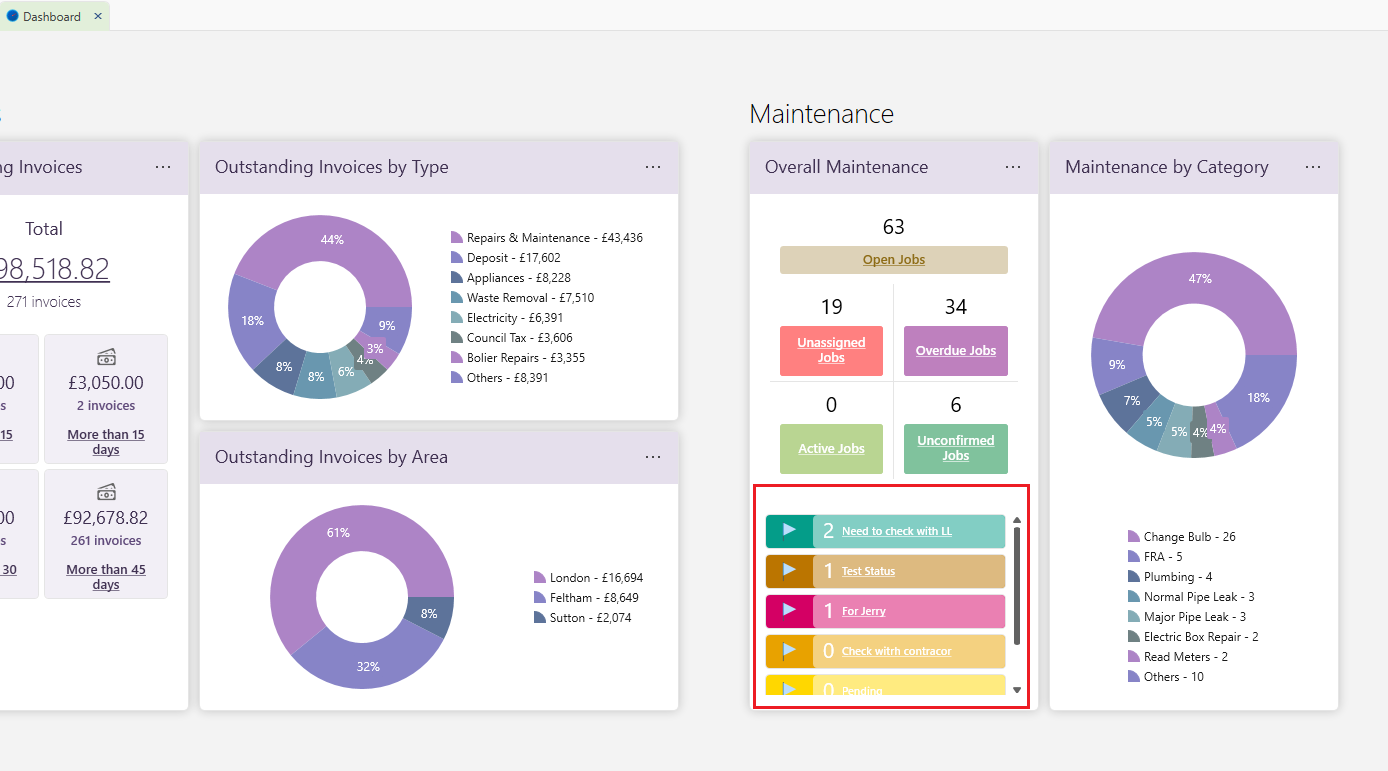
To make it easy to group maintenance jobs, every job has a status.
There a few automatic statuses but you can add your own custom ones.
Automatic maintenance statuses.
The maintenance status is automatically set by the system based on the supplier, scheduled and actual dates and times. These are the different statuses which will be displayed:
- New – a new maintenance job with no assignment to any supplier and no time scheduled to complete the job.
- Assigned – a maintenance job that has been assigned to a supplier and scheduled for a date to be completed.
- Started – a job that has actually been started with the Actual start date put in.
- Overdue- a job that has a Scheduled start or end date which has already passed with no Actual date put in.
- Completed – a job that’s completed with the Actual start and end date filled in
- Confirmed – a job that has been confirmed. This status is the only exception which will not automatically change, it needs to be marked as Confirmed by yourself for the job to show up as confirmed. This is put in place for you to check whether a job has been completed successfully and paid for before you confirm.
All jobs will show up on the Dashboard under Maintenance, categorised by the different Statuses.
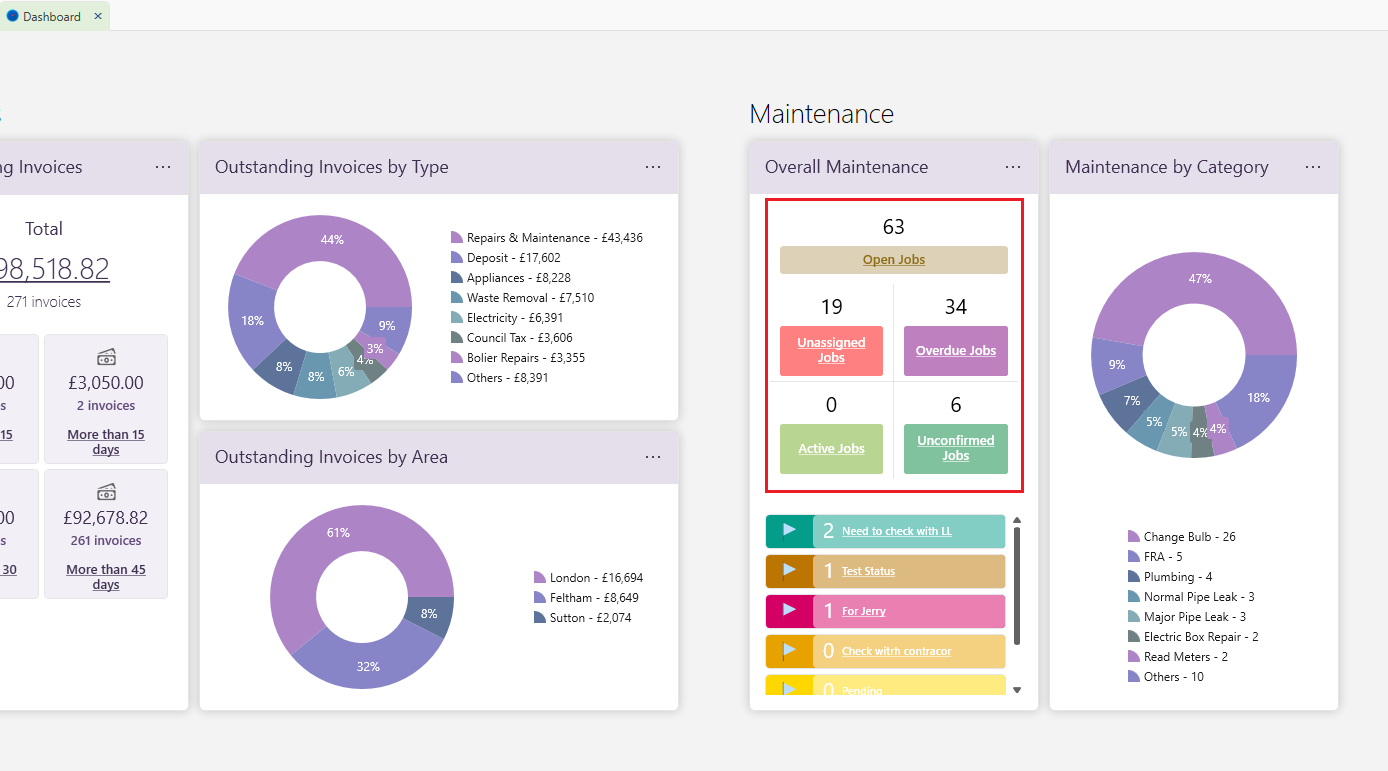
Change maintenance statuses manually.
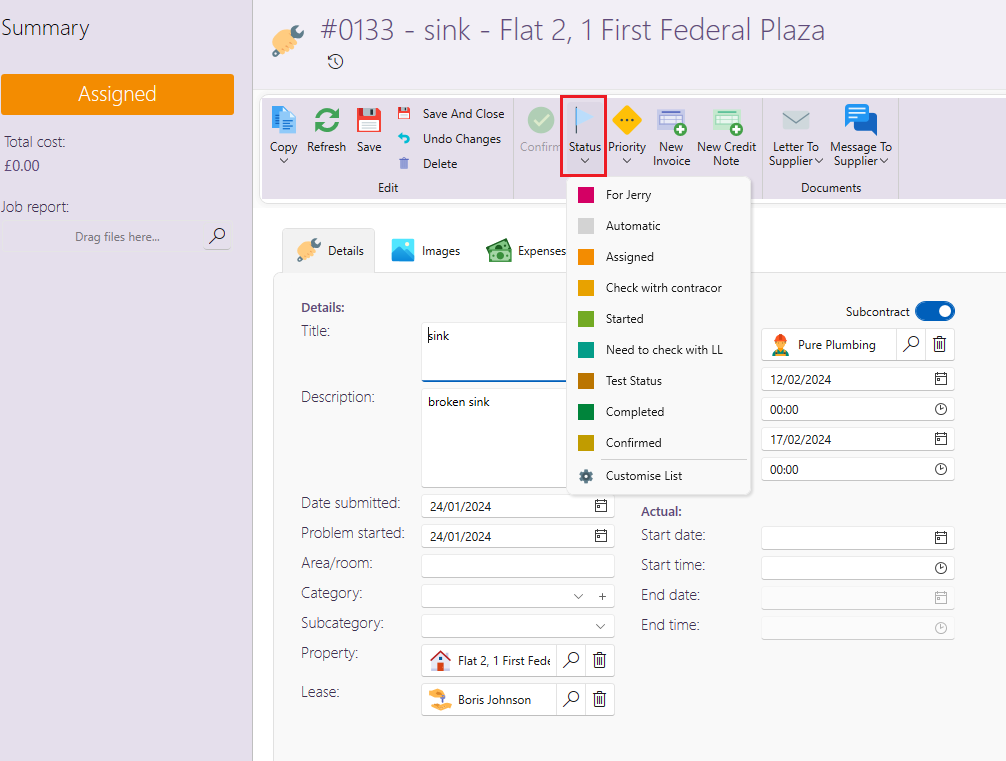
To change the status of an individual job manually:
- Find the job you wish to change.
- Click on Status from the page ribbon.
- Choose the Status from the dropdown.
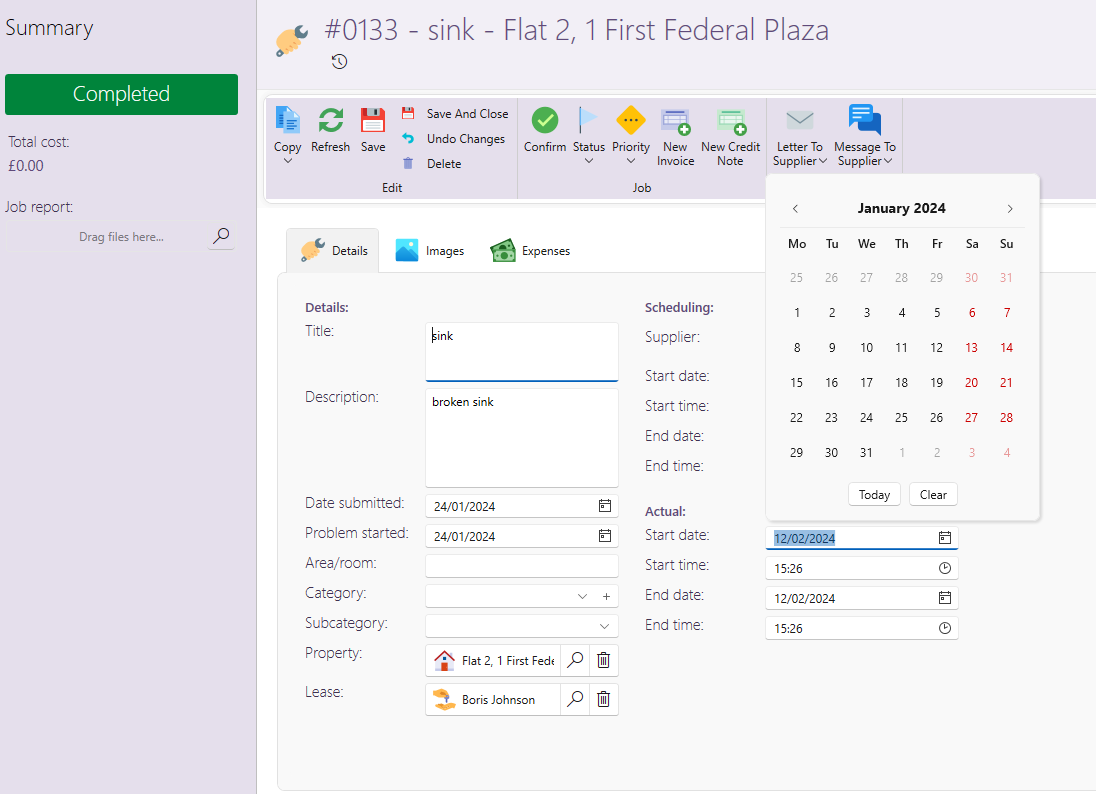
- If you click on Assigned, the Scheduled start date and time, as well as the end start date and time, will be automatically filled in based on the current date and time.
- If you click on Started the Actual start date and time will be filled in based on the current date and time.
- Similarly, if you click on Completed the Actual end date and time will be filled in accordingly.
- You can always change any of these dates or times by clicking on an individual box.
Updating the status of multiple maintenance jobs.
To change the status of many jobs manually:
- Click on Maintenance and then on Manage tasks from the main page ribbon.
- Filter out the columns to the maintenance jobs you desire.
- For more on how to filter and adjust this window, see here: How to navigate the Management windows
- Click on Status from the page ribbon and choose the status from the dropdown.
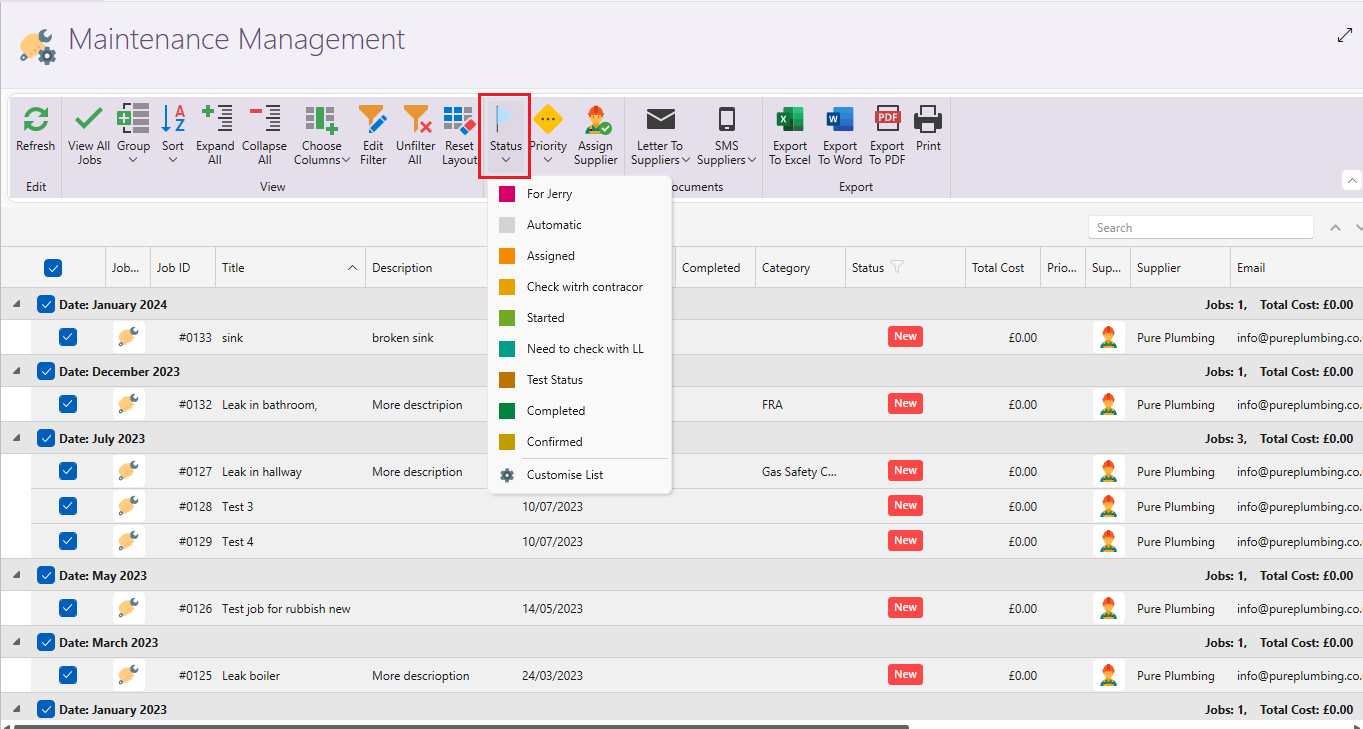
Create custom maintenance statuses.
- Find the desired job.
- On the page ribbon click on Status, then select Customise List.
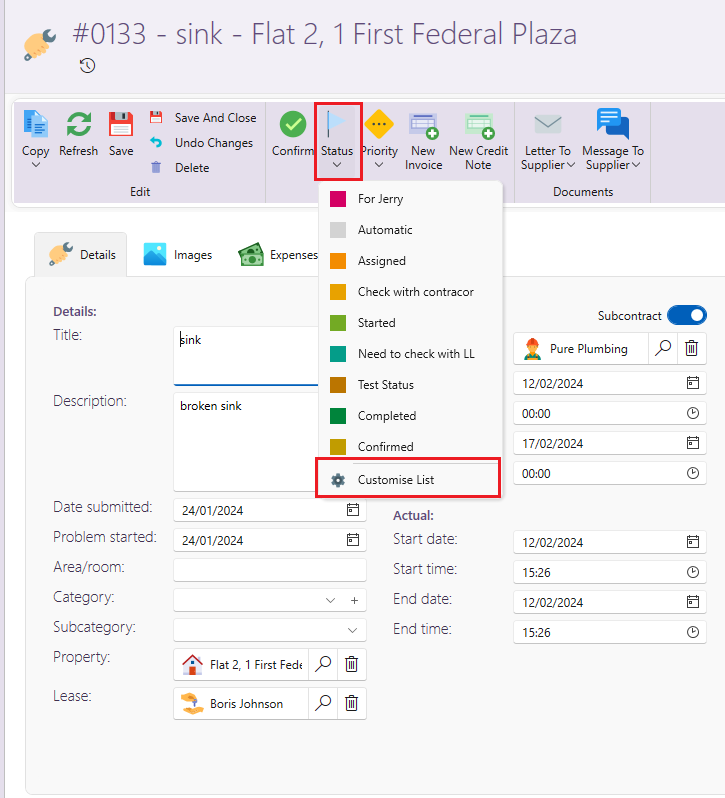
- Click on the Plus sign at the bottom to add a new Lease status. Fill in the details in the new row that comes up. Click on Save and close.
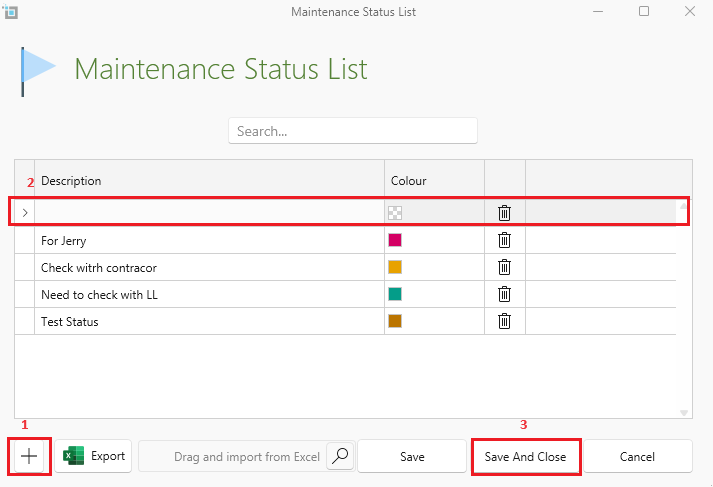
- You can also change the colour of the status by clicking on the dropdown next to the colour shown.
- Double-click on any status to edit, and click on the delete button to delete a status.
- You can also drag the rows around to reorder them as desired.
The same as above can also be done by going to Control panel and then to Maintenance Status list. Follow the instructions as above.
All jobs will show up on the Dashboard under Maintenance, categorised by the different Statuses including the custom statuses you have created.