Here's how to properly record any loans coming into or going out of your company, whether they're to or from another manager, landlord, or any outside party.
- Create a new supplier - The supplier name should be named General loans.
- Now create 2 new account ledgers. One should be named for your own company and the other for the company you are giving the loan to or from. E.g TrainingEstates Loan and SleekEstates Loan.
- See here how to create new ledgers. Manage your account ledgers
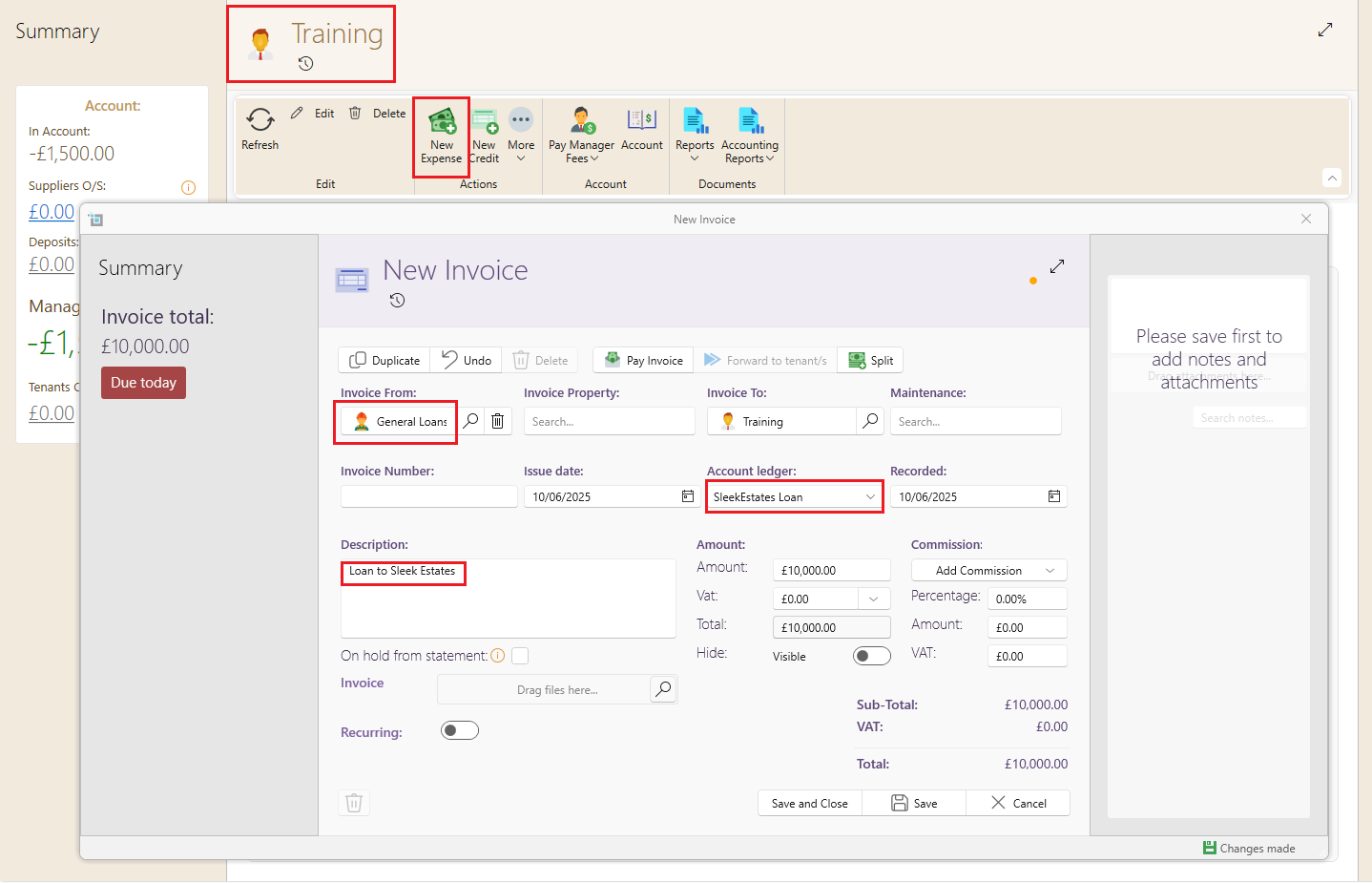
Now we will start by creating an expense for the party that is providing the loan
- Go to the page of the manager or owner who is providing the loan.
- Select the option New Expense.
- You can now fill in the relevant details.
- Invoice from should be from the supplier named General loans.
- On the Account ledger, select the loan ledger for the other party involved in the transaction. For example, if your company is TrainingEstates, select SleekEstates Loan as the account ledger.
- Save and Close
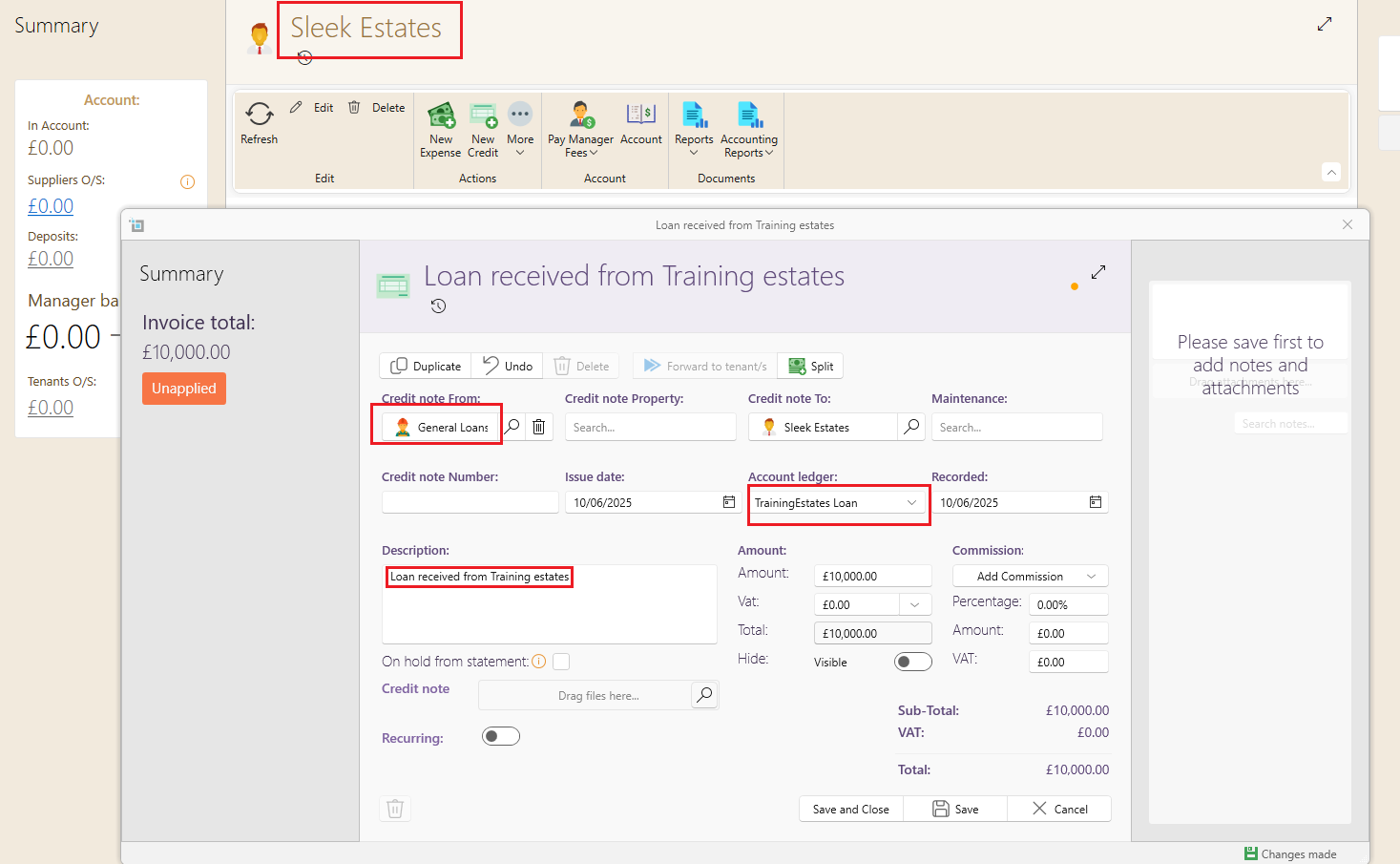
Now we will create the a credit for the party that is receiving the loan (If it is a manger or landlord on your system.)
- Go to the page of the manager or owner who is receiving the loan.
- Select the option New Credit.
- You can now fill in the relevant details.
- Credit note from should be from the supplier named General loans.
- On the account ledger, select the loan ledger for the other party involved in the transaction. For example, if the company receiving the loan is SleekEstates, select TrainingEstates Loan as the account ledger.
- Save and Close
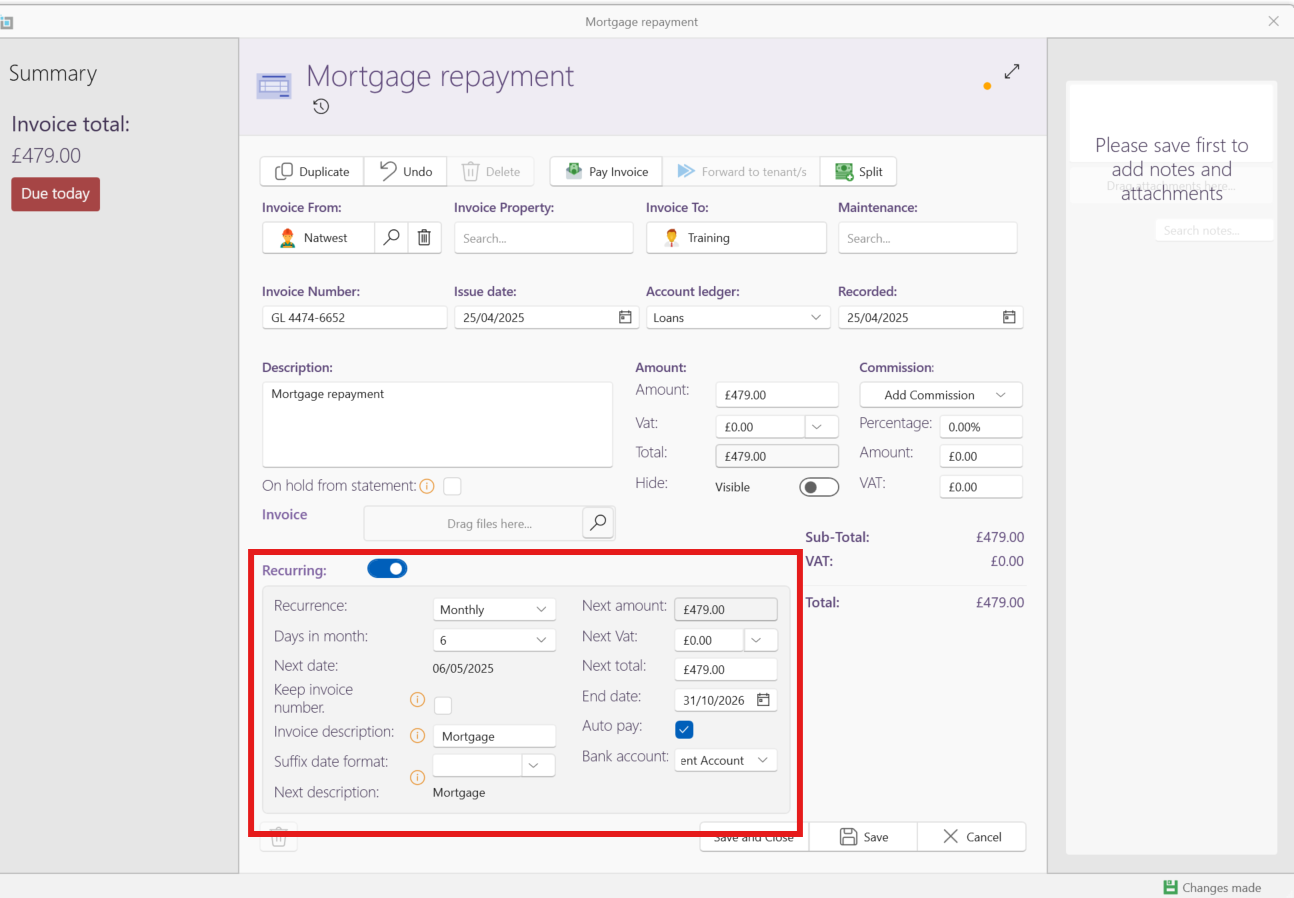
If the repayment reoccurs monthly you can now choose the recuring option to let the system know how often you would like this invoice to recur.
- Slide the Recurring toggle to switch on recurring invoices
- Fill in the relevant details as to frequency and date you would like the invoice to recur.
- You can put in an end date for the las t payment date
- If you repay via a standing order or direct debit, you can select the auto pay option this will automatically mark the invoice that is created as paid and will show up in your chosen bank on the SleekTech transaction side on the date the invoice is set to be created.