You may sometimes make a bulk purchase of smoke alarms etc which is paid and kept by you. When needed, the item gets sent to a property and then you need to invoice the owner for this.
To record this correctly it will be split in 2 parts.
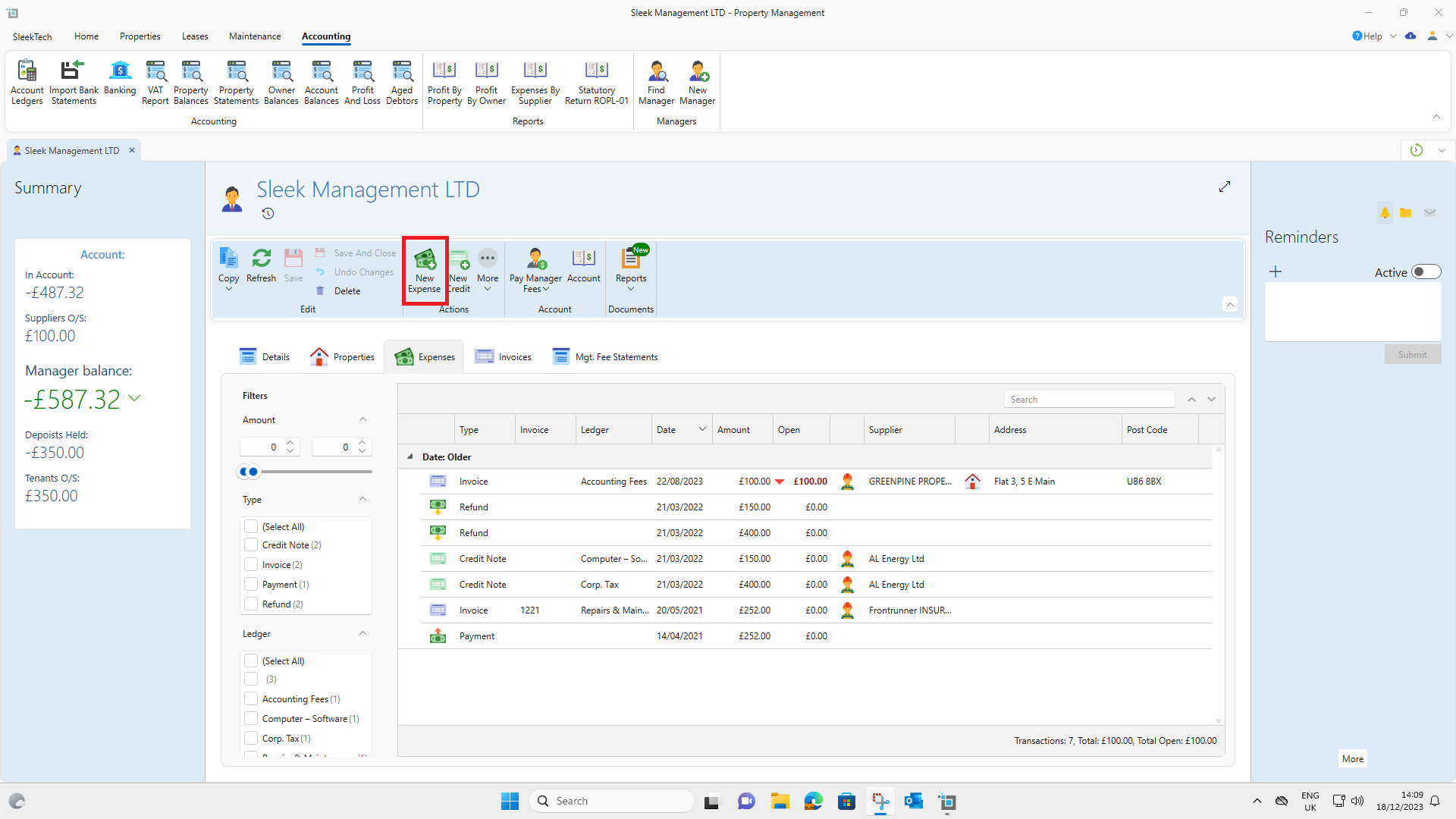
Firstly, find the correct Manager under Find manager in the Accounting tab.
- On the Managers page click on New expense
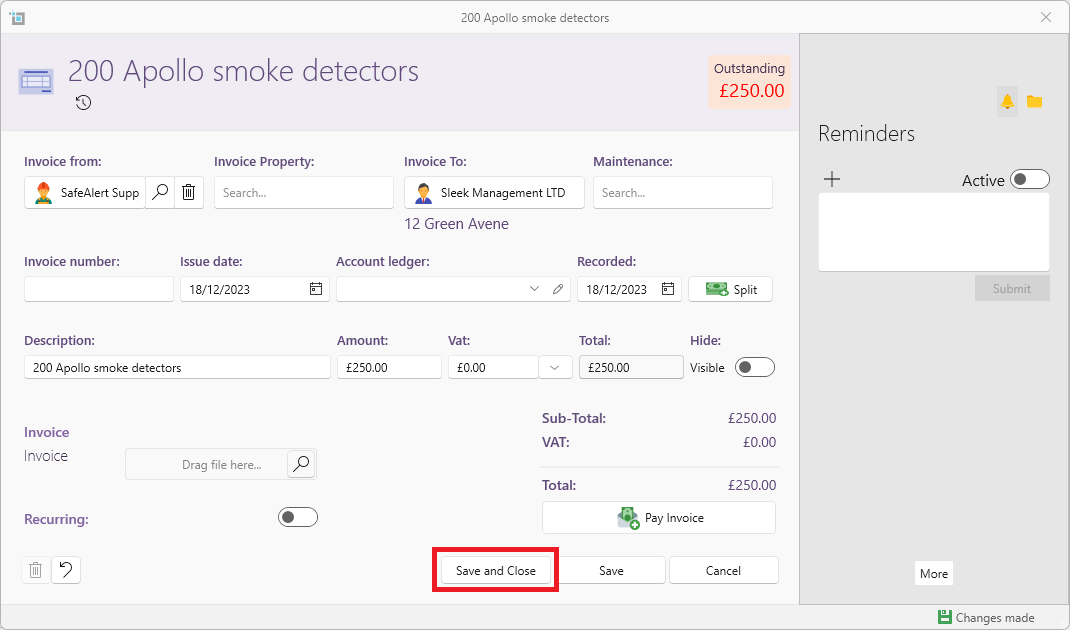
- On the New expense fill in all the details such as the date, invoice from, amount, description. The Invoice property should be left blank, as it is invoiced to you - the manager which should show in the Invoice to.
- Click on Save and close.
Now for the second part.
If you will be supplying properties individually whenever needed:
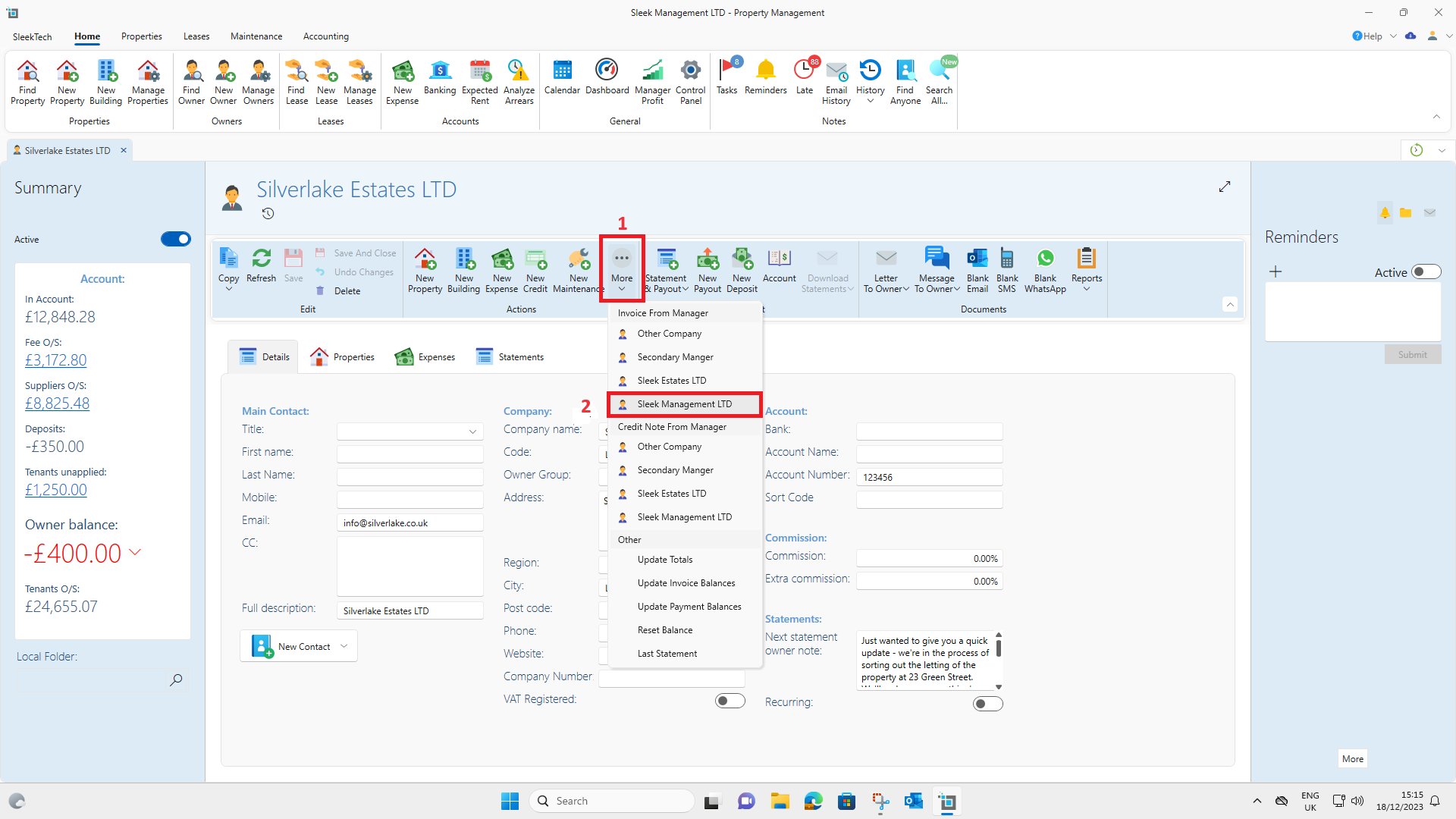
- Find the correct property or the owner of the property you will be supplying.
- On the property or owners page, click on the More dropdown and then click on the correct manager under Invoice from Manager.
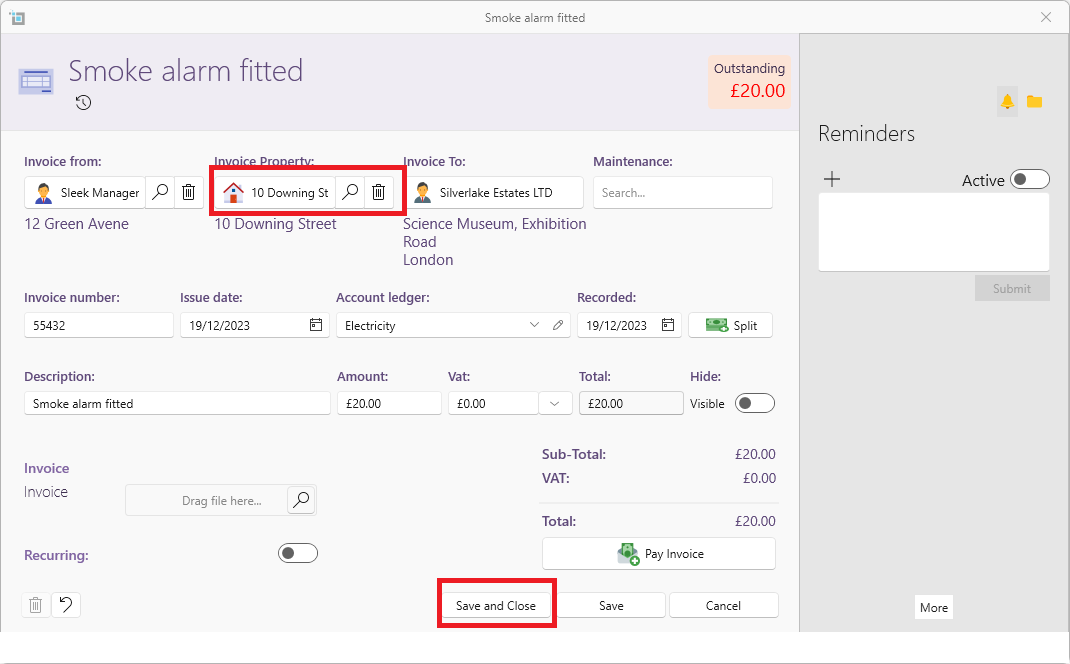
- On the Invoice fill in all the details such as the date, Invoice property, amount, and description.
- Click on Save and close.
If you will be supplying many or all of your properties together:
- Find the correct Manager under Find manager in the Accounting tab.
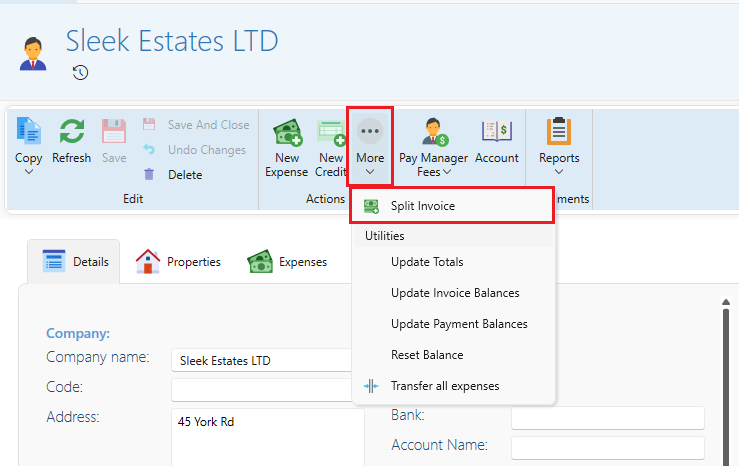
- On the Managers page click on Split invoice under the More tab
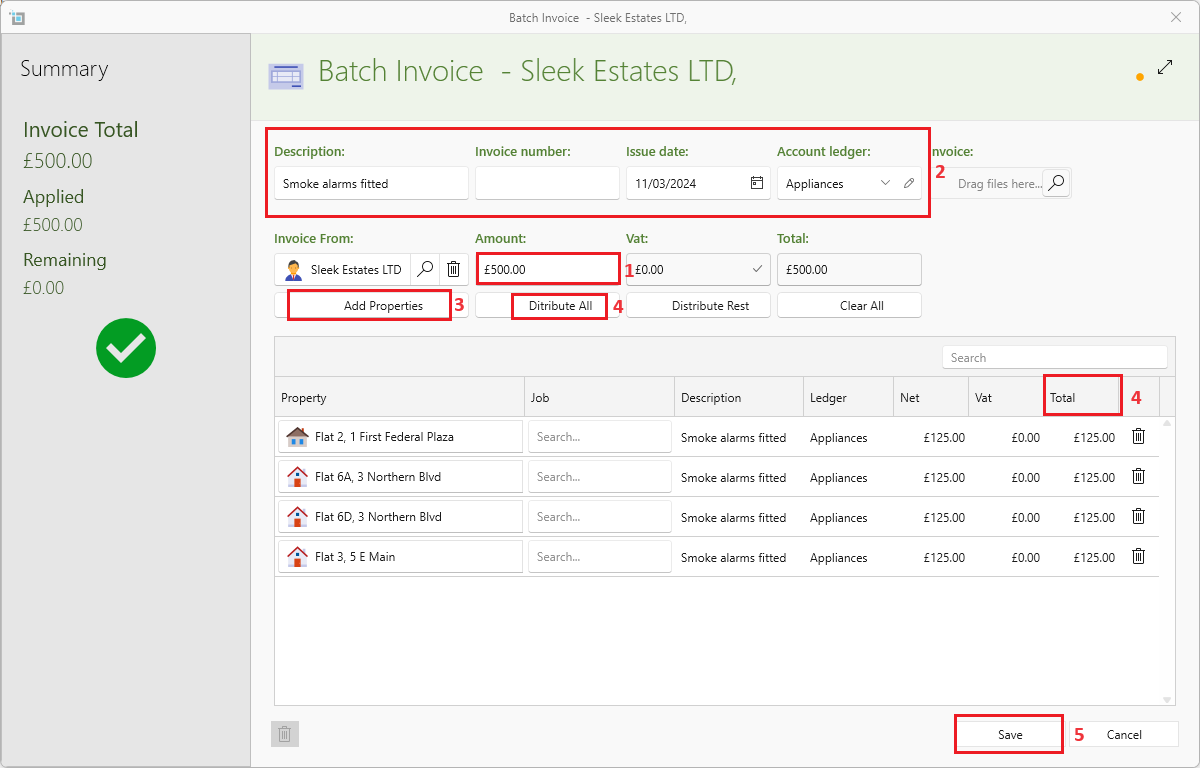
- A batch invoice window will now appear. Put in the description and the account ledger.
- Put in the total amount.
- You will now have the option of adding in all the properties by clicking on Add properties. The list of all properties will appear, click on all of them or search for the ones you need and then click on OK at the end when you are done.
- Click on Distribute all to distribute the amount equally to all properties or you can put in the amount manually on the Net column of each property.
- Click on Save
- A separate invoice on each property has now been created from you to the owner.