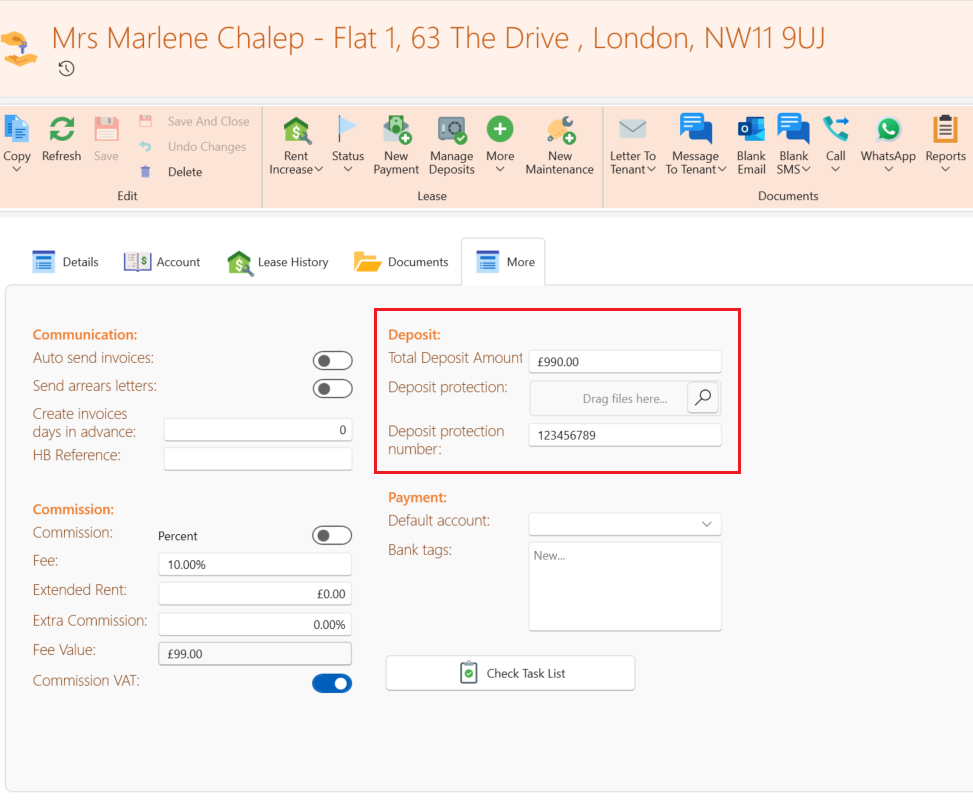
Follow the instructions below to record a tenants Deposit on SleekTech if you have not added it whilst putting in the new lease:
There are different sets of instructions depending on where the deposit is being held, so follow the set relevant to you.
This is how to create a deposit that is being held by a tenancy protection scheme.
- Click on to the lease and select Manage Deposits.
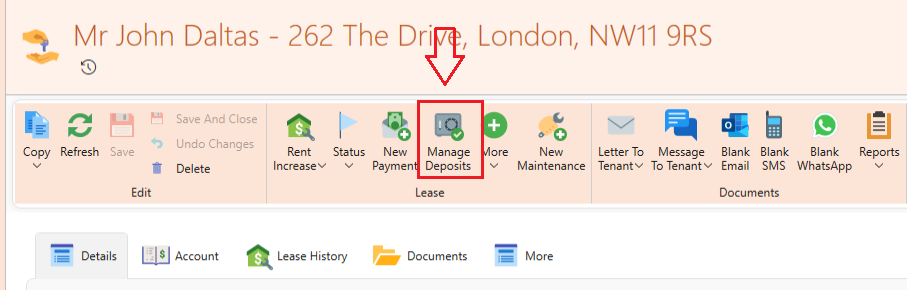
As numbered in the diagram below:
- Click on New Deposit
- Click on the Select Tenancy Deposit Scheme box and a supplier list will pop up, choose the protection scheme from the list.
- If the deposit is the same as the rent, slide the toggle to yes, an extra box will appear stating how many times the rent it should be calculated eg.1(1 month) or 1.5 (1 and a half months)
- If the deposit was not the same as the rent, manually type the amount into this box.
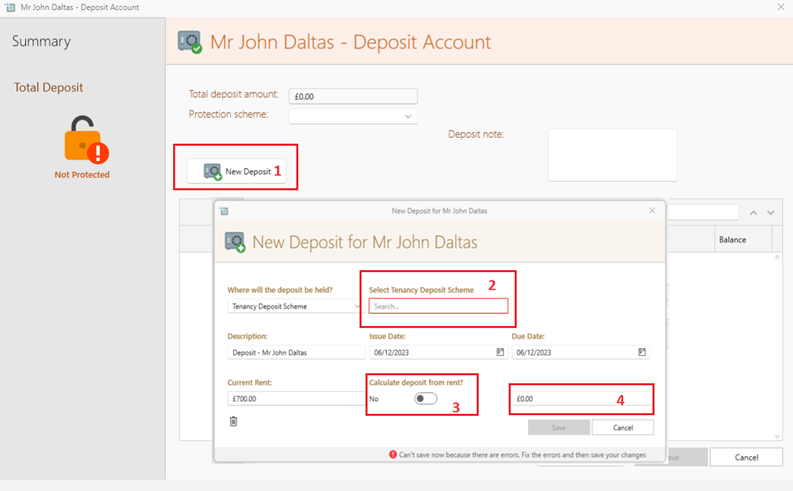
- Click Save
SleekTech will now generate 2 invoices :
- An invoice from your company to the tenant.
- From the Deposit Protection Scheme (supplier) to your company.
Once the deposit has been protected you will need to let the system know by clicking the drop down by protection scheme and selecting the correct scheme.
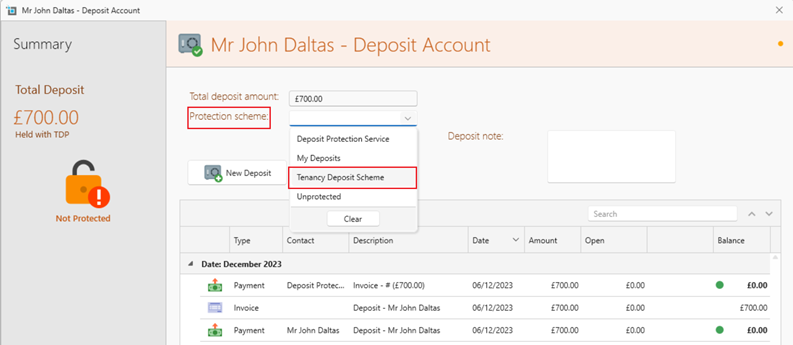
It will now show that the deposit is protected and you will have the option to put in the relevant info and documents in regards to the protection.
This is how to create a deposit that is being held by the owner or managing company.
- Click on to the lease and select Manage Deposits.
- Select New deposit from the top left corner
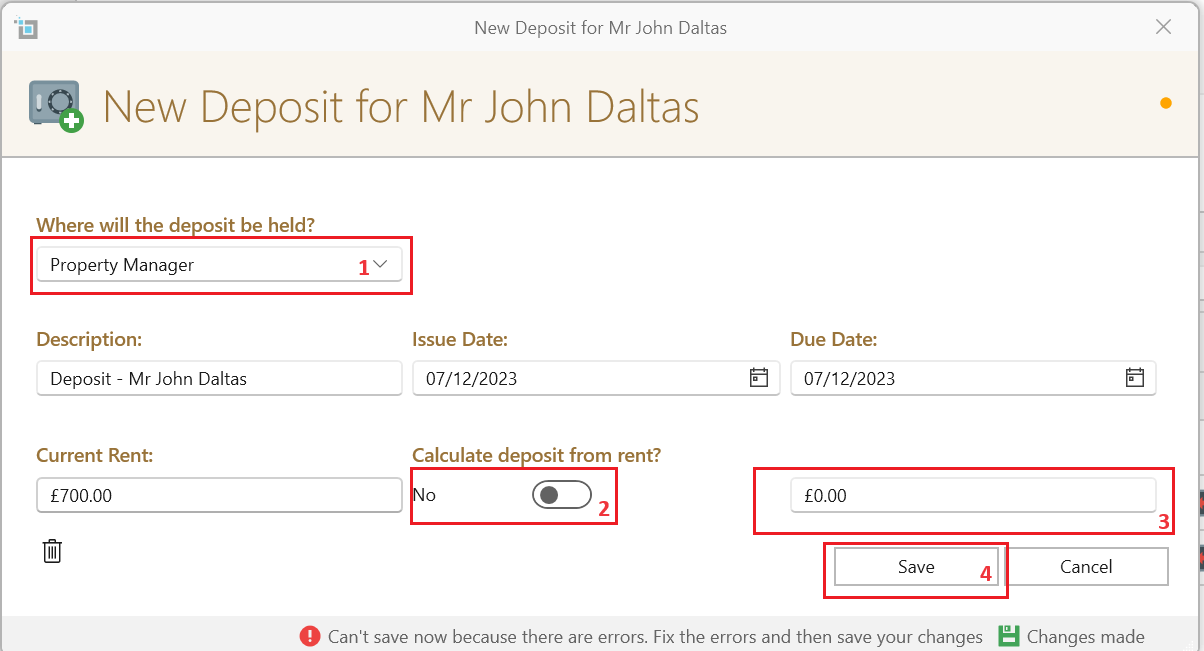
- As numbered in the diagram above:
- Select whether the property will be held by the manager or owner.
- If calculating the deposit from the rent slide the toggle to Yes
- If you are not calculating the deposit from the rent, enter the amount manually.
- Click Save.
SleekTech will now generate an invoice from the owner/manager to the tenant for the deposit.
This is how to create a deposit that is being sent from the tenant directly to the owner or the Deposit protection scheme
If the tenant deposit is paid directly to the deposit scheme do not follow the process above, simply fill in the deposit amount on the More tab of the lease.