
You might want to match the colours on the statement to your logo, or just change to a colour of your choice. The Letter Editor window easily allows you to change the colour theme, creating a cohesive look that resonates with your company's branding.
How to change or edit the colour
- Find any owner and go to the Statements tab.
- Choose any statement and click on Statement and then on Edit template which is under the dropdown at the end of the row. This will open the letter editor
- Click on Attached report
- Click on Main colour and choose the colour desired either through the common colours or with the advanced colours which you will find under More colours.
- If you want to match the exact colour as your logo, follow the steps above and then:
- Open up your logo and resize both your logo page and the More colours page so that you have them one next to the other.
- Click on the paintbrush icon.
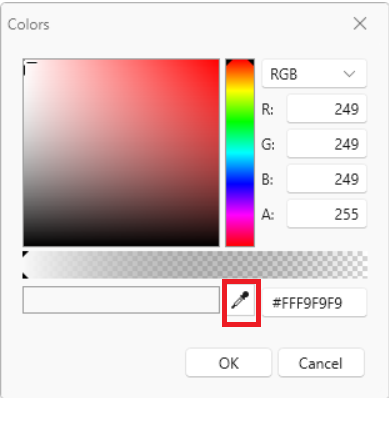
- A small square will appear, move it to the desired place on your logo. The best is to place it on a big solid colour so that it will be able to match as accurate as possible. The colour picked up will show in the box next to the paintbrush icon.
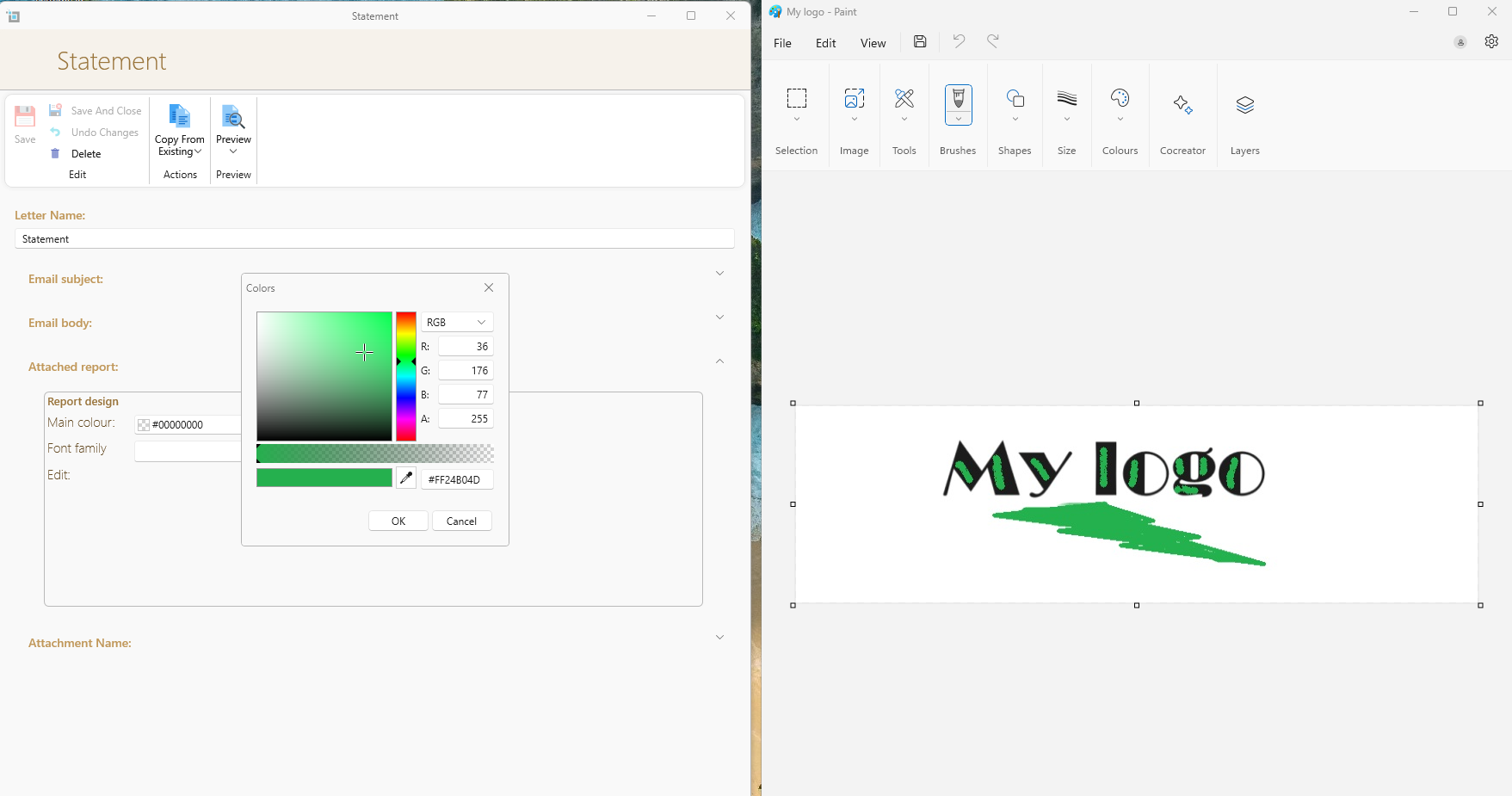
- Click on OK under the paintbrush icon and the desired colour will now come up.
- To see a preview of your changes click on Preview on the top and when you are happy with the preview you will need to click Close preview to allow it to save.
- Click on Save and close from the top right corner.
How to change or edit the font
- Find any owner and go to the Statements tab.
- Choose any statement and click on Statement and then on Edit template which is under the dropdown at the end of the row. This will open the letter editor.
- Click on Attached report
- Click on Font family
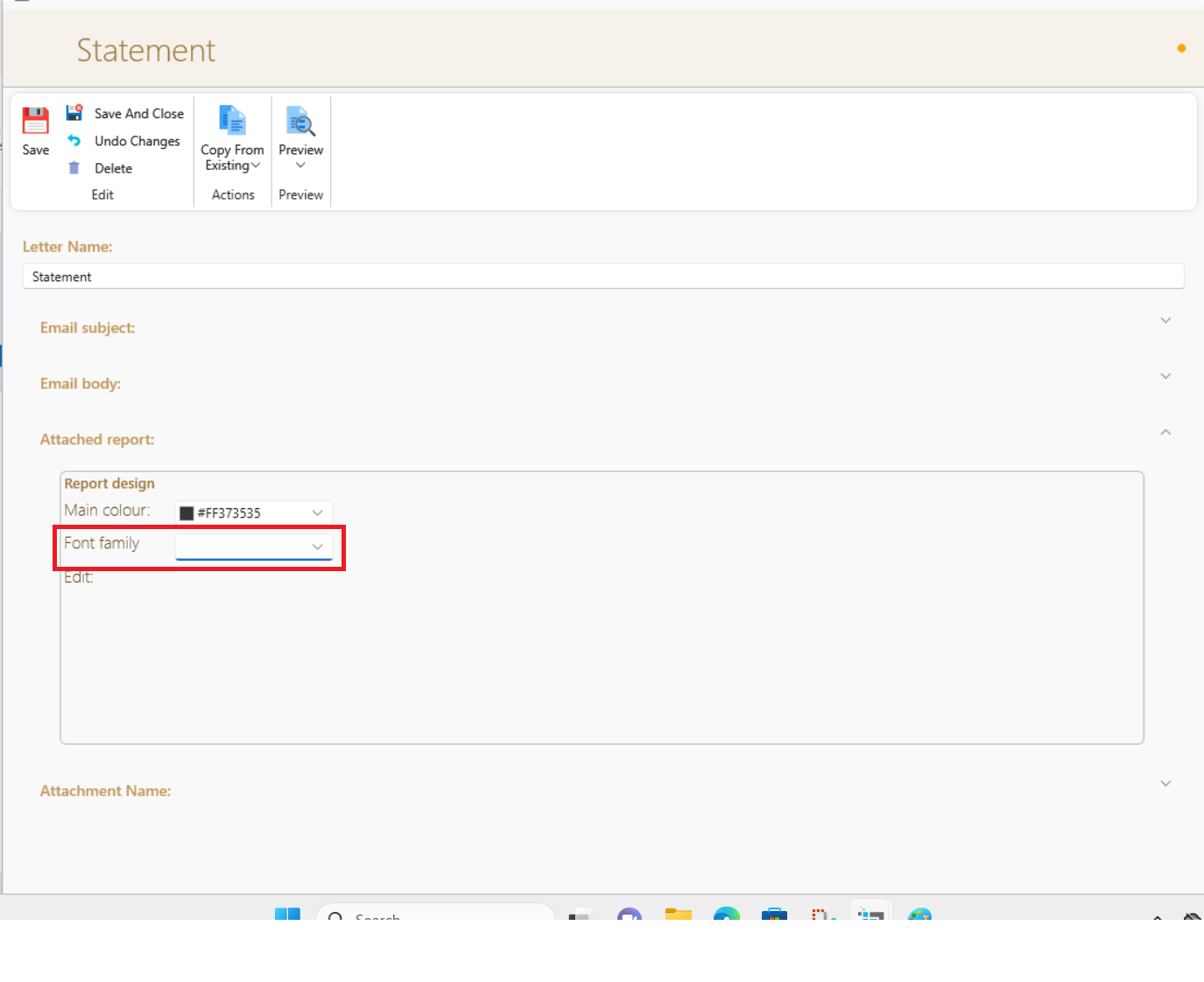
- Choose the font you desire.
- To see a preview of your changes click on Preview on the top and when you are happy with the preview you will need to click Close preview to allow it to save.
- Click on Save and close from the top right corner.