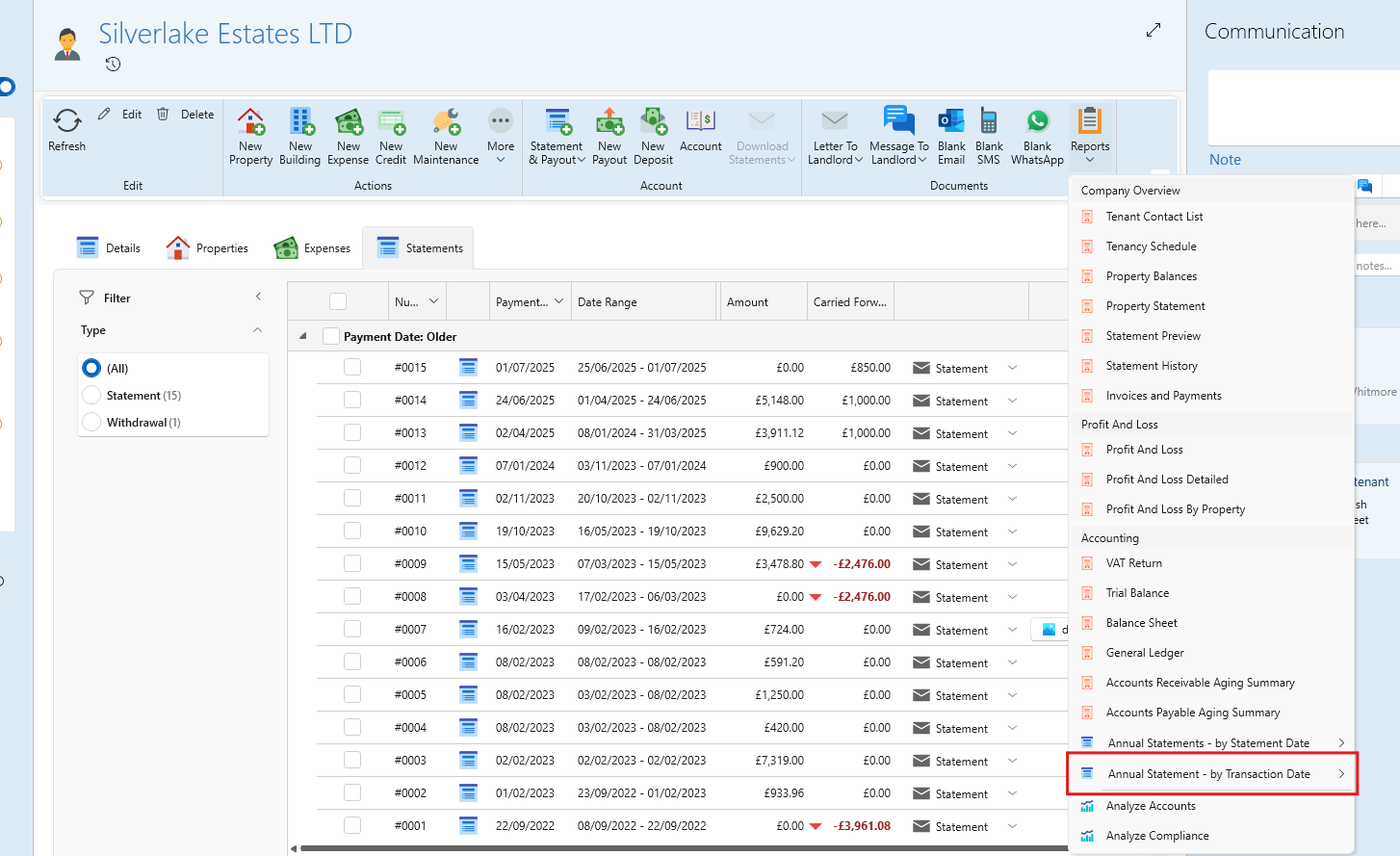
Here we will guide you on creating a bulk statement for an owner.
There are 2 different methods available, choose the one desired
Option 1. Download actual statements as individual PDF files
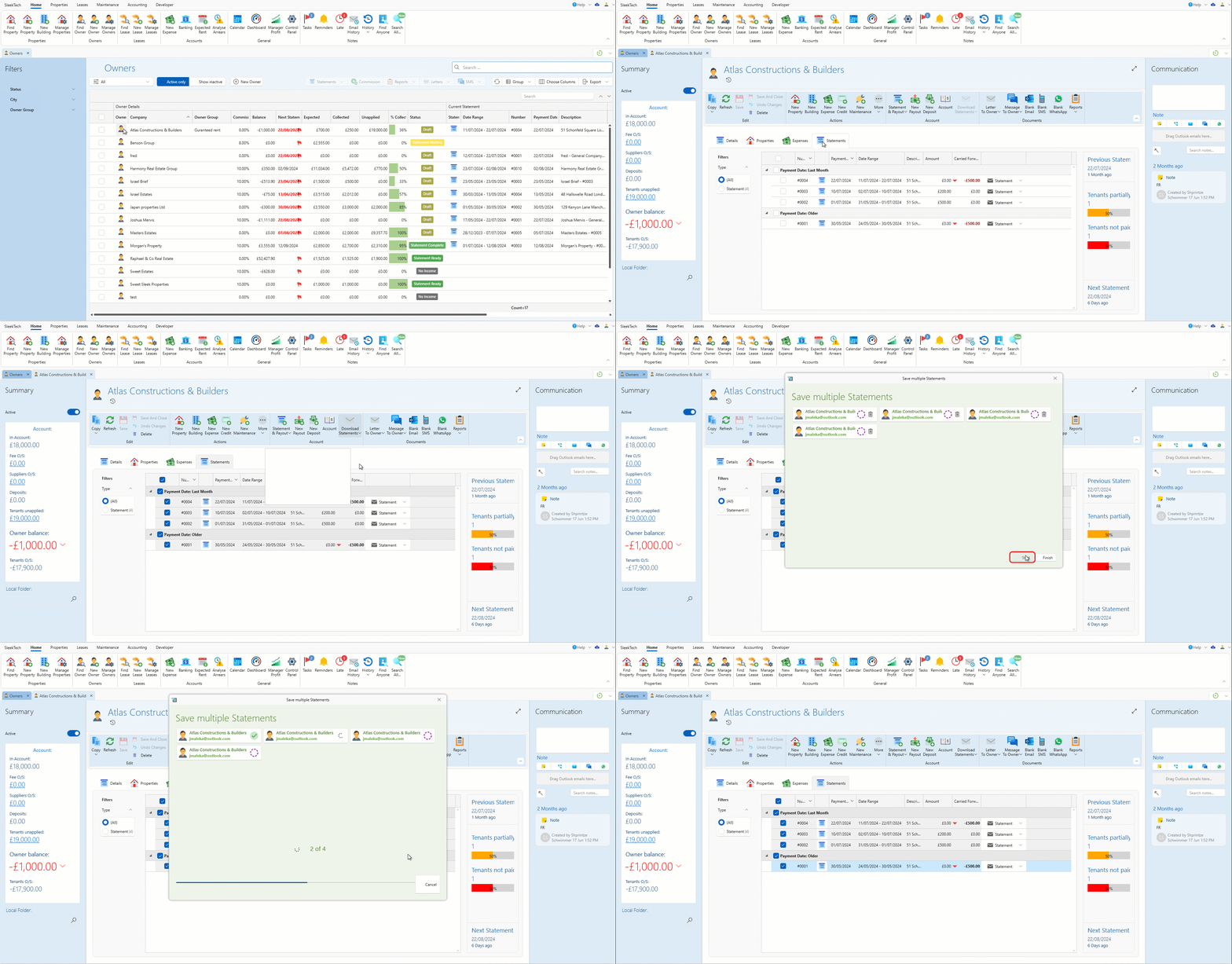
- Navigate to the correct owner and find the Statements tab in the system.
- Use the tick box next to each statement to select the ones you wish to download for the specific time period.
- After selecting the statements, click on Download Statements.
- Choose the type of statement you want to download.
- A confirmation box will appear. Click OK to proceed.
- The system will prompt with a download box. Click Save to store the statements.
- Another box will appear showing the status. Click Start to begin downloading the selected statements.
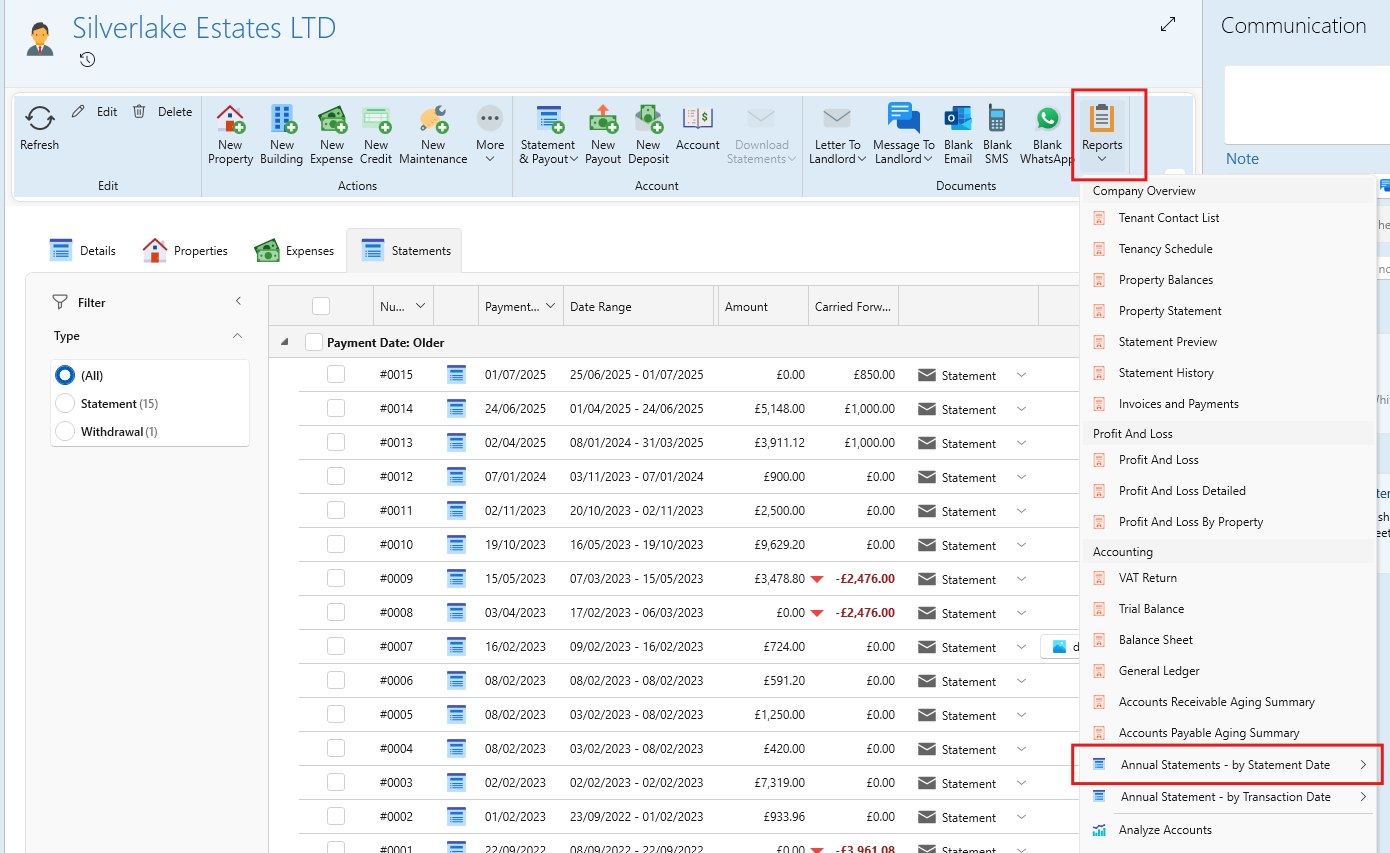
Option 2. Download combined statement by statement date.
Includes all transactions from statements where the statement end date falls within the chosen date range. This ensures that only transactions already included in official statements are brought in.
- Go to the owners page, and click on Reports from the page ribbon.
- On the dropdown, click on Annual statements - by statement date
- Click on the desired template, and then on Open or Outlook depending on how you want it.
- You will get a prompt for a date range.
Option 3. Download combined statement by transaction date.
Includes all transactions that fall within the chosen date range, whether or not they were part of any official statement.
- Go to the owners page, and click on Reports from the page ribbon.
- On the dropdown, click on Annual statements - by transaction date
- Click on the desired template, and then on Open or Outlook depending on how you want it.
- You will get a prompt for a date range.