Below you'll find some general tips and tricks to help you navigate the Management windows.
This article applies to the following windows:
- Manage Properties
- Manage Leases.
- Manager Owners.
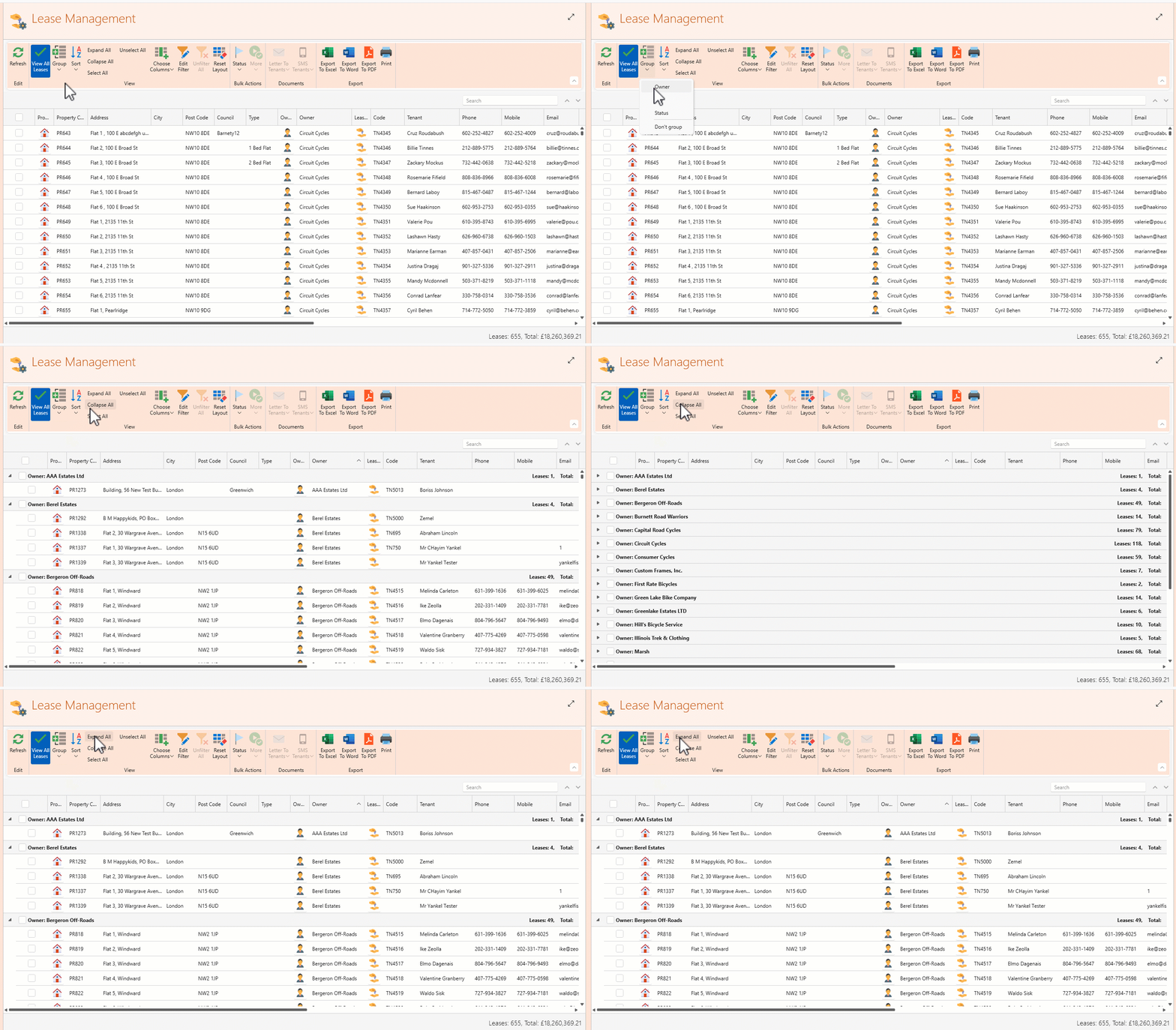
- To get a clearer overview Group leases by owner, city or status. Choose Collapse All to see group names only.
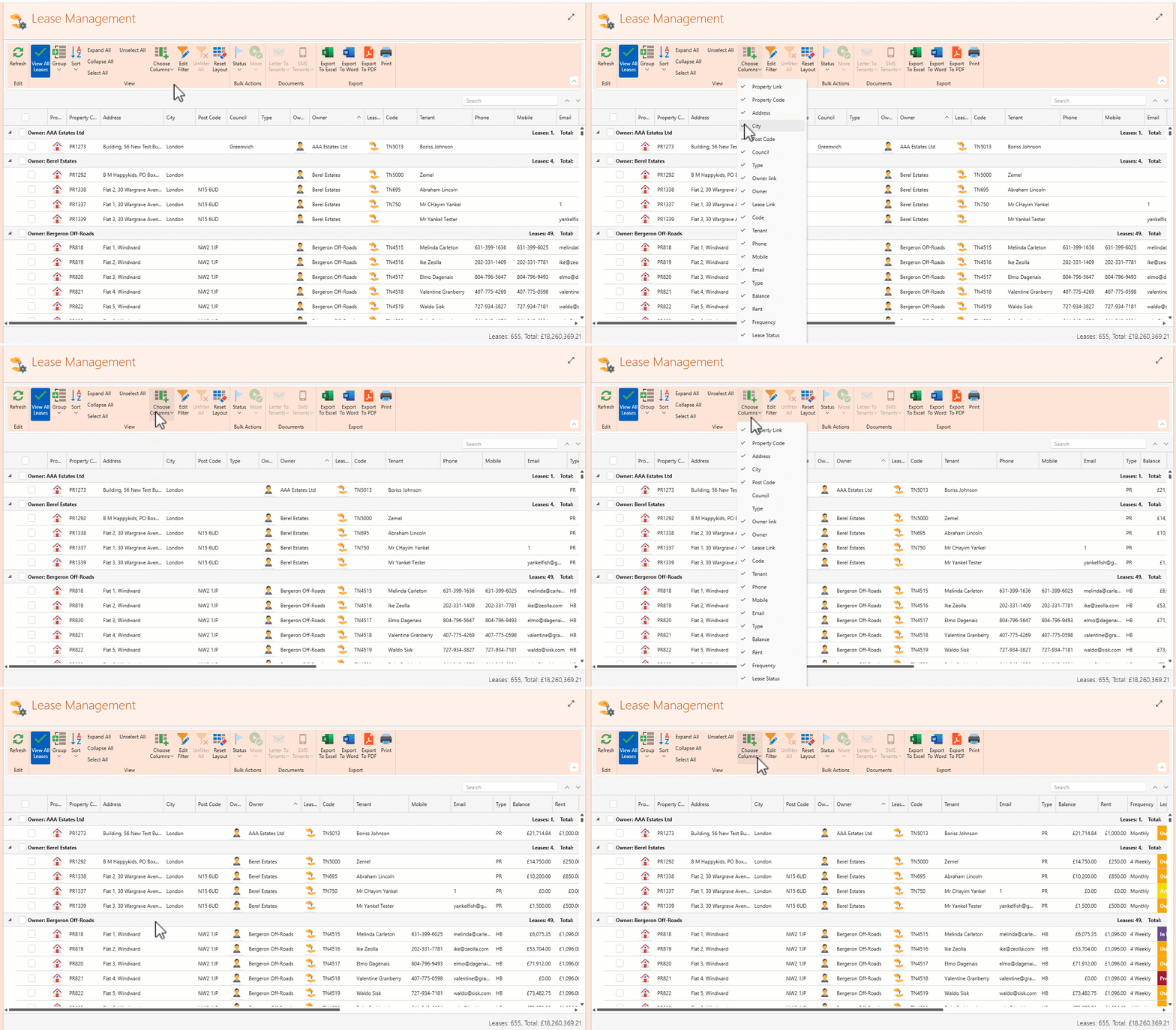
- No need for so many columns? Click Choose Columns and uncheck the columns you don't need.
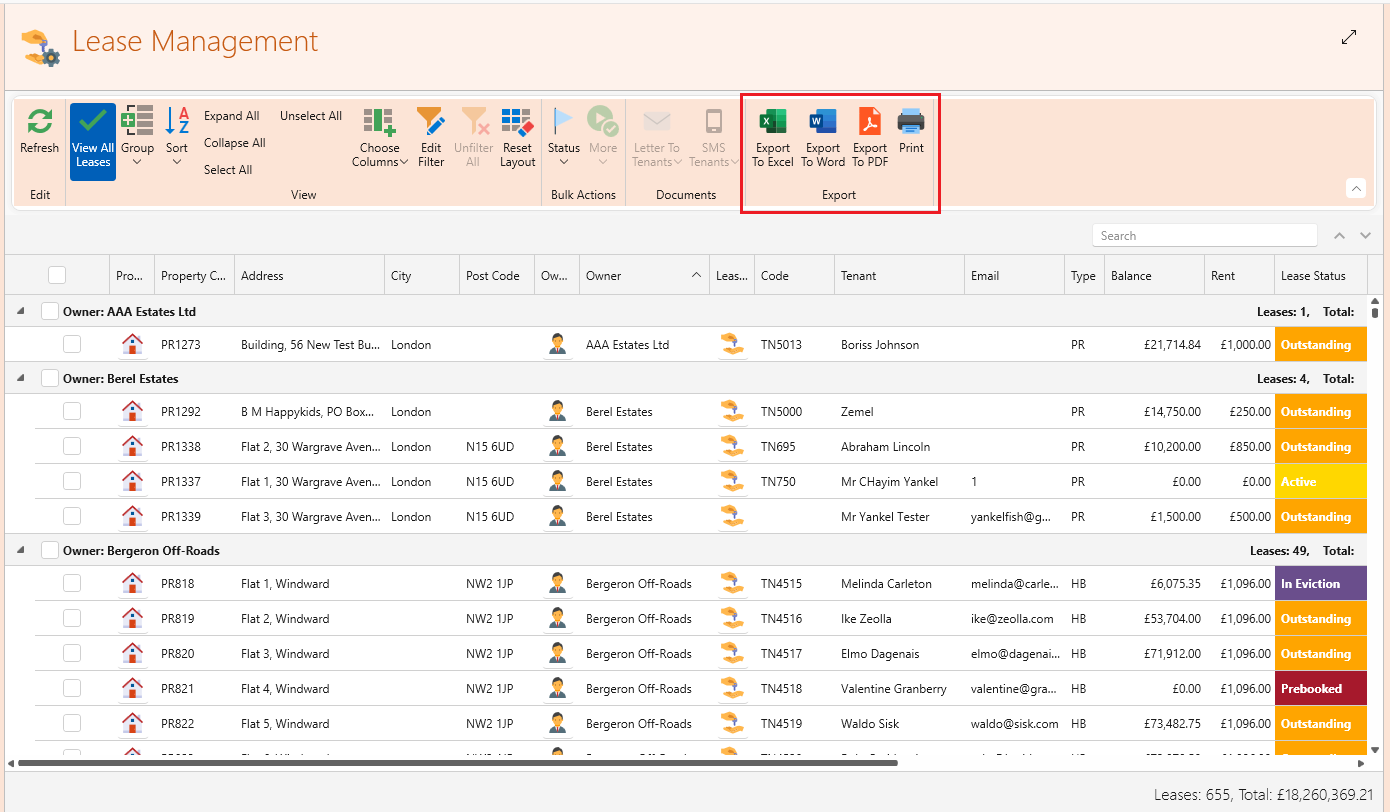
- Export all leases to excel, word or pdf.
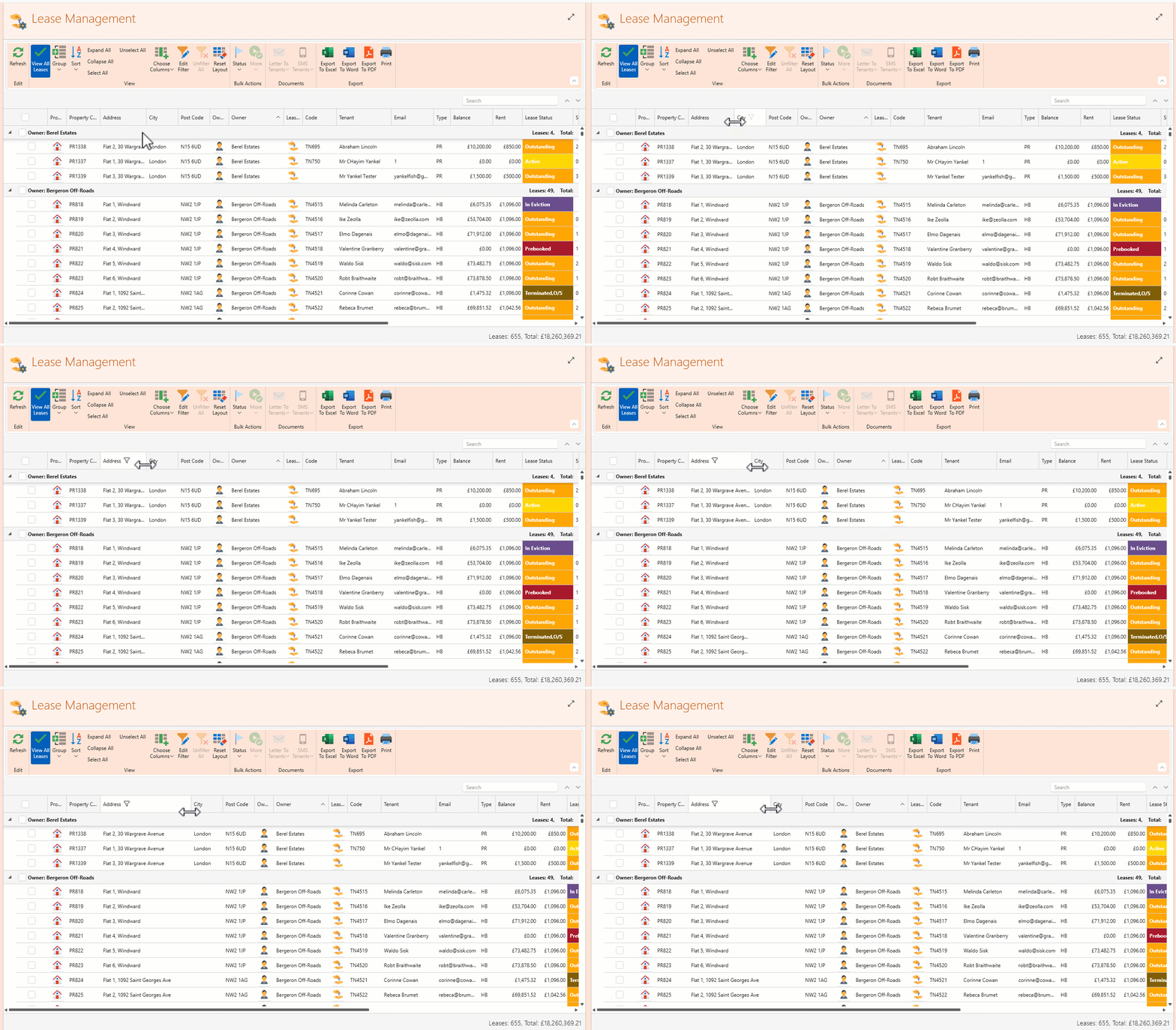
- Adjust column width to make reading easier.
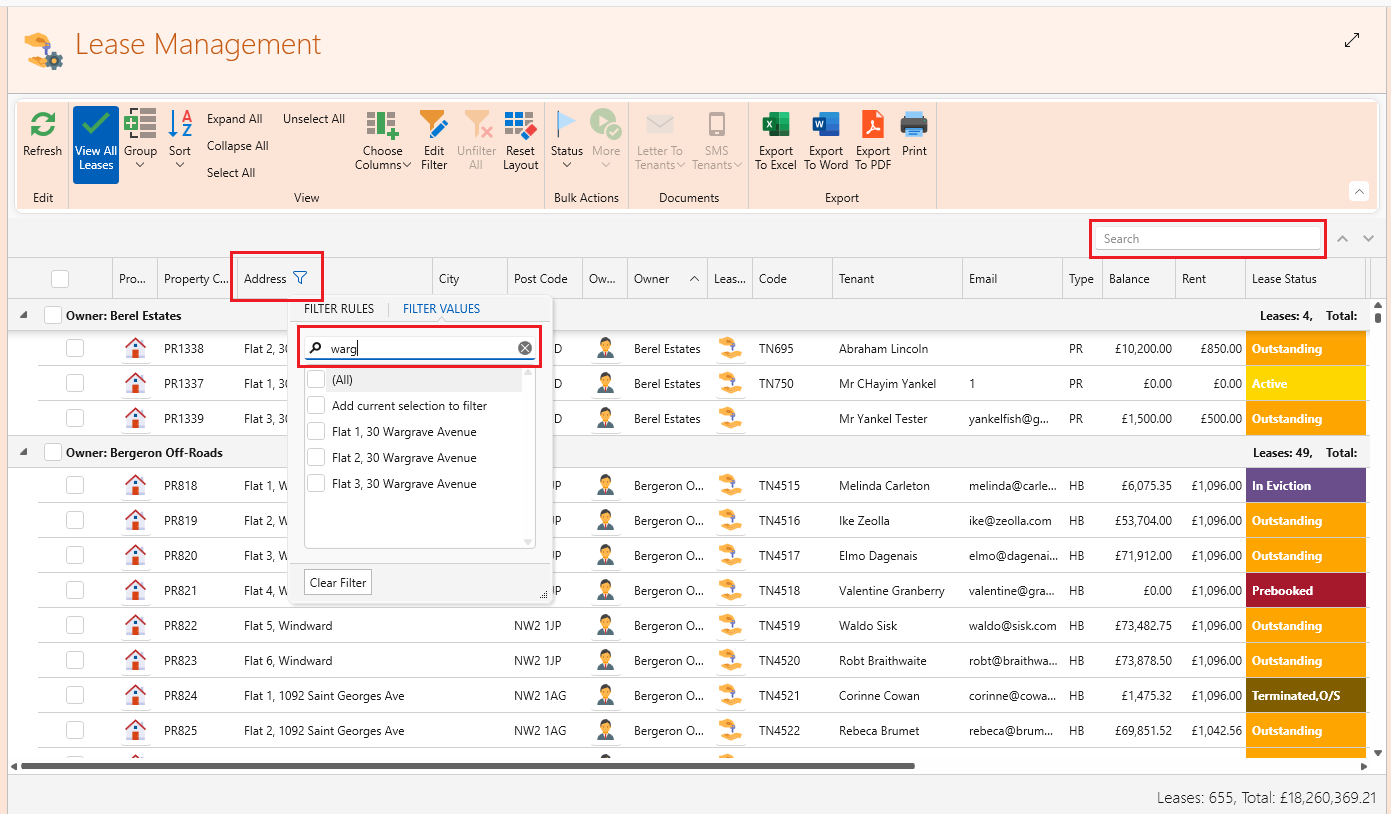
- Use general search bar or click a specific column to search there.
Save and Manage Views
The saved views feature allows you to personalize and organize your workspace exactly how you need it. It remembers your preferred filters, column selections, and groupings, so you can quickly return to the same setup anytime. Each user’s configurations are saved separately, ensuring your custom view is just for you.
How to Use It
- Customize Your View – Choose which columns to display and organize them by criteria like managers or city. Apply any filters you need. The feature works for filters as well as groups.
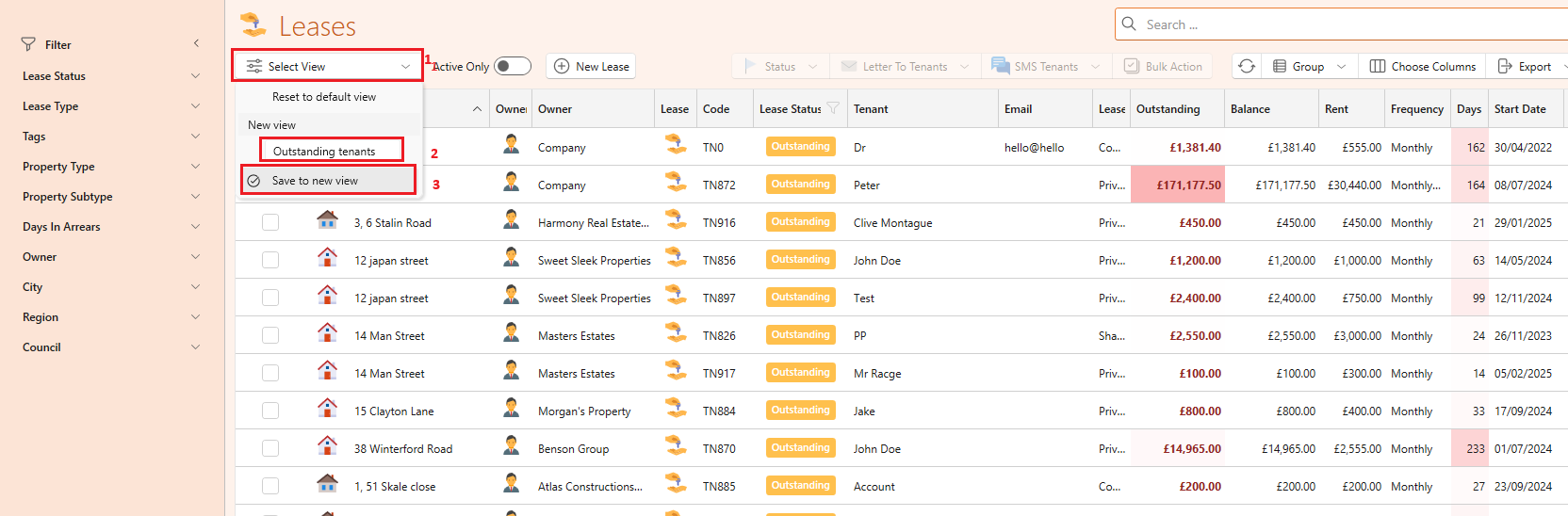
- Save Your View – Once you've set it up the way you like, click on Select view at the top left.
- Type the name of the view into the box
- Click on Save to New view.
- Access It Anytime – You can always click on Select view and you will find all saved views and click on the desired one. It will instantly apply your settings, including any new data that matches your filters.
For example, if you filter out all outstanding leases and save the view as "Outstanding," the next time you open it, you’ll see all outstanding leases—including any new ones that have appeared since your last visit.