
Creating and Managing Notes
This is how to create notes, tasks, reminders, record all calls and texts, and save any emails received. The same rules apply to both the owner and the Lease page.
Go to the desired owner or lease and find the Communication section on the right side.

- Click on the desired icon. You can now choose to either put in a plain note or a type of communication you had, which is incoming/outgoing texts, incoming/outgoing calls, incoming/outgoing email and WhatsApp conversation. The Text, Call and Email will all have a dropdown to click on Incoming or Outgoing. The phone numbers and emails of all tenants will come up.
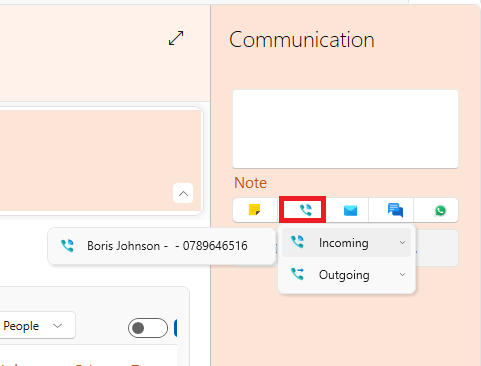
- Type in the box the desired content and then press Enter. The note will show up underneath with the correct icon.
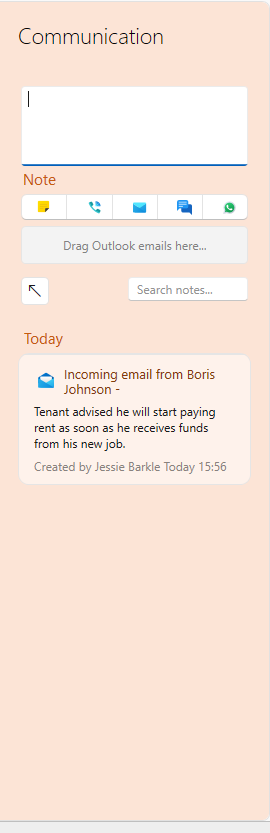
Editing and Viewing Notes
The communication notes have more features such as reminders, flagging the note and also sending it as an email to one of the other users.
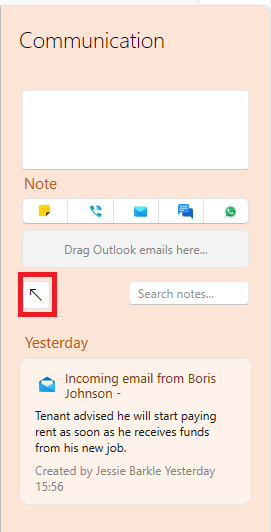
- Click on the arrow icon to expand all the notes on this section.
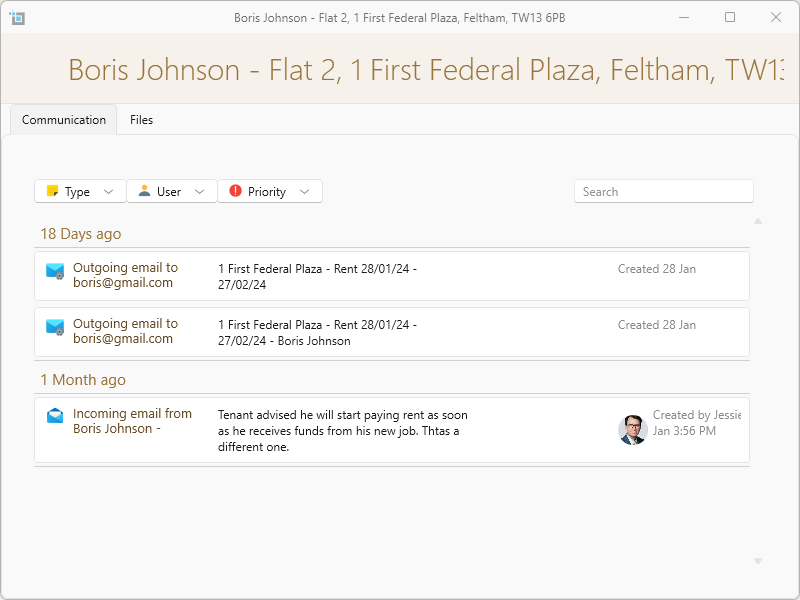
- A box with all the notes will appear. You can filter out by type, user or priority. You can also click on the Files tab at the top to add or view any attached documents.
Managing Note Features
- Click on the desired note that you wish to edit or view more details. You can also click on an individual note straight from the Communication section which will open up to the same window.
- You can now edit the text by clicking on the text box
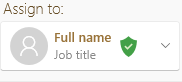
Assign to:
You can assign this note to yourself or another user by clicking on the drop-down and selecting the user.
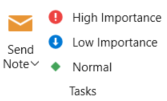
Importance:
You can mark how important this note is and it can also be sent as an email to one of the users. Click on the Send note dropdown and select the user.
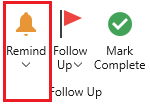 Reminders:
Click on the Remind dropdown to create a time for a reminder. You can also create a custom date and time on the Remind box above the Text box.
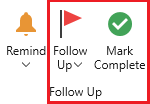
Task/Follow up:
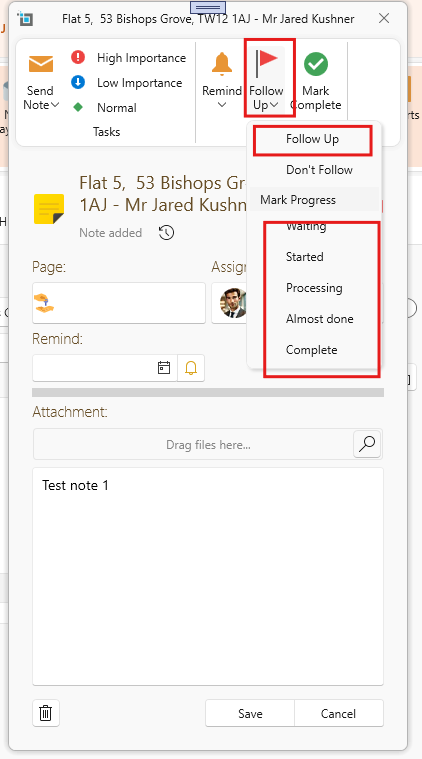
You also have the option of flagging the note. Click on Follow-up from the Follow up dropdown and then when completed, click on Mark complete.
To unflag the note click on Don't follow from the Follow up dropdown.
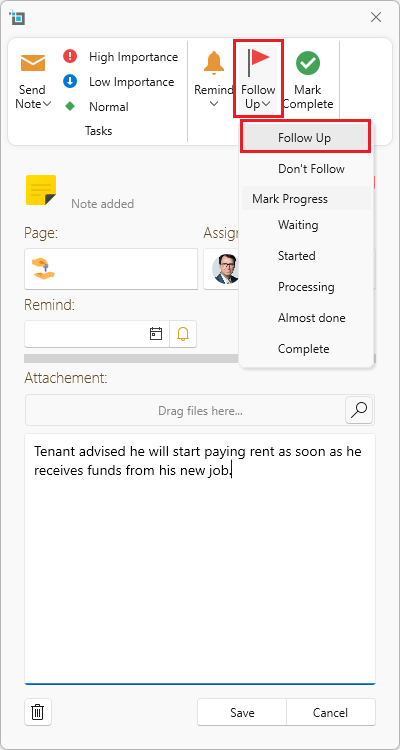
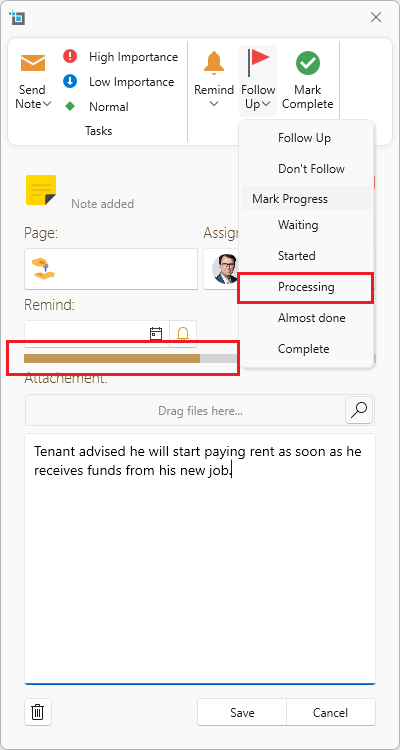
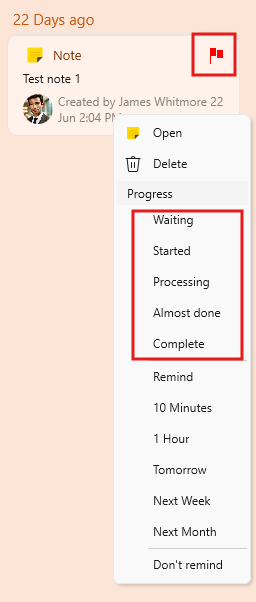
You can also mark the note with progress such as Waiting, Started etc and this will be shown on the progress marker underneath.
Pinning tasks:
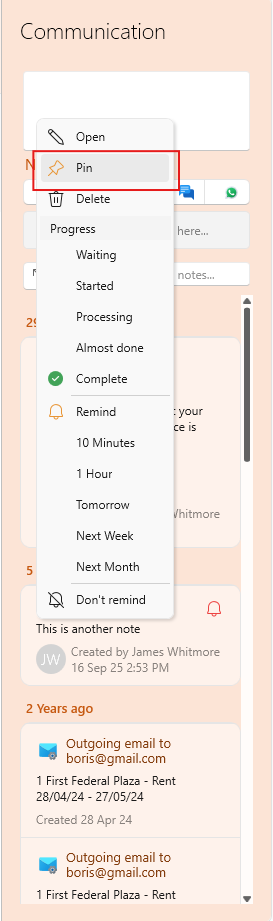
You can easily pin any importnat task to keep them sticking at the top.
This is how to pin a task:
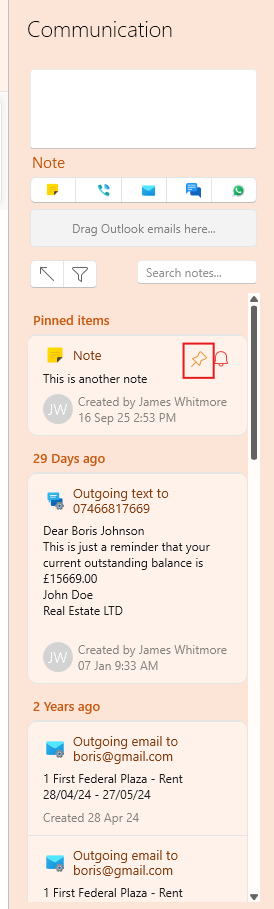
And unpin by clicking the pin icon:
Tasks vs. Reminders on the Dashboard
The Tasks on the Dashboard appear when you create a note on any property, lease, or supplier page and mark the note with Follow up but without setting a reminder. Notes with reminders will appear instead on the adjacent card titled My Reminders.
Both Tasks and Reminders are created from notes:
- A Task is added when you select Follow up without a reminder.
- A Reminder is added when you set a Reminder, regardless of whether Follow up is selected.
This way, both Tasks and Reminders originate from notes, but they show up in different sections of the Dashboard depending on your selection.
Recurring reminders.
You can also set reminders to recur at specified intervals.
Recurring Reminders Specification
Daily Execution:
- The system will run once every morning to create upcoming recurring reminders.
Past Date Check:
- The system will check up to 30 days in the past to identify any recurring reminders created with a date in the past.
Creation Conditions for Next Reminder:
- The next reminder in the sequence will be created if one of the following conditions is met:
- The current task is already marked as complete.
- The next upcoming task in the sequence is scheduled to occur within 30 days or less.
- The next reminder in the sequence will be created if one of the following conditions is met:
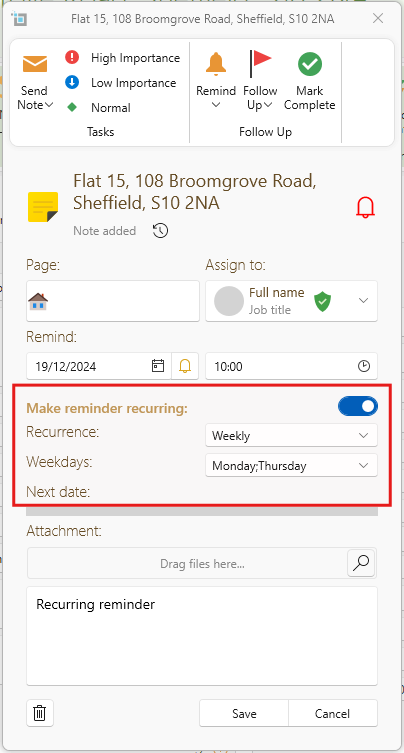
Note: Admin sees all tasks while the other users can only see tasks assigned to them or unassigned tasks.
All Reminders and Tasks will shop up in the main page ribbon along with a number indicating how many you have. Click on it to view all these reminders/tasks.

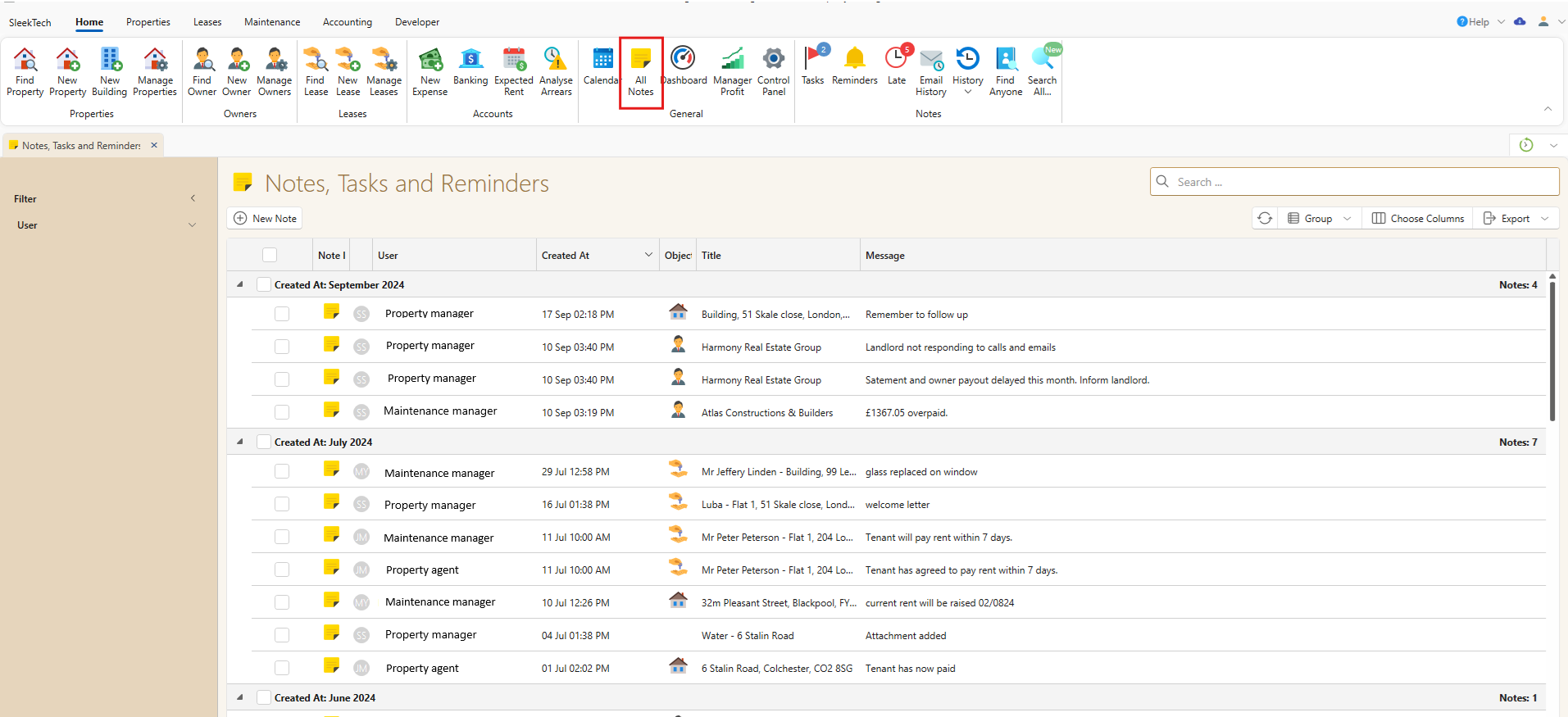
Viewing All Notes
To view all the notes that have been created, click on All Notes from the Main Ribbon.
For further assistance, please contact our support team.