
Email notifications
To receive email notifications for your SleekTech reminders, follow these steps:
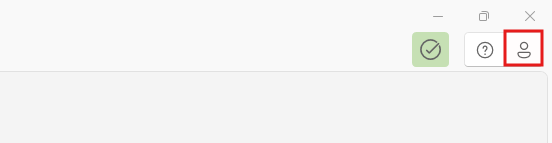
On the main software ribbon, click the dropdown next to the user icon at the top right corner.
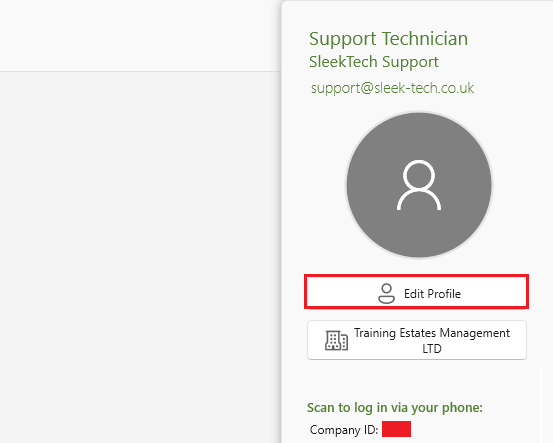
Click Edit Profile.
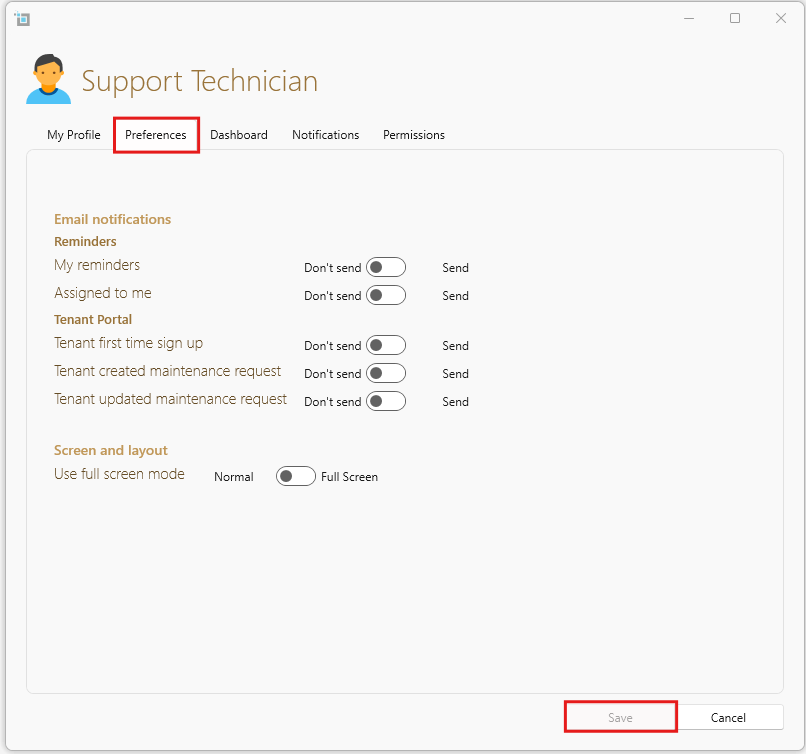
Navigate to the Preferences tab.
- To receive only reminders you created, check My Reminders.
- To receive reminders that other users have created and assigned to you, check Assigned to me.
- To receive notifications when a tenant first signs up to use the tenant portal, check Tenant first time sign up.
- To receive notifications when a tenant reports a maintenance issue on the tenant portal, check Tenant created maintenance request.
- To receive notifications when a tenant makes changes to an issue they have reported on the tenant portal, check Tenant updated maintenance request.
- Once done, click Save.
Important: You will only receive reminders assigned to you. Therefore, when creating a reminder, make sure to assign it to yourself if you want to receive an email notification.
Custom user notifications
User-specific notifications can now be configured at the individual level. Users will receive email notifications based on the rules they have set.
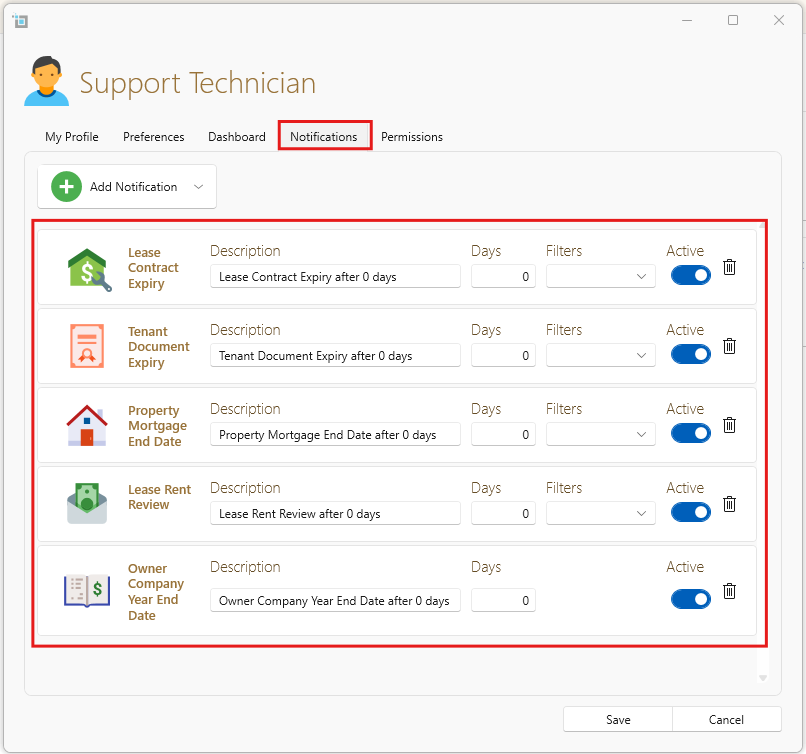
Notification Types for Lease and Property Management
These can be selected by clicking on Add new notification:
- Lease Contract Expiry: Receive a notification when a tenant’s lease is nearing its end date.
- Lease Rent Review: Get notified when it’s time to review the tenant's rent.
- Tenant Document Expiry: Be alerted when a tenant's document is close to expiring, ensuring timely renewals.
- Owner Company Year-End Date: Stay informed about the landlord company's upcoming year-end date.
- Property Mortgage End Date: Receive a reminder when the property’s mortgage end date is approaching.
These notifications help ensure important dates and tasks are never overlooked, keeping your property management process organized.
Customizing Notification Settings
Description Field
Customize the notification description to provide specific details or instructions.
Days Field
Use the Days field to set how many days before the end date you'd like to receive the notification. This helps you get timely reminders.
Filter Field
Filter the notification by property status, lease status, or contact status to specify which conditions the notification should apply to.
Next Run
The Next Run option lets you see when the next notification will be triggered.
Active
Toggle the Active option to keep the notification cycle ongoing. Disabling this will stop further notifications from being sent.
Bin Icon
To delete the notification setting, click the bin icon.
These customization options allow you to fine-tune your notifications and ensure they are relevant to your needs.
Want to know more? Have a look at the following articles: