
This is how to change the landlord of an existing property.
Change to the new landlord
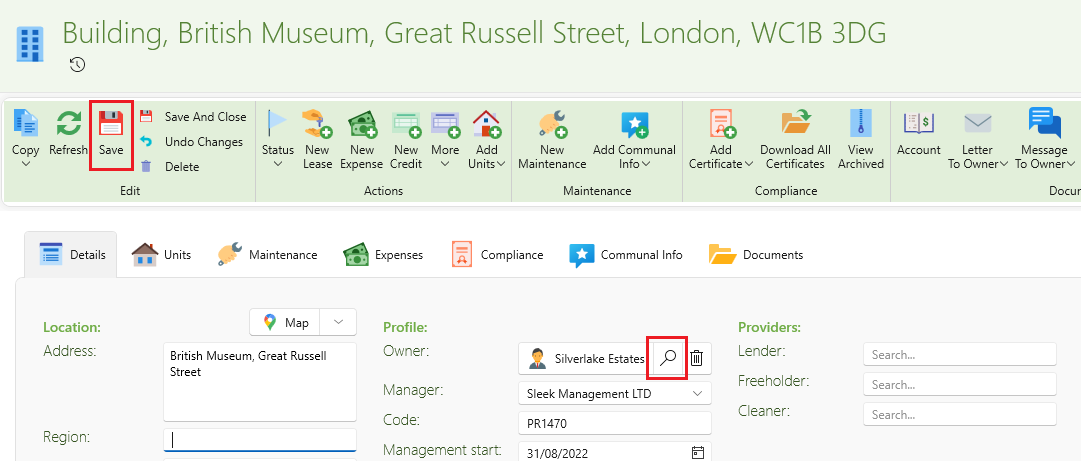
- From the main ribbon click Find Property
- Open the property window
- Select the search the icon by the owners name
- Choose a new owner
- Click Save
Previous rent and tenant payments
When choosing a new owner no changes will be made to the existing tenant invoices.
If the invoices belonging to old owner are paid after changing owner it will come up on statement of the old owner.
Only payments made for invoices created after changing to the new owner, will show up under the new owner's statement.
You can still move over existing rent charges which are not included in any previous statement, to the new owner by doing the following:
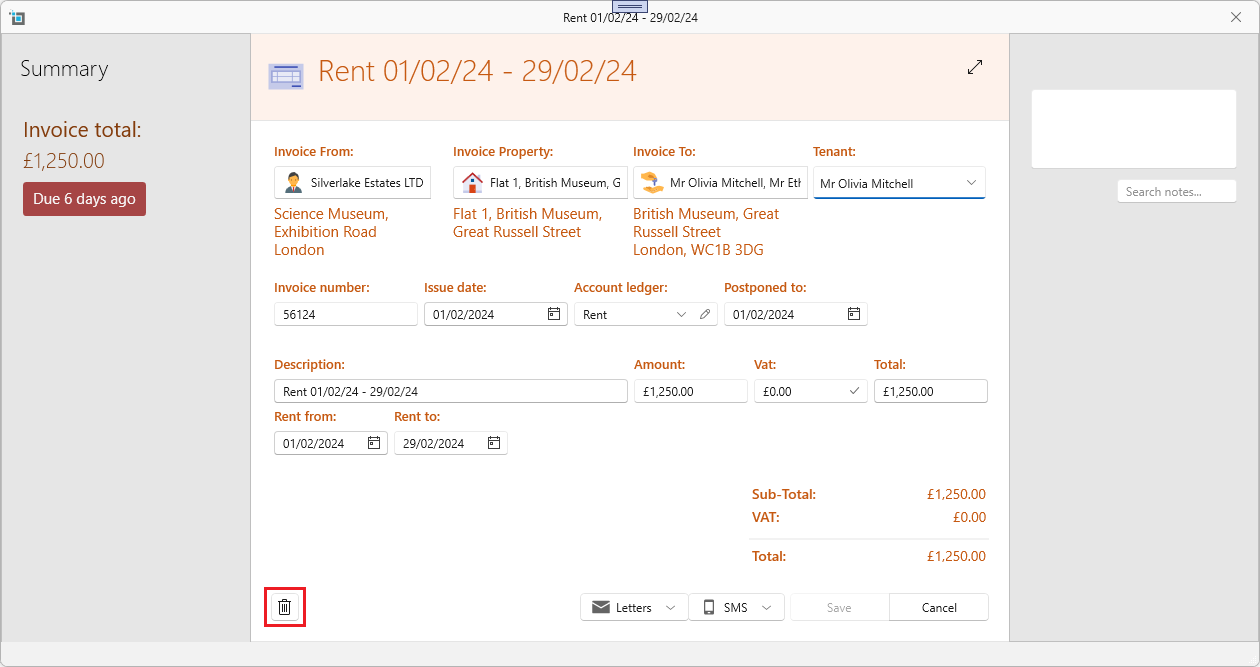
- Open any rent invoice by clicking on it (remember to delete the latest invoice first as you can always only delete the latest invoice).
- Delete the invoice.
- Recreate the invoices by clicking More in the lease page ribbon.
- Click Next Rent Invoice until the current rent is created.
- The newly created invoices will now be under the new owner and payments applied to them will show under the new owner's statement.
Previous expenses
When choosing a new owner no changes will be made to the existing property expenses.
All expenses already created when changing to the new owner, will come up on the statement of the old owner.
Only invoices created after changing to the new owner, will show up under the new owner's statement.
You can still move over existing expenses which are not included in any previous statement, to the new owner by doing the following:
- Open any expenses invoice by clicking on it.
- Search for the current property and select it again.
- This will change the Invoice To to the new owner.
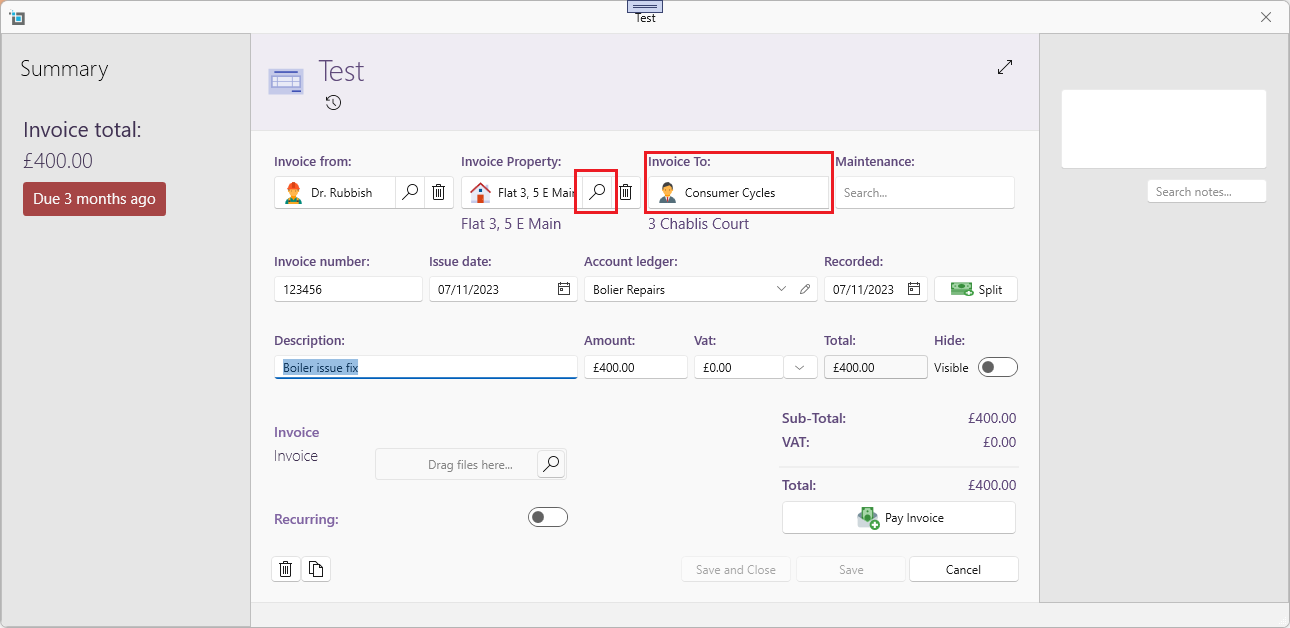
- The invoice will now come up under the next statement for the new owner.