
This is how you can send a letter to multiple tenants.
- On the main ribbon click View Leases.
- You can filter by any column via the filter dropdowns on the top of every column header, or by the list filters on the left panel.
- You can also easily filter by address, by typing the address into the search bar at the top right corner of the table.
- Once you're happy with your filtered list, click the checkbox in the top-left corner of the table to select all tenants in view.
- You can also select or unselect rows individually by checking the checkbox at the left of each row.
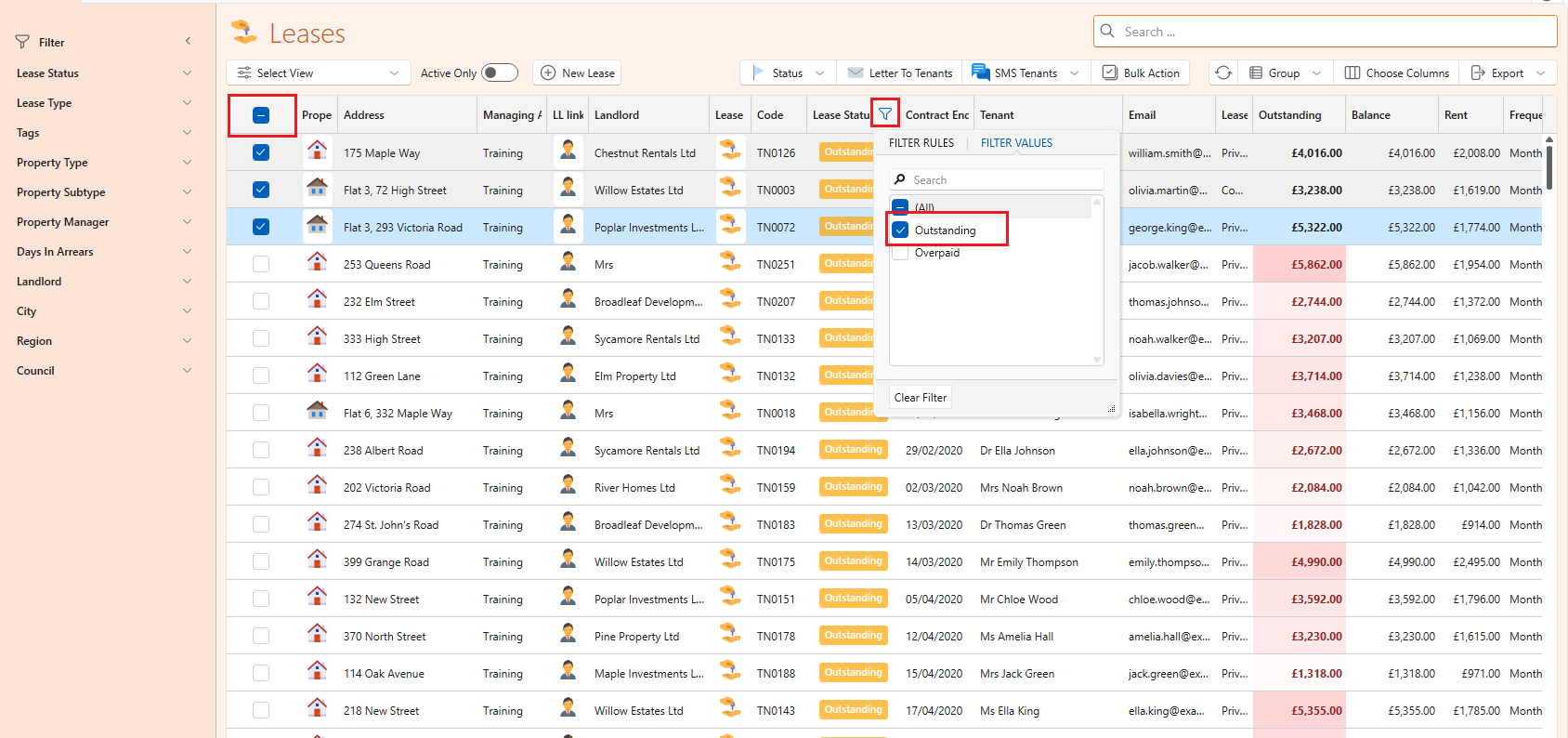
- Click on the Letter To Tenants.
- Choose one of the letters in the list, and click on Open to open the letters.
- Click on Outlook to open it through Outlook:
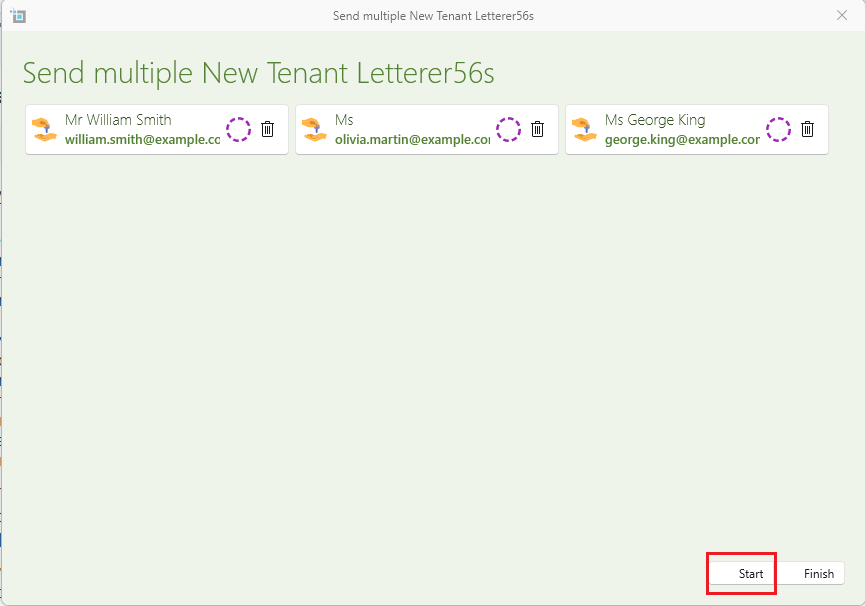
- This will open a new window with a list of all selected tenants.
- You can click on each tenant to preview the email and letter.
- Click Start at the bottom of the page. SleekTech will start sending out all emails via Outlook.
- You will see a green check if the email was successfully sent.
- If you see a red indicator, hover on it to see why that specific email couldn't be sent
Create a new email template
- If you'd prefer to write your own message from scratch, click on Blank Email at the bottom of the list. This will open a new Outlook message with all selected tenant email addresses added to BCC for privacy.
- To make a new email template for future use, click New Email Template. If you want to create an email template that includes an attachment, click New Letter Template instead.