This is how to switch on the tenancy task list feature:

  • From the main ribbon go to Control Panel.
  • Click Settings.
  • Go to the Tenants tab.
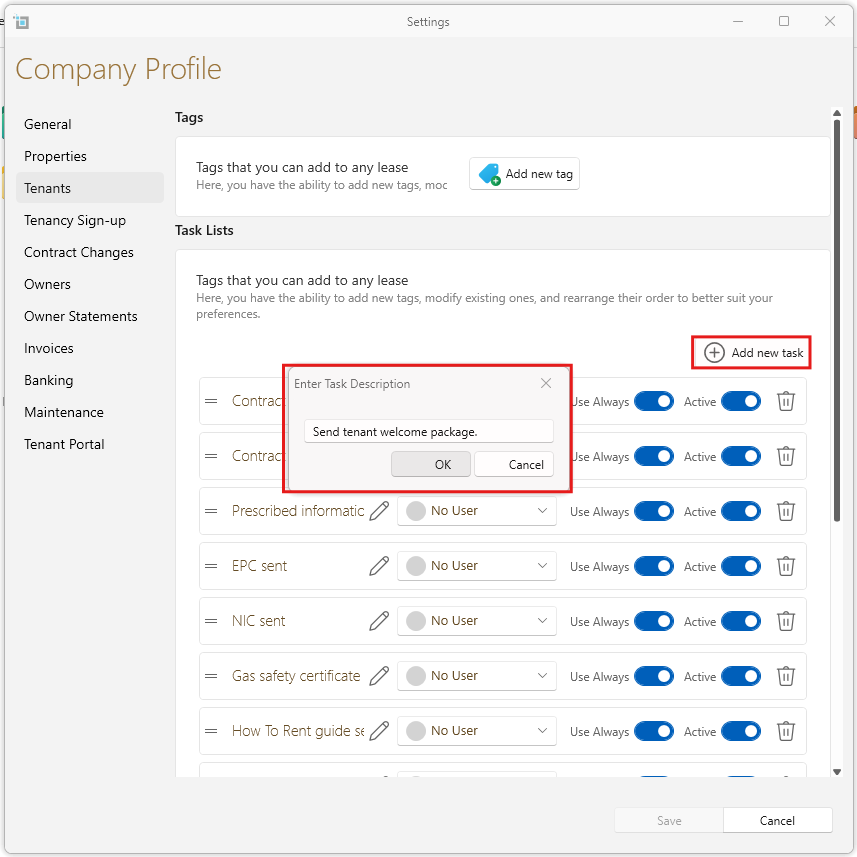
  • Check the Add new Task button.
  • Once checked, you can select default tasks you want us to automatically add to new tenancies.
  • You can always, add or remove specific tasks for individual tenancies, manually.
  • Click Save.
  • Please note, this will only affect new tenancies and not existing tenancies.
  • You can add tasks to existing tenancies manually.
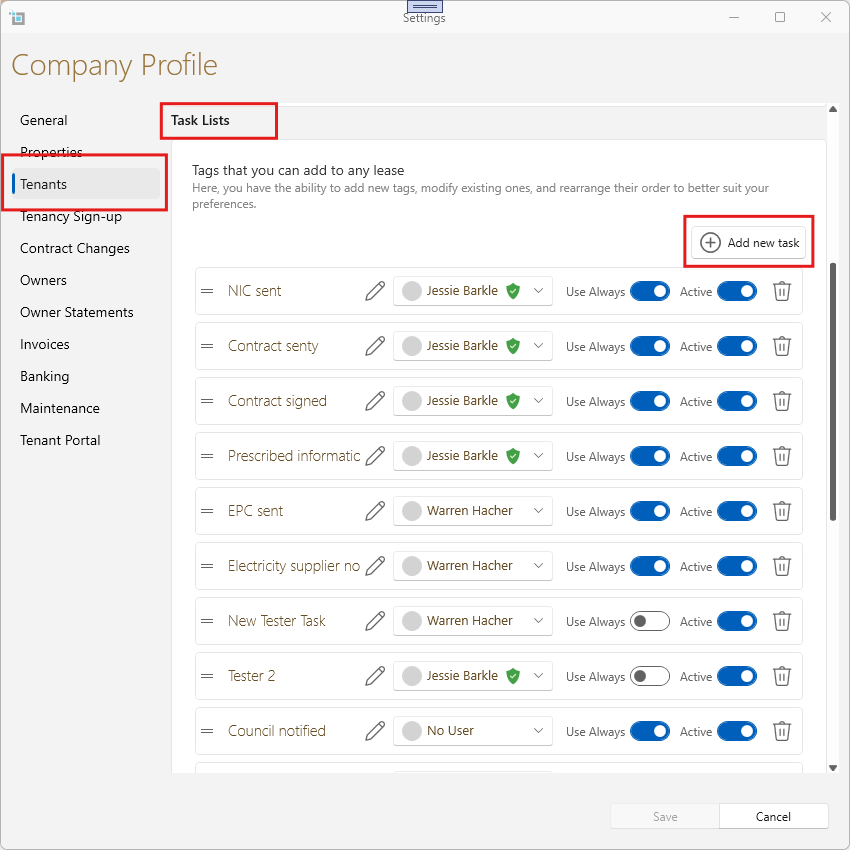


Breaking Down the Task List Features


Adding New Tasks
To add a new onboarding task, click on Add New Task. You will be prompted to enter a description for the task. Once done, click Save to add it to the list.


Renaming Tasks
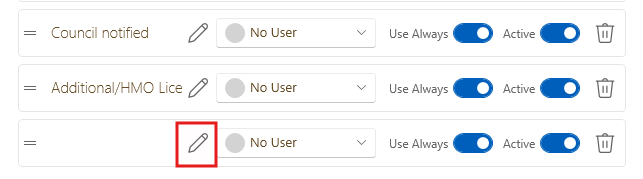
If you need to rename a task, simply click on the pencil icon next to the task you want to edit and update the description.


Reordering Tasks
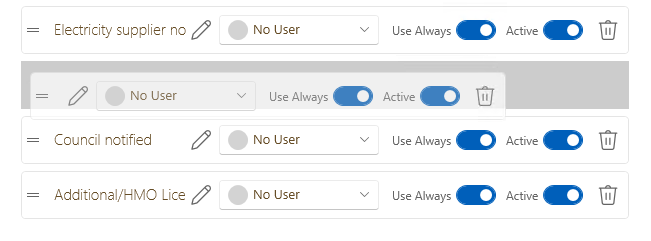
You can reorder tasks by clicking and dragging them into the desired position within the list.


Assigning Tasks to an Agent
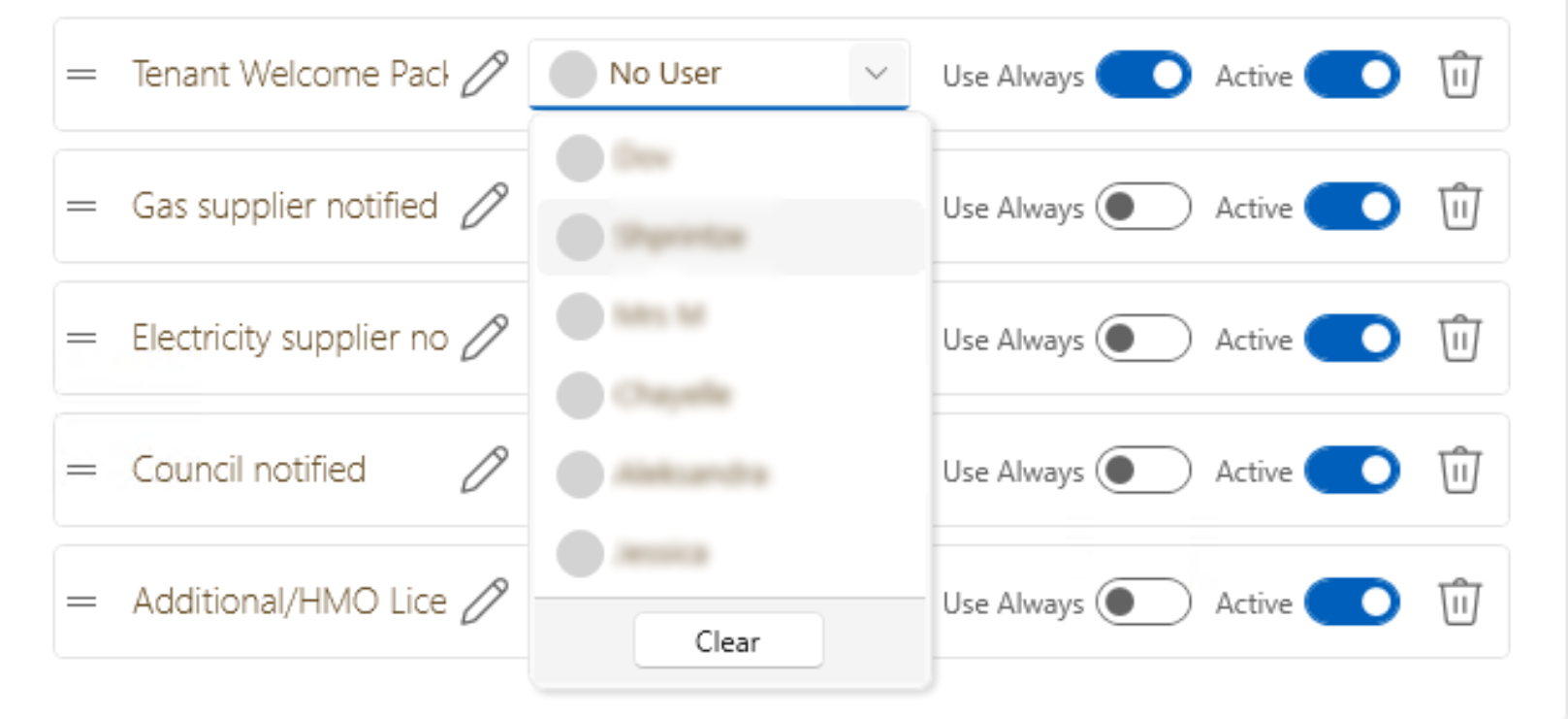
Tasks can be automatically assigned to an agent to streamline your workflow. By selecting a user, the task will be assigned to them by default.


Selecting Use Always
If you want a task to always automatically ne added to new lease task lists, click Use Always. This will ensure the task is always automatically added to new leases


Deleting Tasks
To remove tasks that have not been used, click the bin icon next to the task to delete it.


If you want to remove tasks that have already been used within SleekTech, toggle the switch to deactivate and remove the task from the list.


These features allow for efficient management and customization of onboarding tasks, helping streamline the process for both tenants and agents.