
There are two windows designed to give you control over all tenants in arrears.
1. Expected Rent - All outstanding invoices.
This window can be used on a daily basis to get an overview of this month/week rent collection.
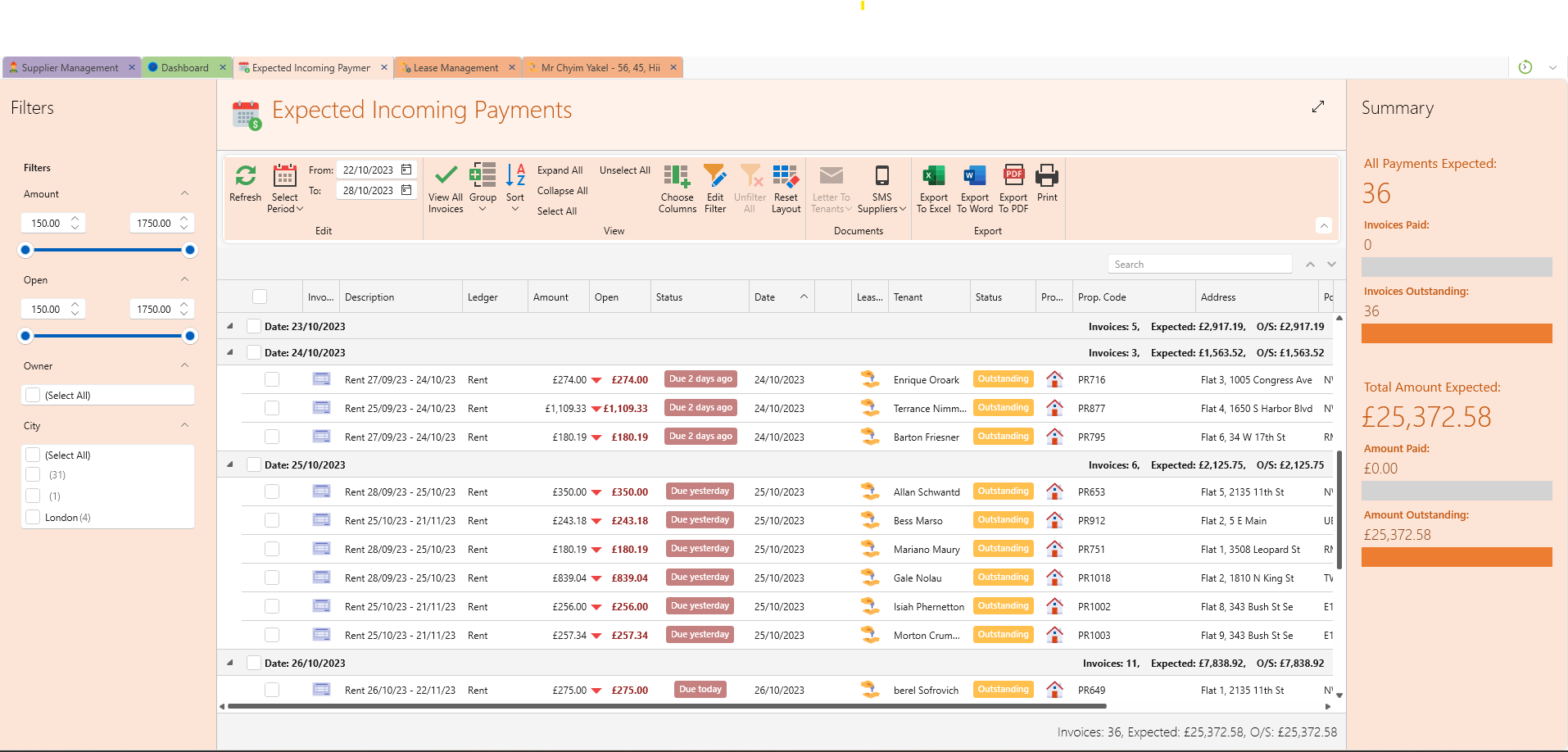
- On the main ribbon, on the Home tab, under Rent collection section, click Expected Rent.
- This will give you a full list of all unpaid invoices.
- You can filter by owner, property, tenant and much more.
- You can export, email or print the list from the Export section in the window ribbon.
If you want to view the tenants who have skipped their monthly/weekly payment:
- On the Dashboard under Rent Collection click on one of the cards named This Week.
- Once the window opens, click View All Invoices to uncheck it. This will filter the list to show only unpaid invoices.
- All invoices in the past, will usually mean that a tenant has missed a payment.
- The dates in this window will be based on the date that the tenant usually pays (even if its due earlier).
- For more on this, see this article: Setting the usual pay date tenants.
- You can filter by owner, property, tenant and much more.
- You can export, email or print the list from the Export section in the window ribbon.
2. Analyse Arrears - Overview of unpaid rent by tenant.
This window is used from time to time to check accumulating arrears.
- On the main ribbon, on the Home tab, under Rent collection section, click Analyse Arrears.
- This will give you a full list of all tenants with a clear overview how much they are outstanding each of the last 12 months indicating exactly when their debt started to accumulate.
- You will also have columns with the following info:
- Balance - full current outstanding balance.
- Rent, Frequency - amount of rent due every period.
- Status.
- Days in arrears - amount of days since a tenant started to be in arrears.
- Last Payment Date.
- You can filter by all these columns and by owner, property, tenant and much more.
- You can export, email or print the list from the Export section in the window ribbon.