
Automatic property statuses.
To make it easy to group your properties, every property has a status.
There a few automatic statuses but you can add more custom ones.
By default any property that's currently occupied will have a status of Occupied.
If there is currently no tenancy it will automatically be labelled as Vacant. (Please note the tenant vacating date must be filled in for this to happen)
A property that's a building and can't be occupied itself will always be labelled as Building.
You will always see the status of a property in the property window on the left side panel.
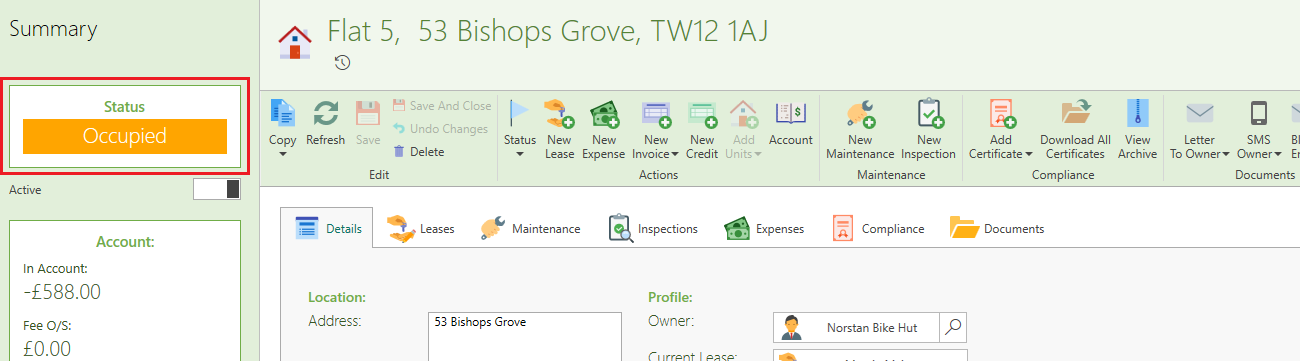
How to create a custom status.
You can also create additional statuses to your properties i.e. Property Onboarding.
- Find the desired property
- On the page ribbon click on Status, select Customise List.
(Alternatively, you can go to Control Panel from the main ribbon and click on Property Status List)
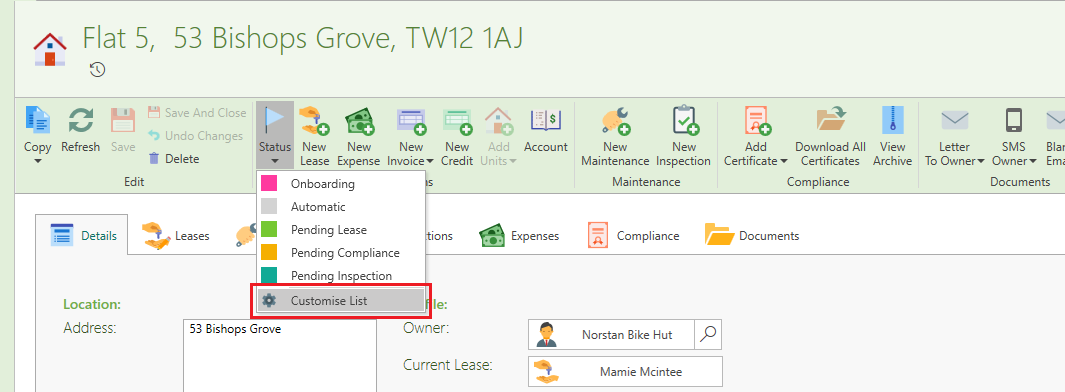
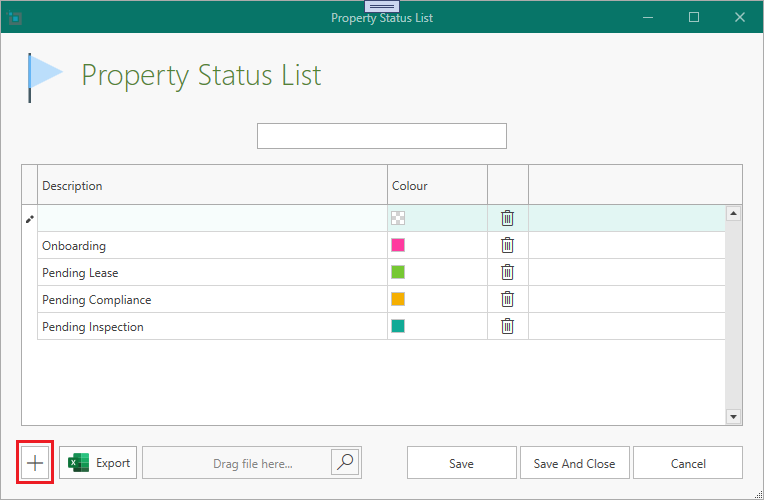
The property status list window will open.
Click on the Plus sign at the bottom to add a new Lease status. Fill in the details in the new row that comes up. Click on Save and close.
- You can also change the colour of the status by clicking on the dropdown next to the colour shown.
- Double-click on any status to edit, and click on the delete button to delete a status.
- You can also drag the rows around to reorder them as desired.
How to change the status of a property.
To change the status of a property just select if from the Status dropdown on the page ribbon of the desired property and Save.
You can always select Automatic from the dropdown which will revert the status to the default as described above.
How to find all properties with specific status.
On the dashboard under the Properties and Vacancies section, there is one tab Property by status. This allows you to view and click on all of your custom property statuses, with each of them showing the amount of properties you have with that status.
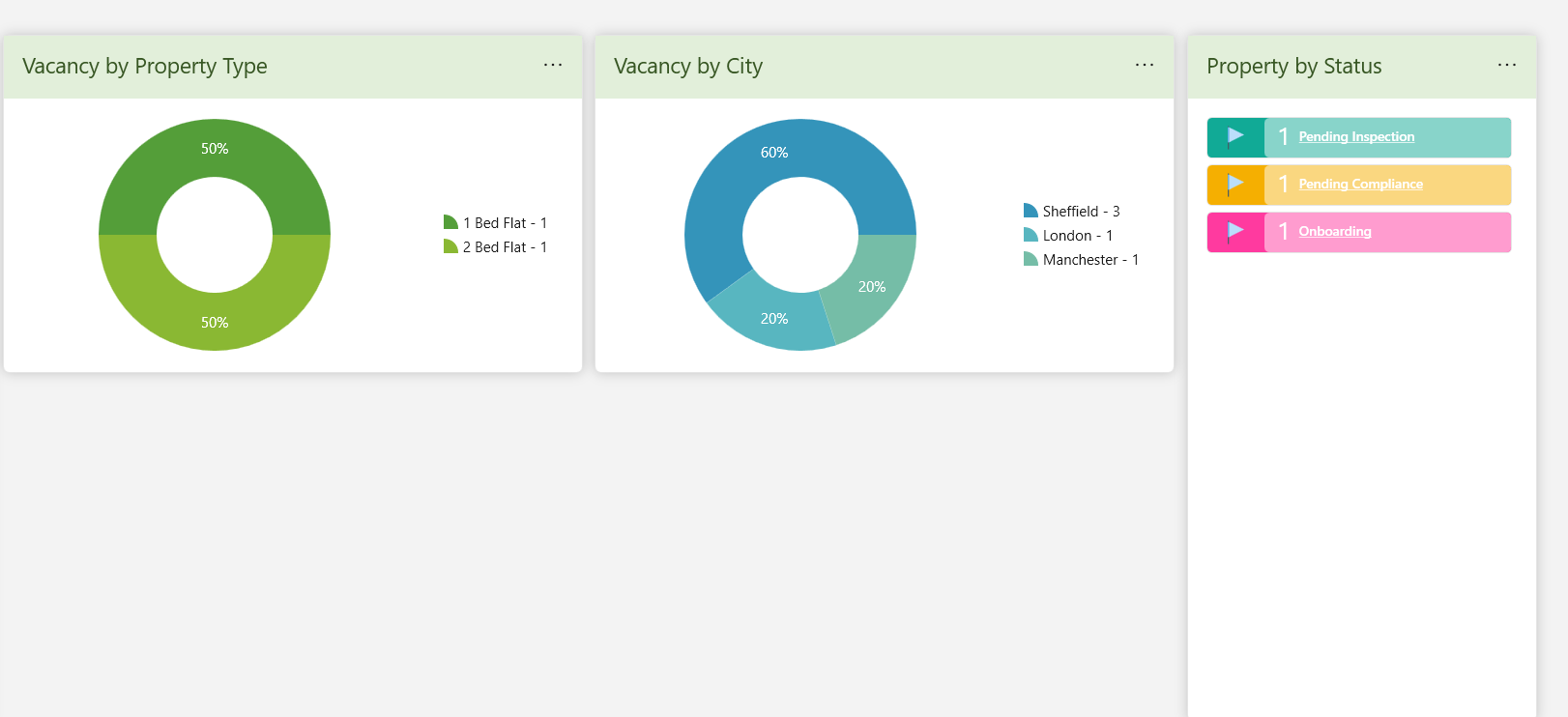
Clicking on any of then will open the Property Management window listing those properties.