
This is how to create a new property expense.
- On the main ribbon go to the Maintenance tab.
- Click New Expense.
- Drag your invoice into the marked border or click the search button to browse on your PC.
- SleekTech will read your invoice and try to fill in the invoice number, invoice date, amount and supplier.
- Alternatively, you can click Insert Manual if you don't have the invoice and you want to insert the details manually.
- Next to the property label, click the search button and select the property related to the expense.
- The default account ledger will be Repairs & Maintenance, but you can select any other ledger from the dropdown to specify what type of expense it is.
- If the expense type is not in the list you can click on the edit button next to the dropdown to add another account.
- You can read more about how to do this here: Manage your account ledgers
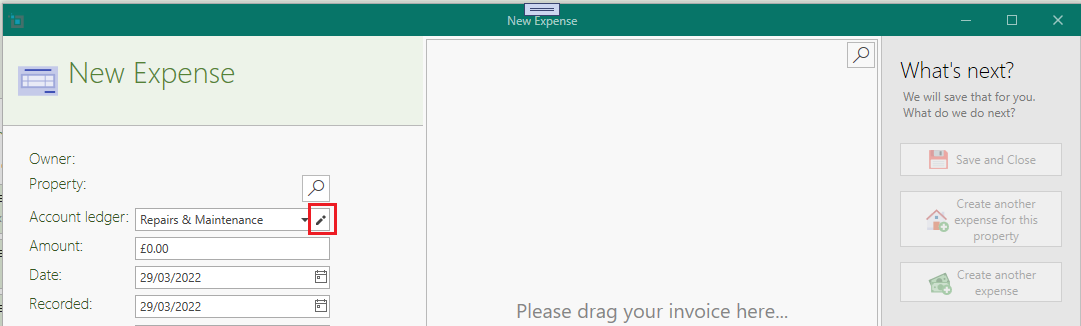
- Make sure the amount and date are filled in correctly.
- You can also fill in the invoice number and select the supplier, if they are not filled in already.
- You may enter more details in the Description field.
- Click Save and Close.