
Setting up your support account
We have a very easy and useful support portal which allows you to request help, ask queries and request new features. You can also follow them up directly from the software.
You will receive an activation email from us once the installation is completed. Click on the link and follow instructions to create your account.
We use a different program for our support portal, however we advise you to use the same password as SleekTech, making it easy to remember. (The password must be at least 8 characters.)
Once your account is set up you can now sign in directly from the software:
- From the Help dropdown at the top right corner of the software select New Support Ticket.
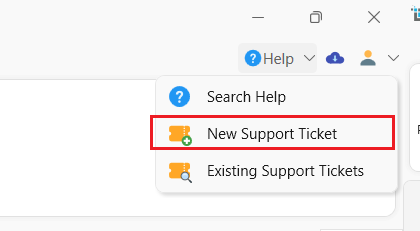
- This will bring you to our support website.
- Click on Login from the right hand side
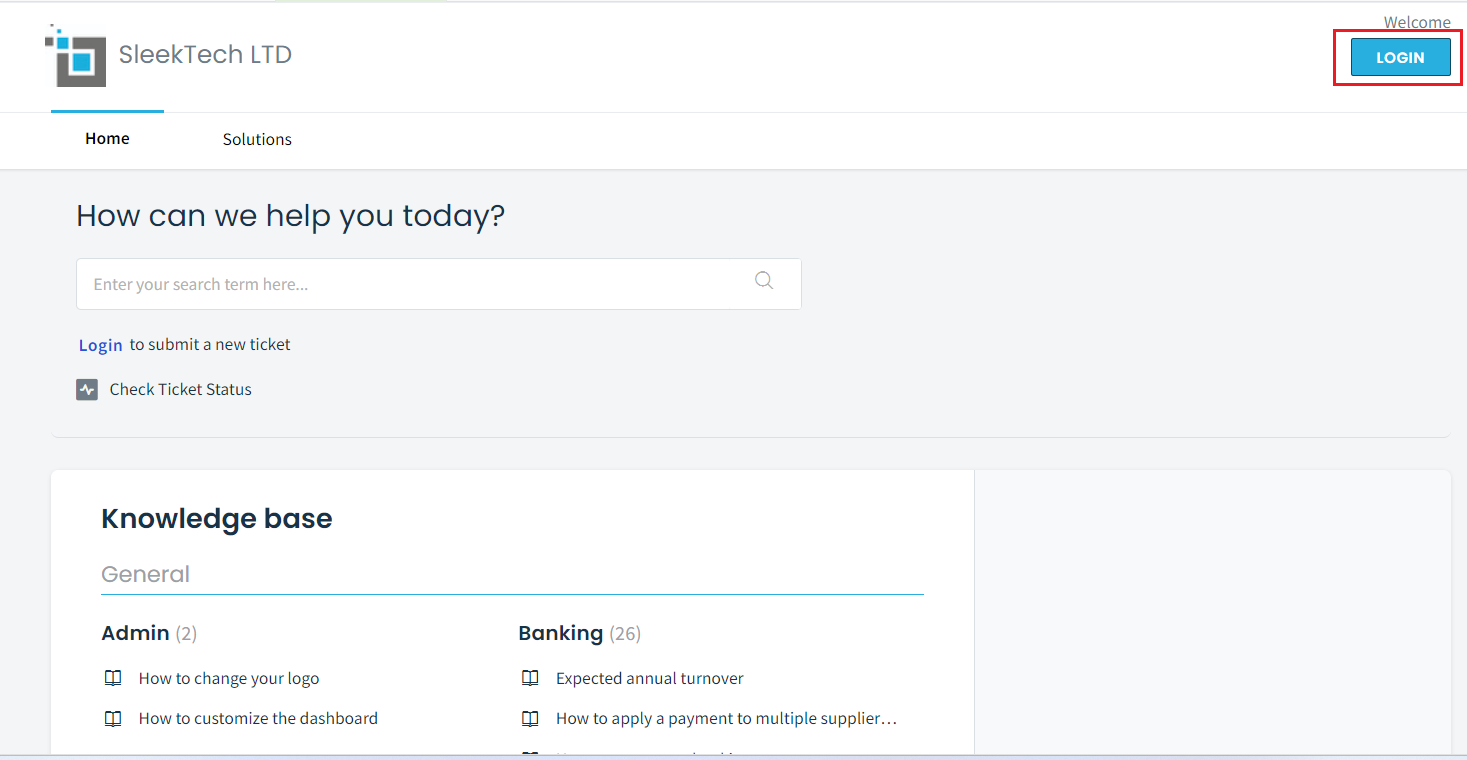
- Enter the email address in which you received the link to activate the account.
- Enter the password which you used to activate the account.
You are now logged in and can create and view support tickets.
Click here to see how to create and check the status of support tickets:
How to create a new support ticket and view ticket status.
How to reset your password for your support account
If you have forgotten your password, you can request a new one:
- Click Forgot your password.
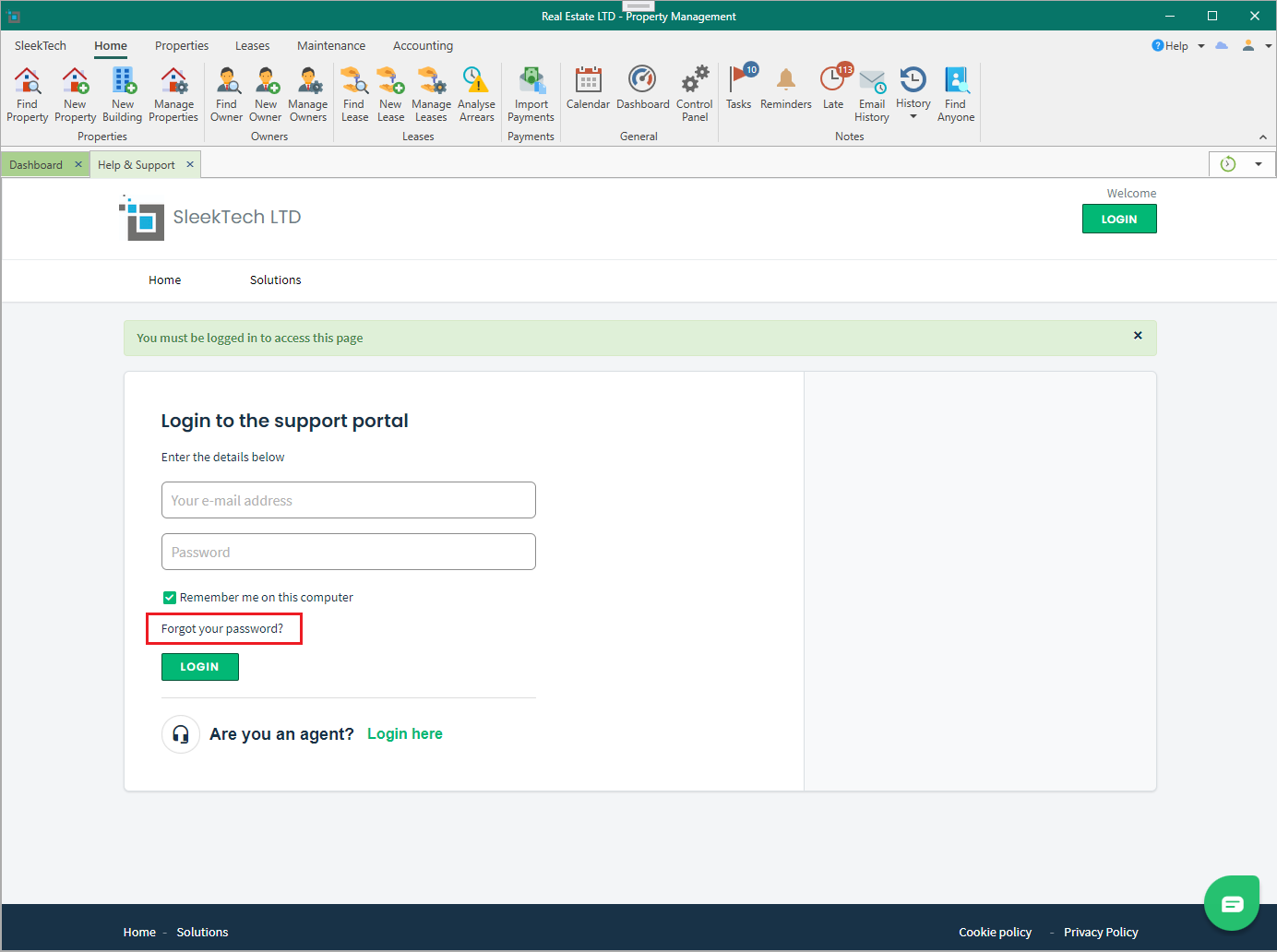
- Insert the same email address you used to log in to the support portal and click Reset my password
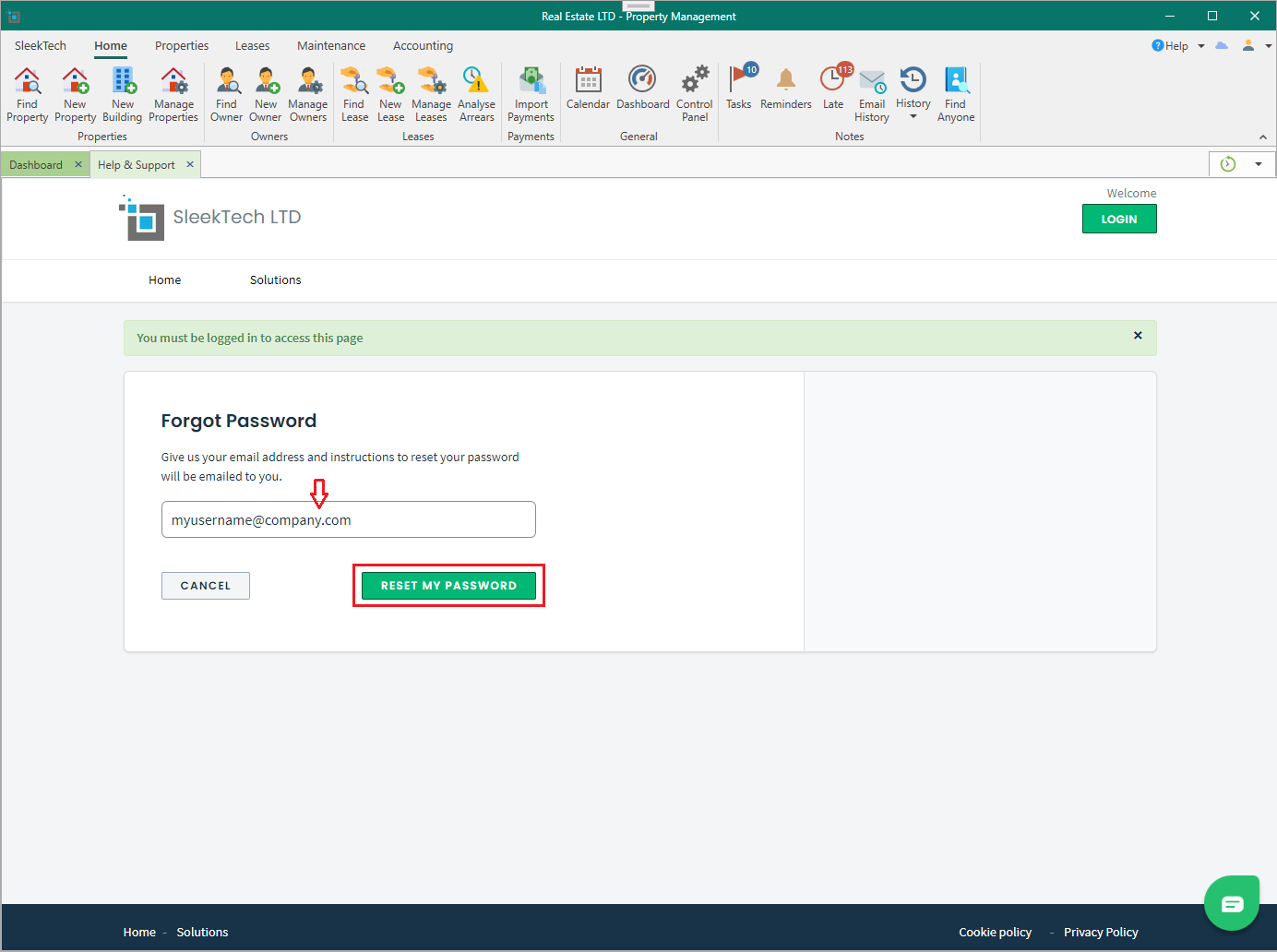
- You will receive an email with a link to reset your password. Click on the link and reset your password to something you can easily remember.
Once done, you can login with your new password, and make sure the Remember me on this computer is checked, so you don't have to log on every time.