
Method 1: Adding a Maintenance Job from the "Add New" Option
- Click Add New and select Maintenance from the drop-down list.
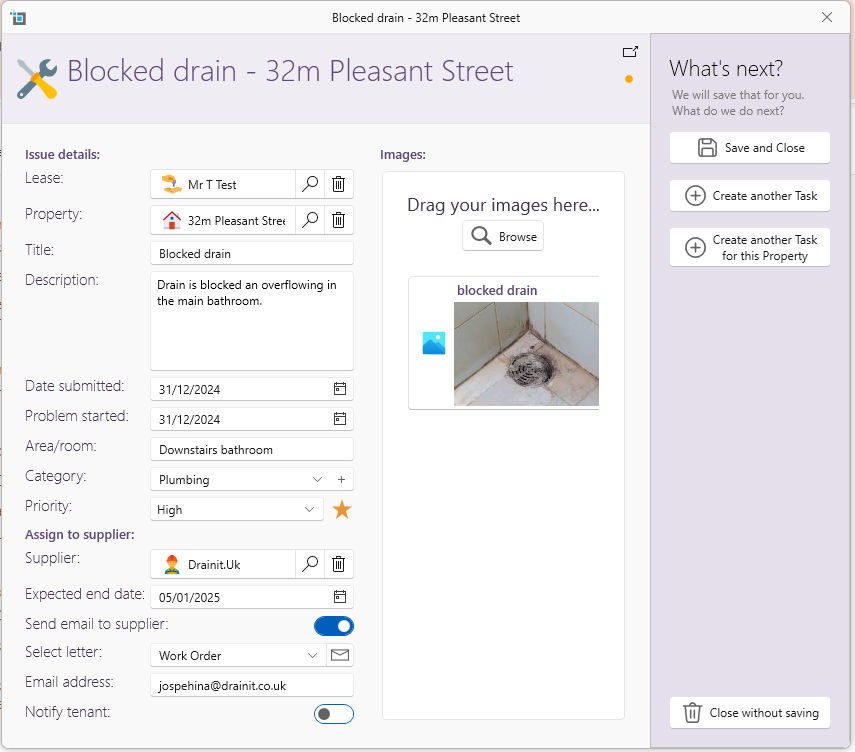
- In the window that appears:
- Select the tenant (if applicable) and the property where the maintenance or repair is needed.
- Enter the date, area, category, and priority level of the job.
- You can assign a supplier to the job immediately and specify when the job is expected to be completed.
- There is an option to:
- Send an email to the supplier.
- Select the appropriate letter template to be sent to the supplier, along with the supplier's email address.
- You can also notify the tenant by using their email address.
- Additionally, this window allows you to add images of the problem for reference purposes.
- Once all details are entered, click Save and Close to complete the process.
Method 2: From the Property or Lease Page
Go to the desired property or lease page.
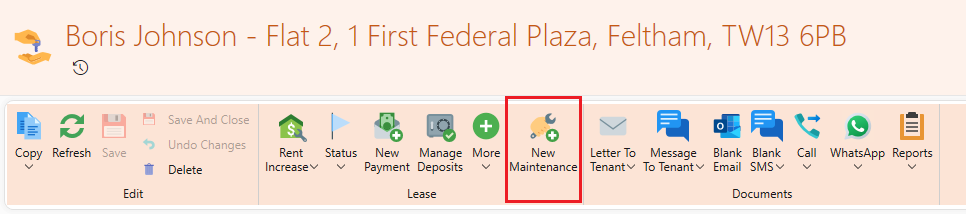
On the page ribbon for the lease or owner, click New Maintenance.
A new window will appear.
Enter the necessary details, including:
- Title of the maintenance job
- Description of the issue
- Date started
- Supplier (optional)
- Any other relevant information
Click Save to create the maintenance job.
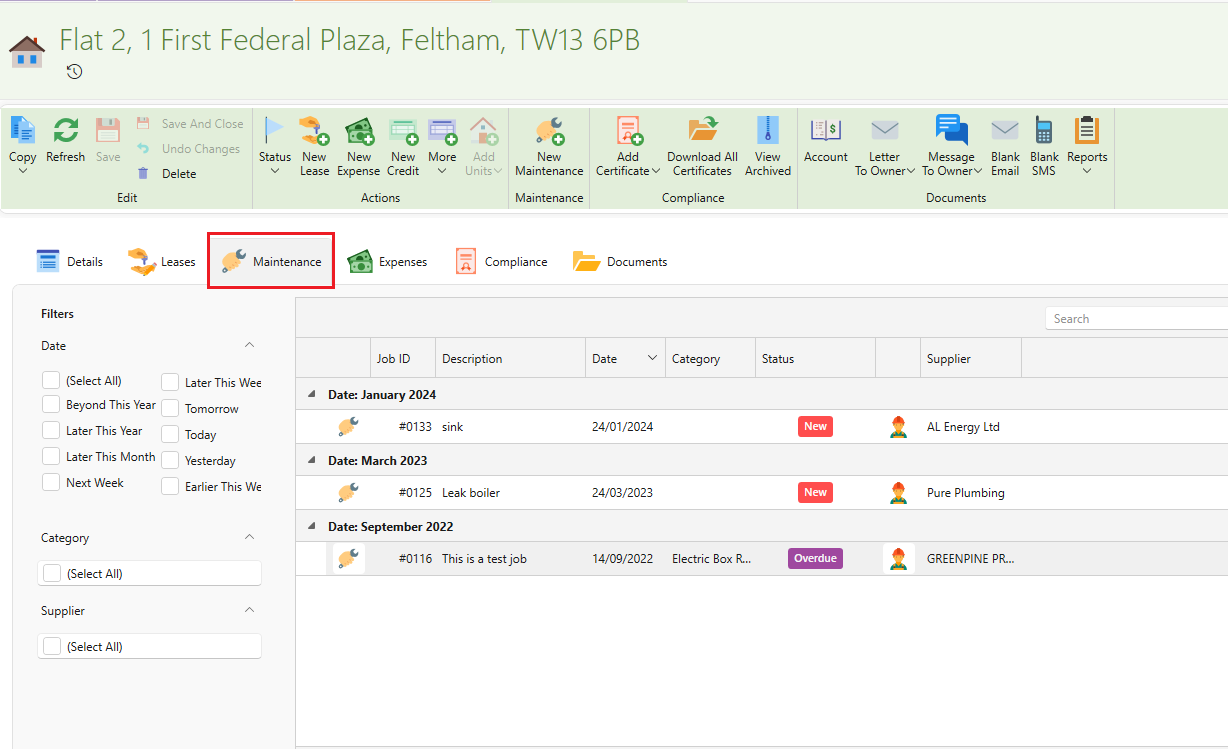
To view details for any existing maintenance jobs:
- Go to the associated property and click on the Maintenance tab.
- Or, click on the assigned supplier and navigate to the Jobs tab.
Method 3: From the Supplier's Page
Under the Maintenance tab at the top, click Find Supplier.
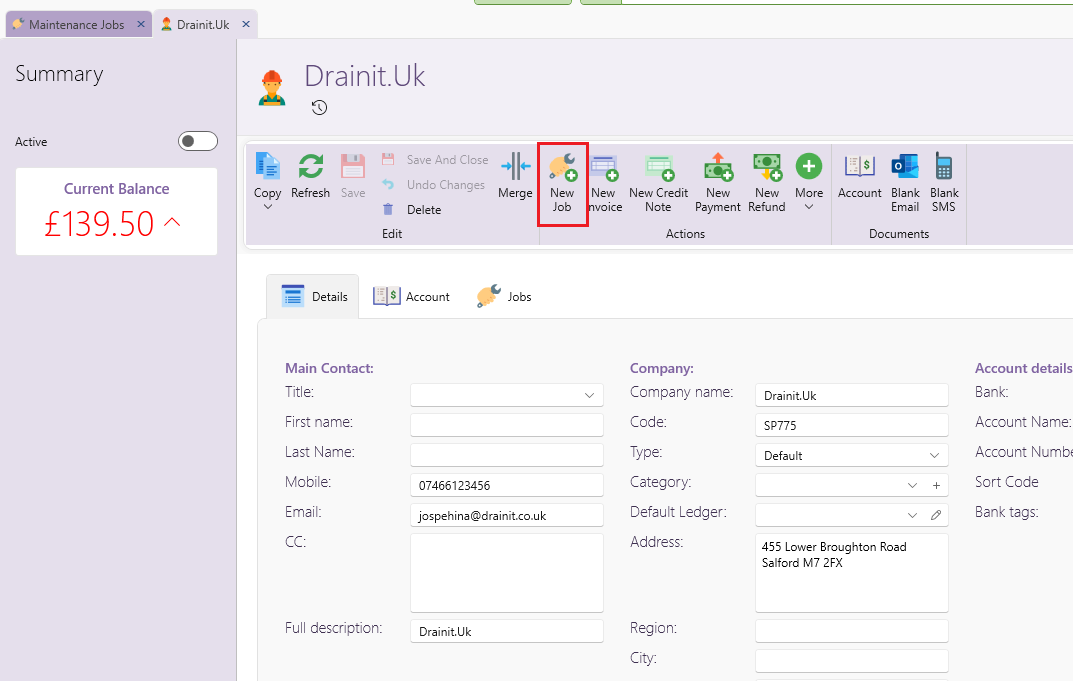
On the supplier's page ribbon, click New Job.
A new window will appear.
Enter the job details, including the property/lease associated with the job.
Click Save to save the maintenance job.
Method 4: Without Assigning a Supplier
- Under the Maintenance tab at the top, click New Task.
- A box will appear. Enter the job details, including the property/lease.
- Click Save and Close to create the task.
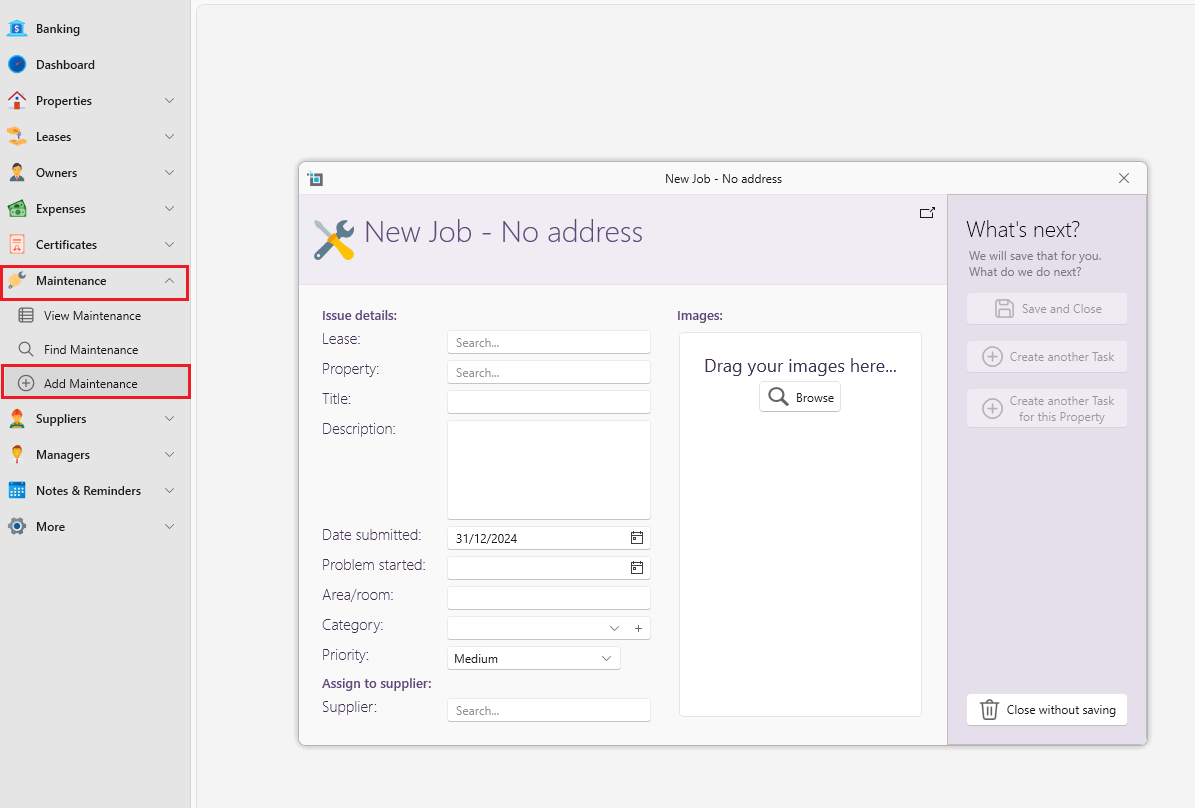
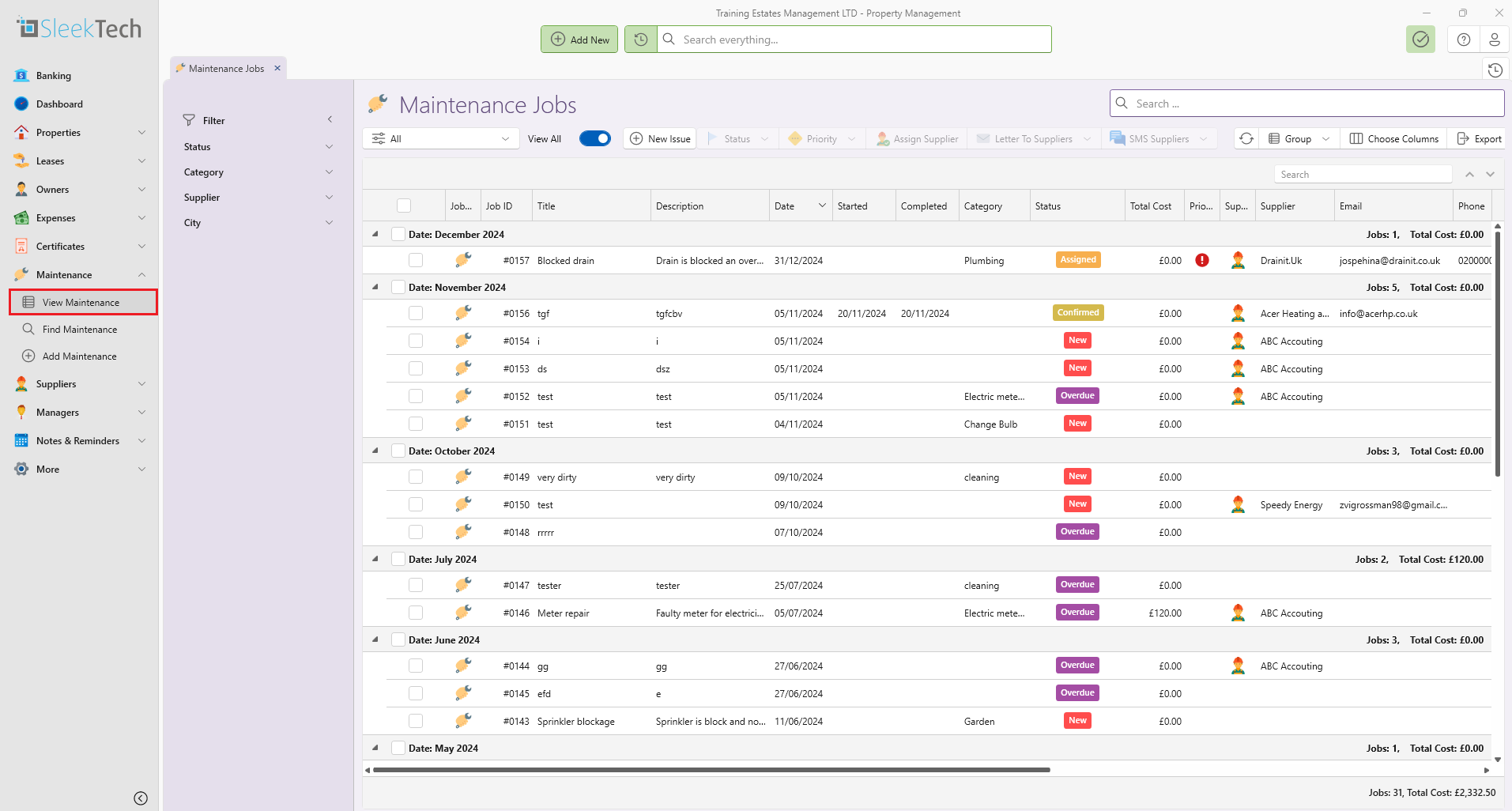
To view all tasks:
- Navigate to View Maintenance where you can assign a supplier or modify any other details.
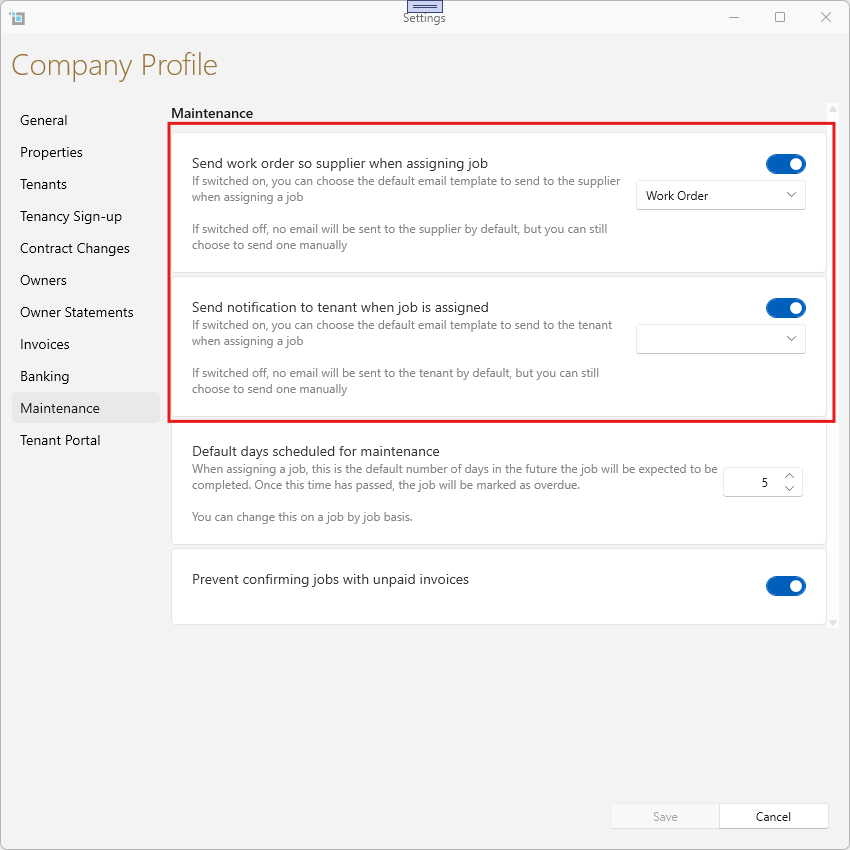
Work Order Setup and Notifications
From the control panel, you can configure how work orders should be sent and choose whether to select from a default list or automate the process entirely.
Additionally, you can set up notifications to be automatically sent to a tenant whenever a job is assigned to a contractor, ensuring they are kept informed throughout the process.
To configure these settings please navigate to the Control Panel, then Settings, and select Maintenance, followed by choosing the toggle switches.
By following these steps, you can easily enter and manage maintenance jobs for your properties.