
This is how to create a New Lease:
Click New Lease in the main window ribbon, or choose a property and click New Lease in the property window.
SleekTech will now guide you through the full process of onboarding a new tenancy. This is shown by a set of five circles running down the side of the pop up that will turn blue once that stage has been completed.
Contract Information:
- Click Search Property and insert from the pop up list, the property you would like to add the lease to.
- Select the Lease Type e.g. residential commercial etc. The system will respond by bringing in the relevant space for documents and check lists reflecting the type of tenancy you've chosen. Click on the following article for more details: Customising Tenant Information and Documents
- Start Date -This is the date the tenancy actually started. If you take over an existing tenancy, put the start date of the contract here.
- Select the Contract Period e.g. 6 months or 1 year.
- The End Date is the last day of the contract. This is for information purposes only and it will not stop the system from charging rent even when this date has passed.
- Choose the Rent Period.
- Insert the Rent Amount.
- Select if this is a new lease or an existing lease.
New Lease - The start charging rent from box gives you the flexibility to choose the day in the month that SleekTech will always generate the rent invoices for this tenancy. Insert the upcoming date e.g. 01/03/2024 in the start charging rent from box for the system to always charge on the 1st of each month.
If the date you chose is different from the start date of the new lease, the system will inform you that it will automatically generate a partial invoice covering the period from the start of tenancy date until the date you have selected.
- Select if the tenant will be paying in Advance or in Arrears.
Existing Lease - The start charging rent from box is the day that the SleekTech will start charging rent from - If you would like the invoices to be generated on a specific day of the month follow the guidance in the following article:
How to change the date for rent invoices
- Select if the tenant will be paying in Advance or in Arrears.
- SleekTech will now ask if the tenant has a clear balance, or is in credit or debt. This is where you can fill in any outstanding or overpaid amount from the tenant.
NOTE: Commission charges should be set at the owner or property level, it will then automatically be applied to the new tenancy. See article: Commission Charge Set Up
Tenants Details:
You can now add the details of the Main tenant.
Please see the following options below:
- You can choose if the tenant is an individual or a company.
- If it is an individual you can select if the tenant is a UK or non UK resident. If you select that the tenant is a non UK resident the system will ask for a right to rent document.
- You can add general household information.
- You can select Add People to add more tenants, other contacts or guarantors.
Deposit:
Sleek Tech Will now guide you through the process of protecting the tenants deposit.
If you would like to access or edit this information at a later stage you can select the option Manage Deposits from the lease window. For further instructions please see the following article: Tenant Deposits
Adding Documents:
Sleek Tech will now give you a list of documents required based on the information that you provided. You can attach the documents you have at hand, any missing documents will show up as missing on the Dashboard until added.
To learn how to edit the required documents list click on the following article
Customising Tenant Information and Documents
Task List and Tags:
To assist you with the various tasks associated with the setting up of a new tenancy you will now see a task list.
The tasks will show up on the dashboard until ticked off.
The task list can be edited by either deleting options or adding new ones by clicking in the Add another task box, typing the task and then pressing Enter.
When completing a task at a later date the tenant task list can be found on the tenancy page under the More tab.
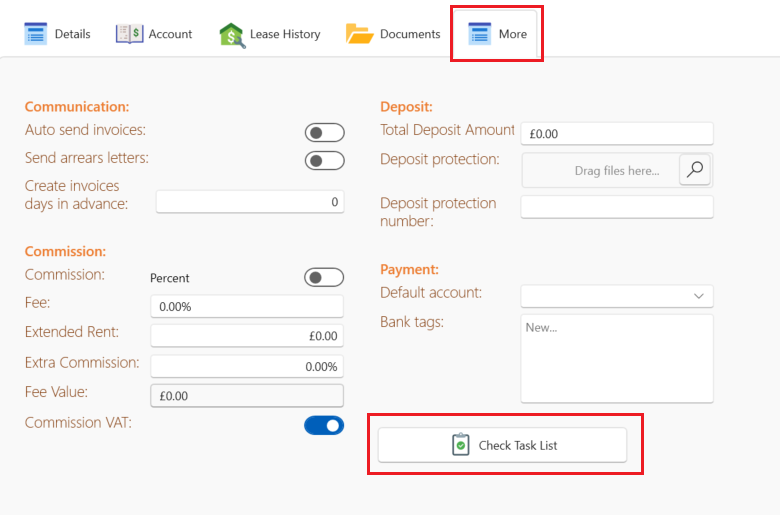
To see more details on the task list click here:
To see how to change which tasks will automatically come up by default on each new lease click here:
Switching on tenancy task lists.
Tags are useful for grouping tenancies by type, location or any other criteria that you choose.
Select the tag drop down to choose from an existing tag list or select add new tag to add another tag option.
For more detail see the following article: Tags for leases
Review and Save
You will now be given a chance to review all the information that you put in, if you need to amend some details you can use the back button to go to the section you require to adjust the information.
Once you are happy with the information select Next to save the new lease.
Once saved you will have the option to Create a new lease, Go to the newly created lease or select done for now to close the window.
For instructions on how to find a saved lease see the following article: