
This is how to import bank transactions manually.
Sometimes you might not be able to connect to your bank, e.g. your bank isn't supported, or you want to import data from a long time ago.
In such cases you can still import your bank transactions to Sleek Tech as following:
The Import Sheet
You can import the excel spreadsheet or CSV file and if you would like for the transactions to be manually imported, you can use a Sleek Tech template which is available under banking.
- Ensure that you have the excel sheet or CSV that you want to import
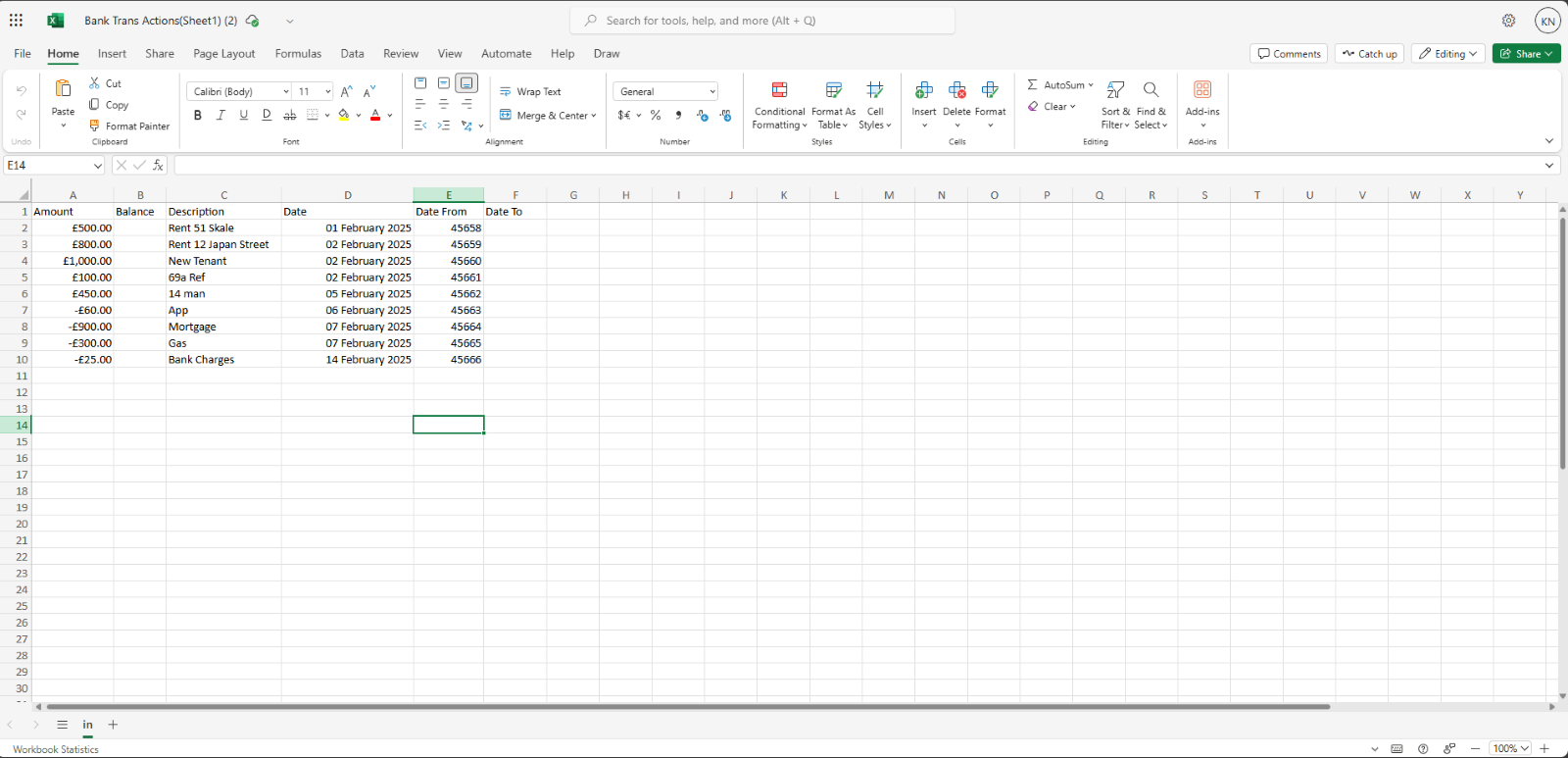
How To Import
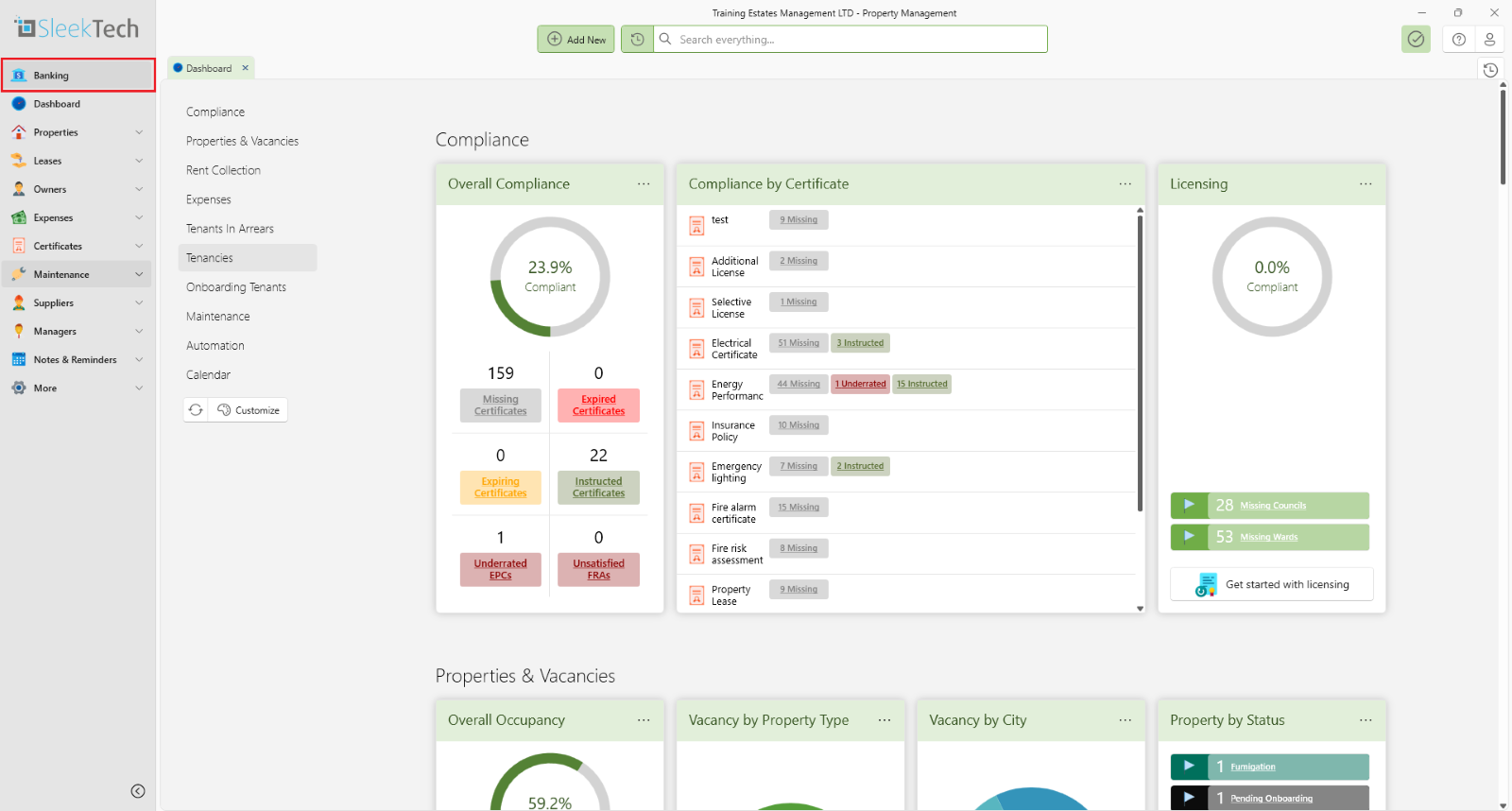
- Click Banking.
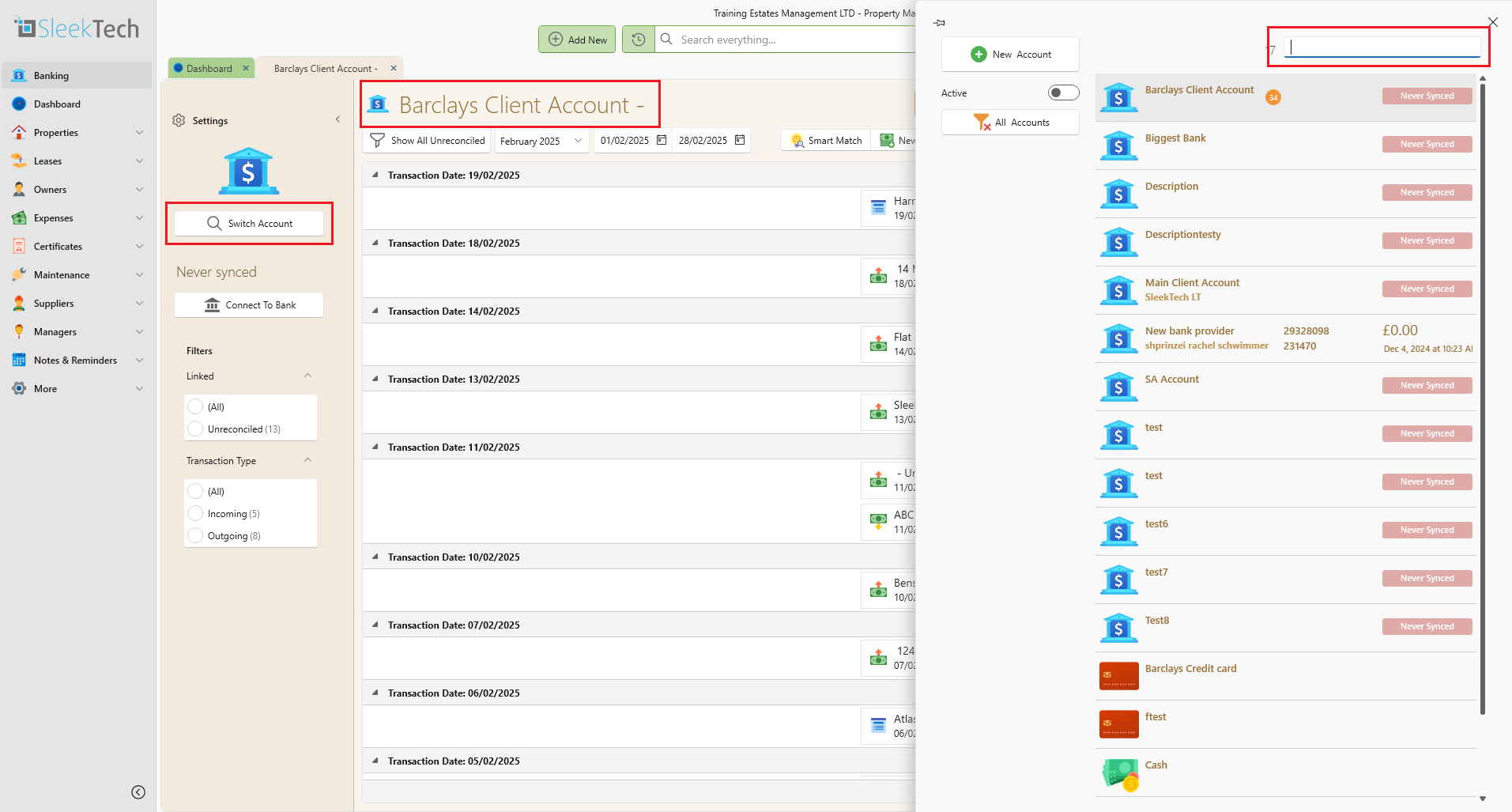
- Select the correct bank account from the dropdown.
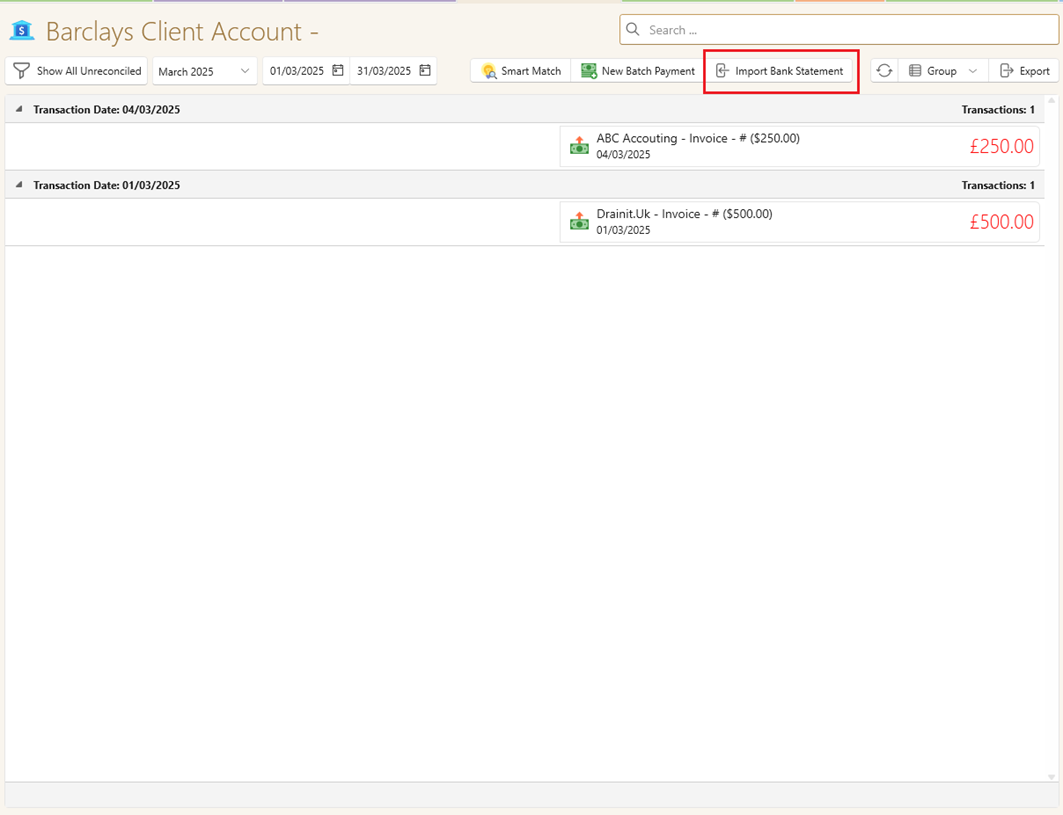
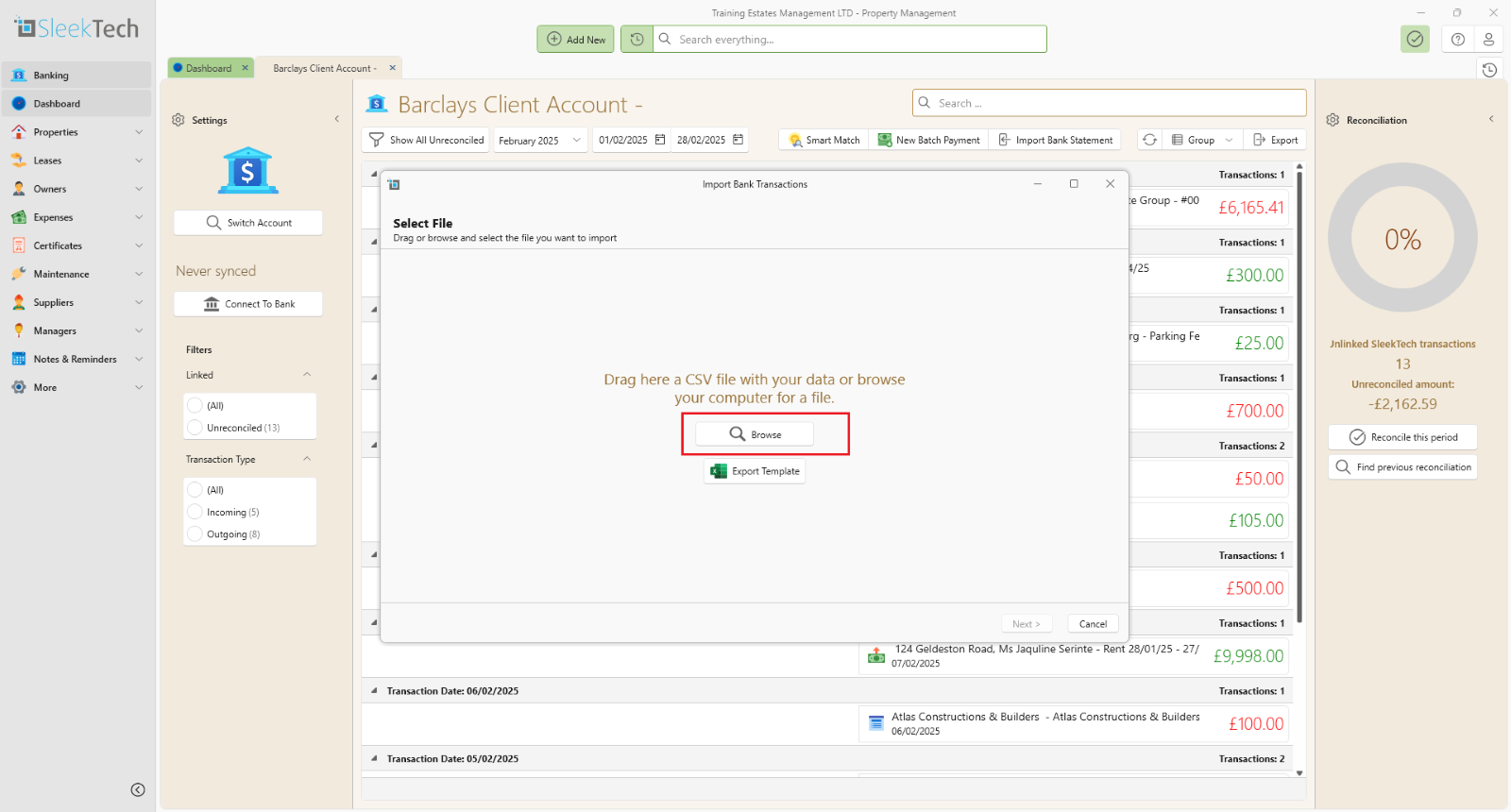
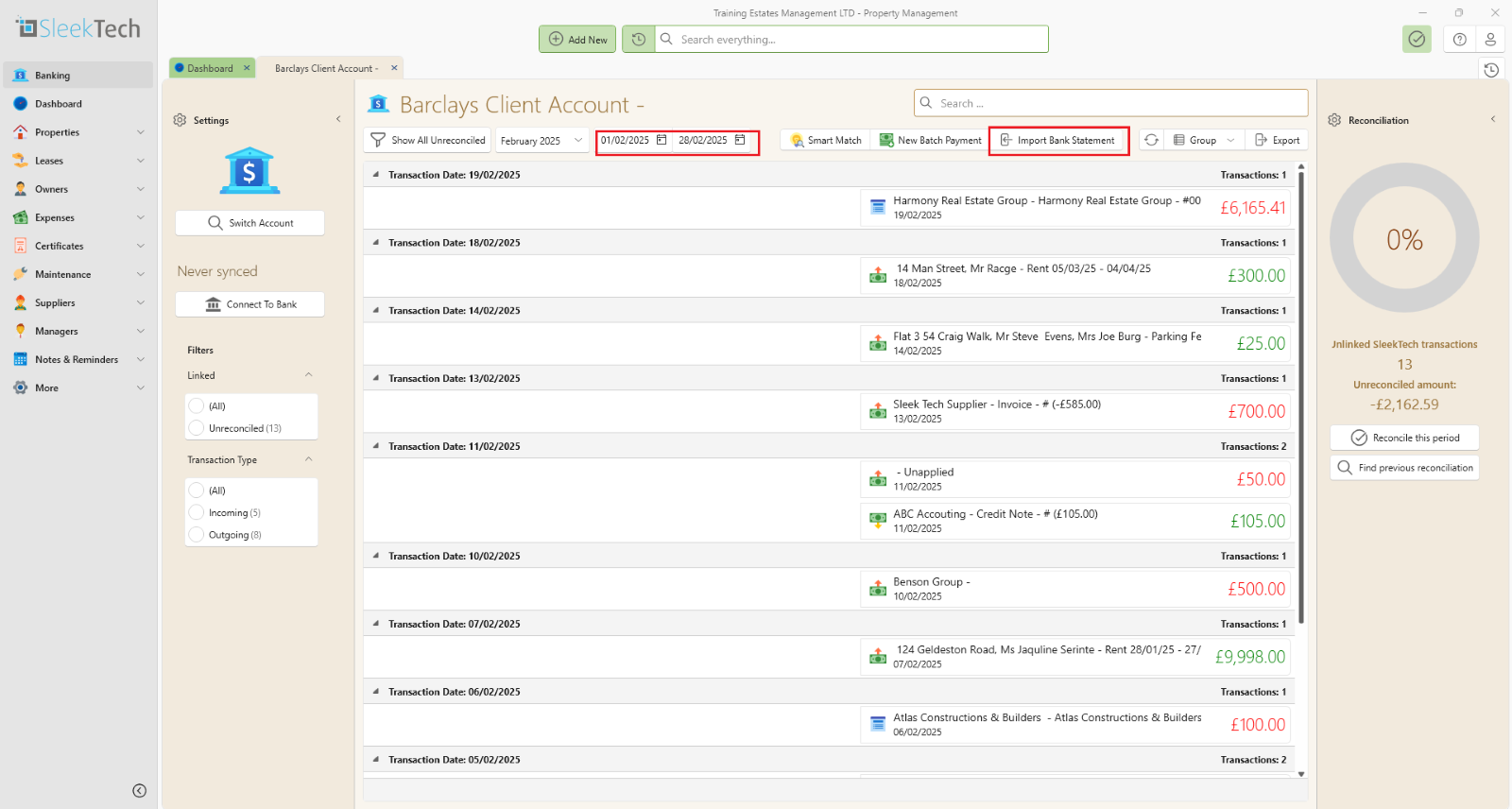
- Click Import bank Statement.
- Find your downloaded sheet or drag it into the window.
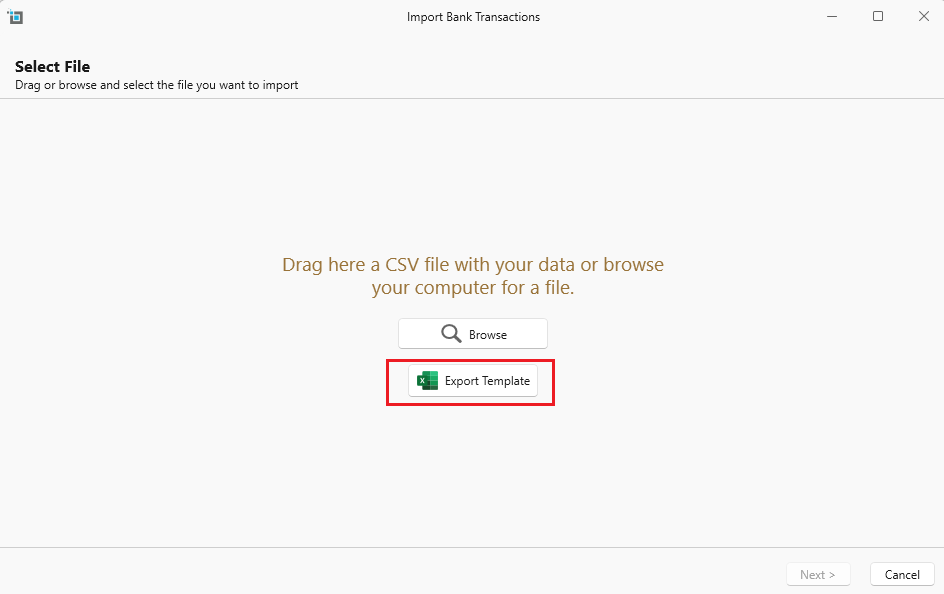
- If you don't have a an excel spreadsheet, you can use a Sleek Tech template click Export Template.
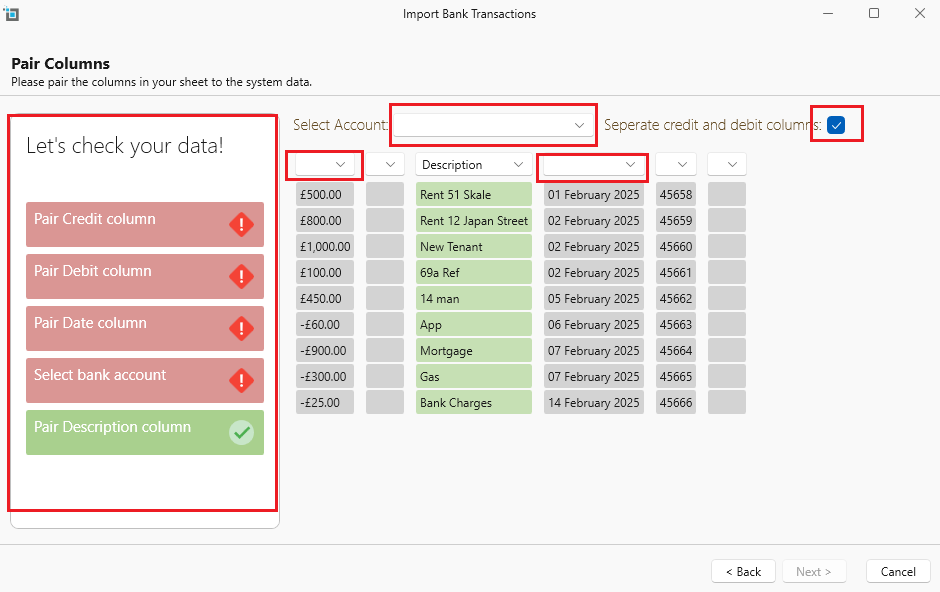
- If your sheet has a separate credit and debit column, leave that checked. If its all in one column, uncheck the checkbox.
- Make sure all necessary columns are correctly matched.
- If your sheet is OK. everything will show in green and you can continue to click Next.
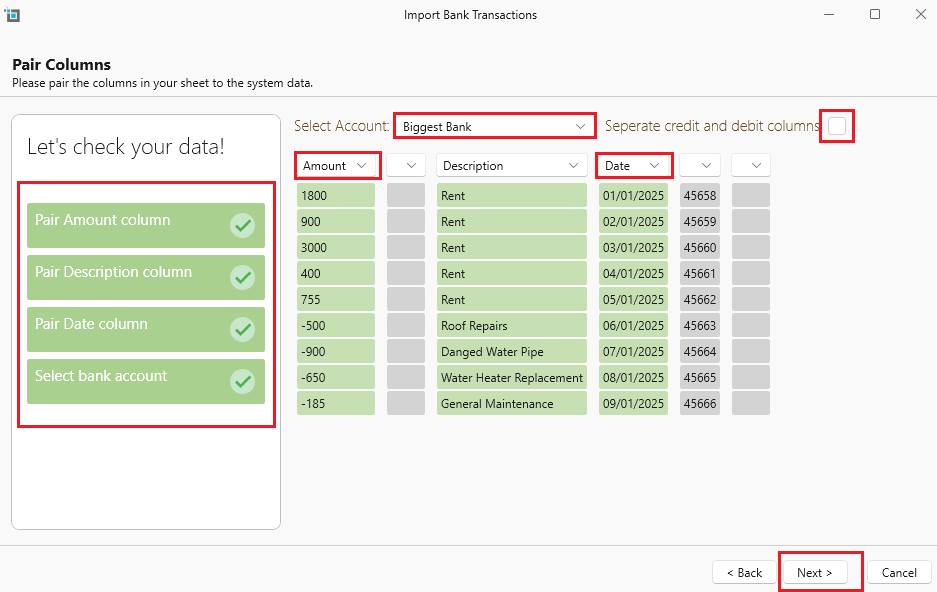
- All transactions will be imported under the selected bank account.
- Click Next.
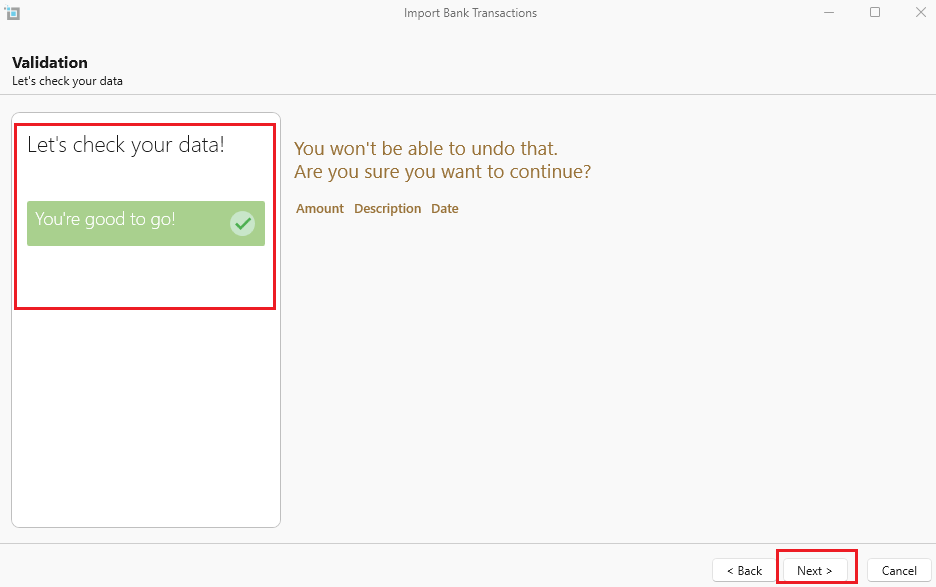
.
- All your transactions should appear above with the Balance, Description and Date.
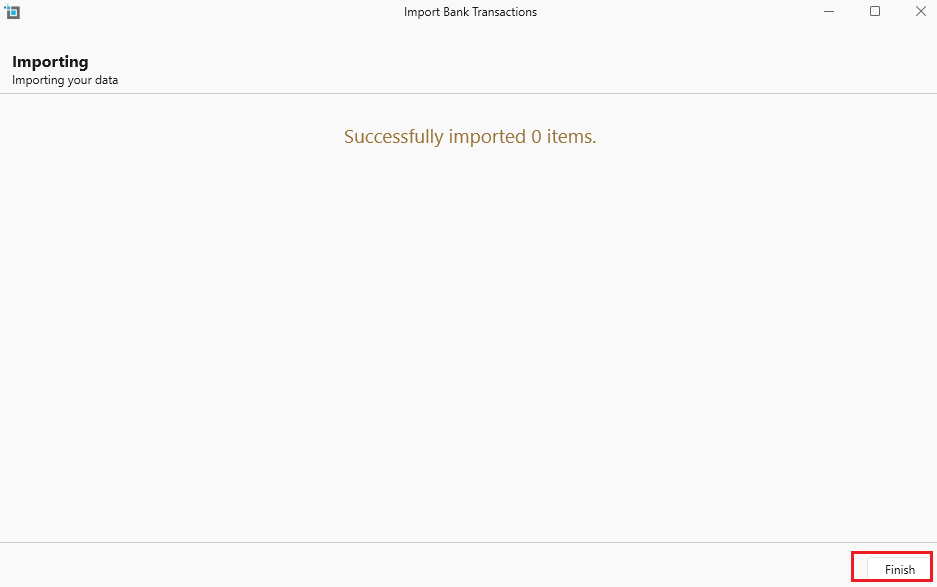
- Click Finish and all your transactions should appear on the left unreconciled.
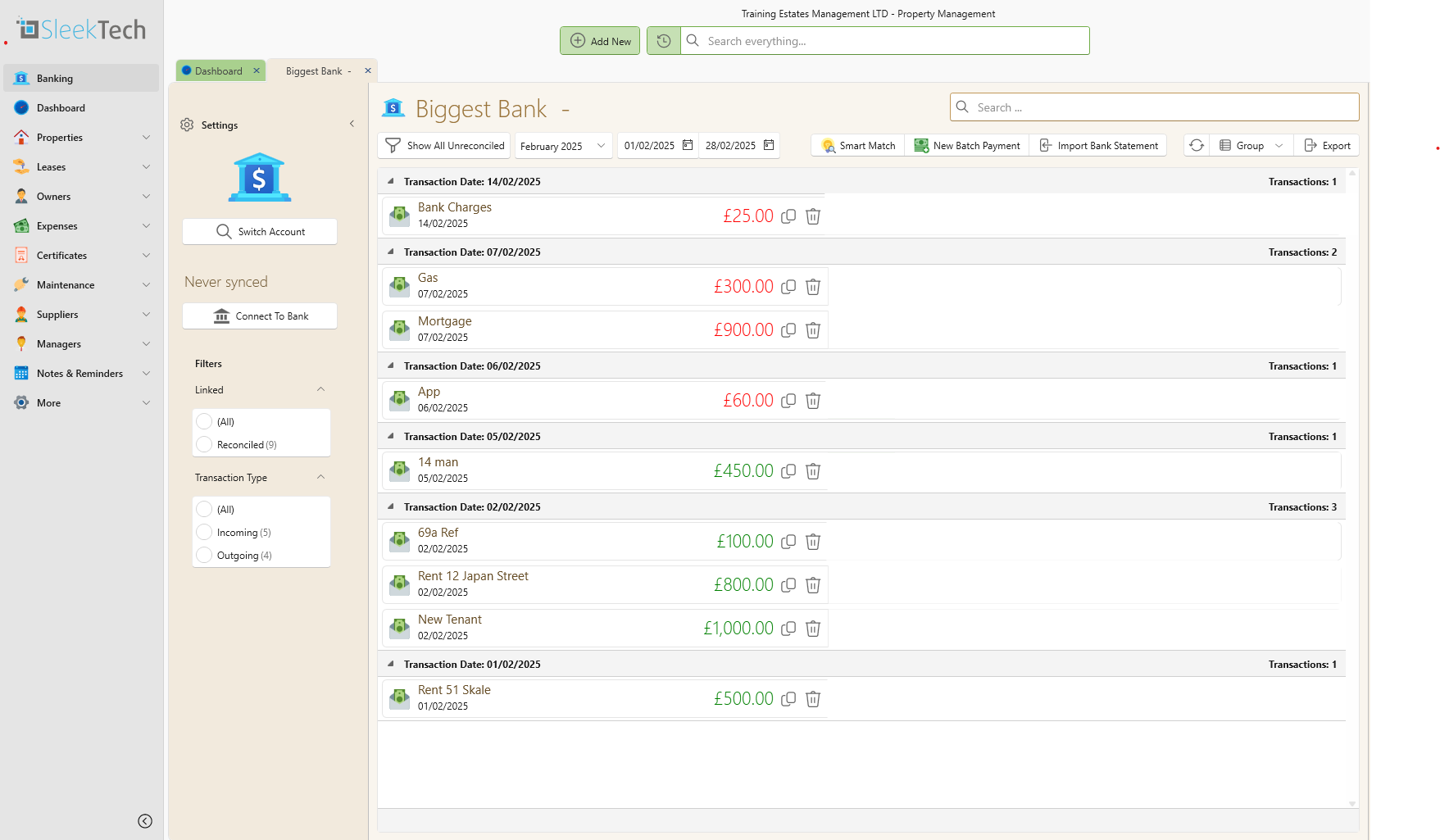
- You can go ahead and reconcile all transactions as usual.
- To find the transactions for a specific period filter the dates.
Want to know more? Click the following links.